
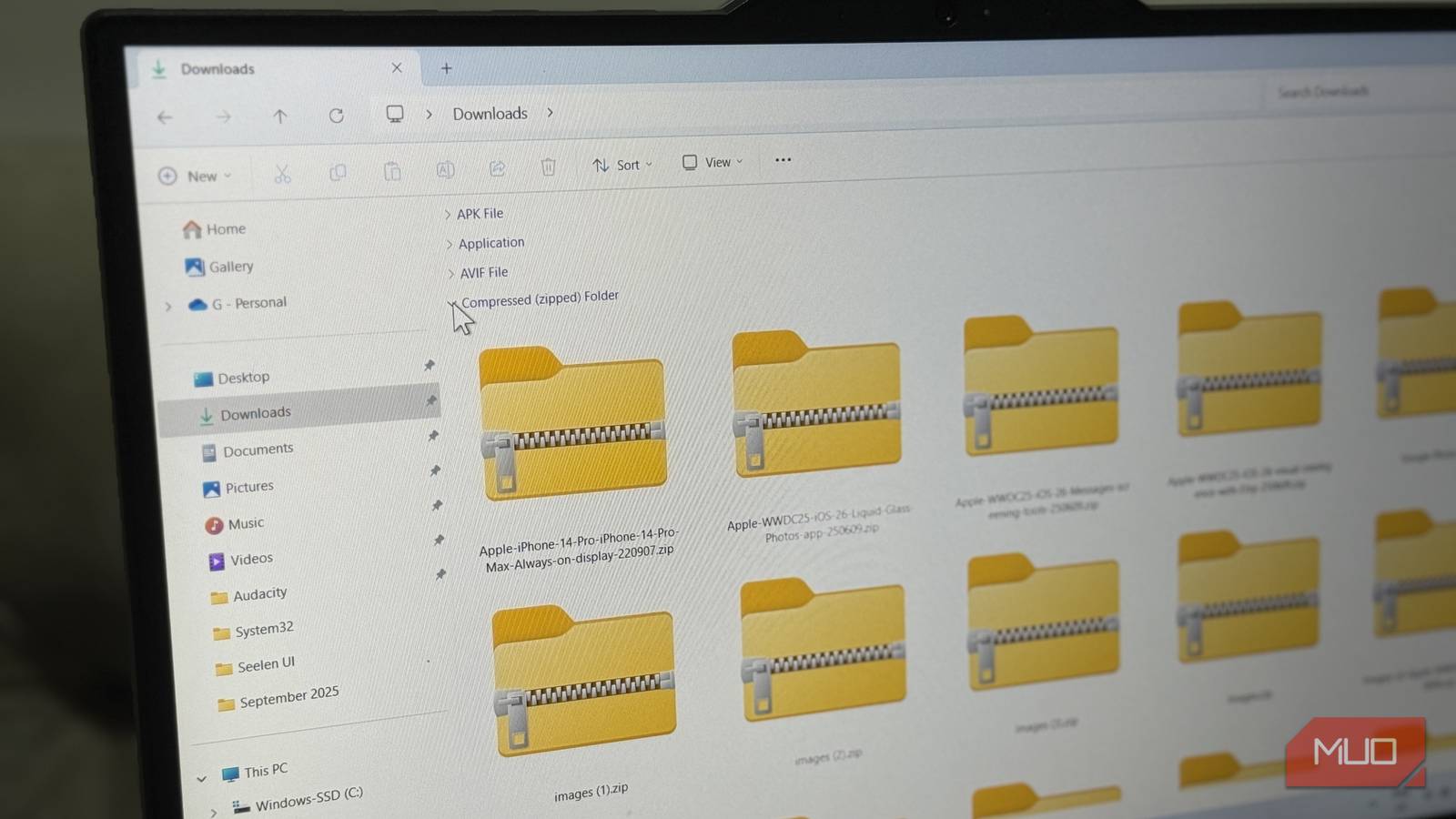
Organizing my Downloads folder has never been something I enjoy. All kinds of files, including PDFs, installers, images, and ZIP archives, pile up quickly, and sorting them manually feels like busywork I’d rather avoid. I used to let things accumulate until the clutter became unbearable, then spend time dragging files into their proper folders.
However, in late 2025, while searching for Windows tools to automate boring tasks, I came across DropIt, an open-source utility that automates file organization. You set up rules once, and it handles the sorting for you. It’s not a flashy tool, but it quietly runs in the background and keeps things tidy without requiring constant attention. If you’ve ever wished your files would sort themselves, this is about as close as it gets.

DropIt replaces manual labor with automation
The “Associations” system handles the heavy lifting for me
DropIt works on a simple principle where you define rules, and it follows them. Each rule, called an association, consists of a filter and an action. The filter identifies files based on criteria like name, extension, size, or date. The action tells DropIt what to do with matching files, whether that’s moving, copying, renaming, compressing, or even deleting them.
Folder monitoring is a practical starting point if you’re automating repetitive tasks in Windows. DropIt can monitor folders. You can set DropIt to watch specific directories, such as your Downloads folder, and it automatically processes new files as they arrive. I have associations set up for common file types. PDFs go to a Documents subfolder, images land in Pictures, compressed archives move to a dedicated folder for later extraction, and installers go to a different folder. It sounds basic, but having it run passively saves me time.
DropIt can also handle more advanced operations. You can chain multiple actions together, such as renaming files using patterns or filtering by file properties, like image dimensions. If a file matches multiple associations, you can set priority levels to control which rule takes precedence.
You can customize the rules to fit any workflow
Filters and profiles adapt to different needs without plugins
The basic setup handles common file types, but DropIt’s flexibility goes much further. You can create associations based on wildcard patterns, regular expressions, or specific file properties, which makes it handy beyond simple file sorting.
For example, if you frequently download client assets with predictable naming conventions, you can set up filters that route files to project-specific folders automatically. If you’re a photographer, you could sort RAW files by date, while a developer might separate code archives from documentation. The same tool adapts to different needs without requiring plugins or extensions.
Creating a new association is straightforward:
- Download DropIt from the official website.
- After installing, right-click the DropIt icon in the system tray and select Associations.
- Click Add to create a new rule.
- Enter your filter criteria. This can be a file extension like *.pdf or a more complex pattern.
- Choose an action from the dropdown menu (Move, Copy, Rename, Compress, etc.).
- Set the destination folder or additional parameters based on your chosen action.
- Click Save and close the window.
DropIt also supports multiple profiles, so you can switch between rule sets depending on what you’re working on. I keep only one profile for general downloads, but if you want to use multiple profiles, switching between them is a single click from the tray menu.
DropIt offers 21 actions for handling files
Most people won’t need all of them — but the options are there
Beyond basic operations like moving and copying, DropIt includes actions you might not expect from a file organizer. You can compress files into archives, extract existing ones, rename using custom patterns, or delete files that match specific criteria. There’s also support for printing documents, uploading via FTP, and sending files by email.
Some actions cater to niche workflows. Create Gallery generates an HTML image gallery from a folder of pictures. Create Playlist builds M3U files from audio collections. You can encrypt and decrypt files, split large files into smaller chunks, or join them back together.
I only use a handful of these regularly, such as Move, Copy, and Compress, which cover most of my needs. But knowing the other options exist means I can extend my setup later without switching to a different tool.
Being open-source makes it a trustworthy choice
I prefer transparency and privacy over shiny paid alternatives
I’ve tried multiple file organization utilities, and they often come bundled with unwanted extras, including bloatware, ads, or telemetry that tracks your usage. DropIt avoids all of that. It’s open-source, and anyone can inspect the code and verify exactly what it does. There’s no hidden data collection, a premium tier to unlock, or subscription fees.
This matters more than it might seem. A tool that monitors your folders has access to your file activity, so knowing it isn’t phoning home is reassuring. DropIt is hosted on SourceForge, and its codebase has been available for years. That kind of transparency is hard to find in proprietary alternatives.
File organization shouldn’t require your attention
After the initial setup, I rarely think about file organization anymore. Downloads land where they should, and I don’t have to intervene. That’s the whole point — a tool that handles tedious tasks so you can focus on actual work.
If you want to take things further, DropIt supports command-line operations and can integrate with scripts for more advanced automation. Still, if DropIt’s approach feels manual, there are other File Explorer add-ons that complement it well. However, for most people, a handful of well-configured associations is all that’s needed. Set it up once, and let it run.
