
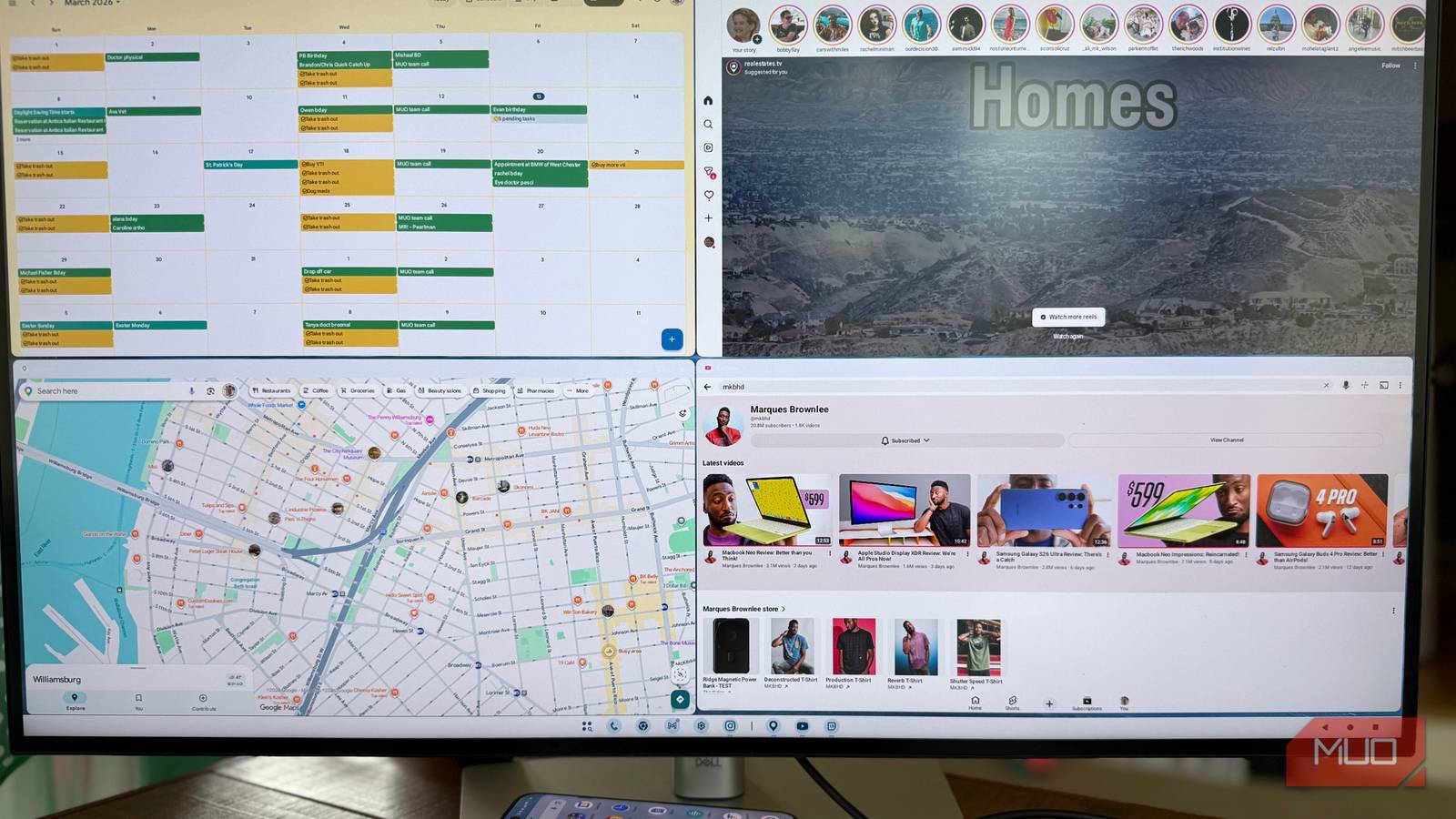
Desktop mode, whether on Samsung DeX (which works especially well as a widget dashboard) or most Android phones running Android 16, is a great way to get more work done by utilizing a larger screen, along with (ideally) a wireless mouse and keyboard (we especially like mechanical keyboards here at MUO, but please keep them clean). The latest update to the Pixels, which is the Android 16 QPR3 update from March 2026, brought some key improvements to desktop mode on the Pixels, including proper resizable floating windows, full external mouse and keyboard support, a persistent taskbar with memory of your pinned apps, and more. While desktop mode works great out of the box, there are a few tweaks you should make first to get the most out of this feature.
Change these settings first
Decrease scaling, force resizable windows, and more
The first thing you want to do is to head to Developer Options (go to Settings -> About -> Tap build number 7 times to enable) and turn on Force Activities to be resizeable under Windows Management. This is key to enabling all apps to freely be resized and ignore the developer manifest on apps that might specify certain display behaviors that limit you in the extent to which you can resize windows (looking at you, Instagram).
Change display scaling
Especially if connected to a large monitor

Next, you’ll want to decrease display scaling, especially if you’re like me and connecting your Pixel to a large monitor (I’m using a 32″ screen). Bringing down display scaling (to as low as you can visibly tolerate) will let you fit more windows on the screen at once but at the expense of text size. To do this, you must be in desktop mode (this setting won’t show up if you do it from your phone), and go to Settings –> Connected Devices –> External Monitor -> Display size and adjust the slider to the left.

I never set up a new phone without changing this setting
One tweak can seriously improve how your Android feels
Master the dock
Put your six most used apps here

You can have up to six apps pinned to the taskbar. These pins will survive a reboot, which is nice, so that every time you turn on Desktop mode, the same six apps will be pinned. To pin any app, tap and hold on any icon (or, if you’re using a mouse, right-click on an app icon) and tap “pin to taskbar.” If you don’t see that option, you’ve already exceeded six apps and can’t pin anymore.
Use snapping and keyboard shortcuts
Use desktop mode like a pro

Like a true desktop operating system, there are certain gestures and keyboard shortcuts you can employ to help with window management. For example, in desktop mode on Pixel, you can make an app go into split screen on one side or another by simply dragging a window right or left, where it will “snap” to a particular side. If you do this with a second app, both apps will enter split-screen where you’ll have an adjustable divider line down the middle.
One downside to the snapping feature in desktop mode is that, unlike the snapping you get on Windows and Mac, you cannot snap a window to a quarter of the screen in order to get four windows on the screen at once. However, you are able to manually arrange windows into quarters to get four apps on the screen at the same time; it just takes a bit to get the sizing just right. And with 16GB of RAM on my Pixel 10 Pro, the phone easily handles desktop mode even with four active windows on the screen at once.
If you’re using an external keyboard, there are a handful of keyboard shortcuts you can take advantage of to help manage your windows. Here are my favorites, most of which require you to first press either the Windows or Command key, depending on which type of keyboard you’re using.
- Windows/Command + [ — snap left
- Windows/Command + ] — snap right
- Windows/Command + Up — maximize window
- Windows/Command + Down — restore window
- Alt+tab — task switcher
And with 16GB of RAM on my Pixel 10 Pro, the phone easily handles desktop mode even with four active windows on the screen at once.
Desktop mode on Pixel can be very powerful
If you know the right settings to tweak

We’ve been waiting years for our phones to do double duty as both phone and pocket-computer where you’re able to utilize the incredible power of today’s phones to do more than just scroll social media. With Pixel’s desktop mode, and the addition of an external mouse and keyboard, plus the tweaking of a few key settings around display scaling and window resizing, you really are able to have a desktop-like experience from your phone when connected to the right peripherals. What’s more, all it takes is one USB-C cable (with any monitor that supports DisplayPort Alternate Mode) and you get simultaneous data and charging — you don’t even need a dock or holder for your phone, you can just plug it in and use your phone’s desktop mode.
