
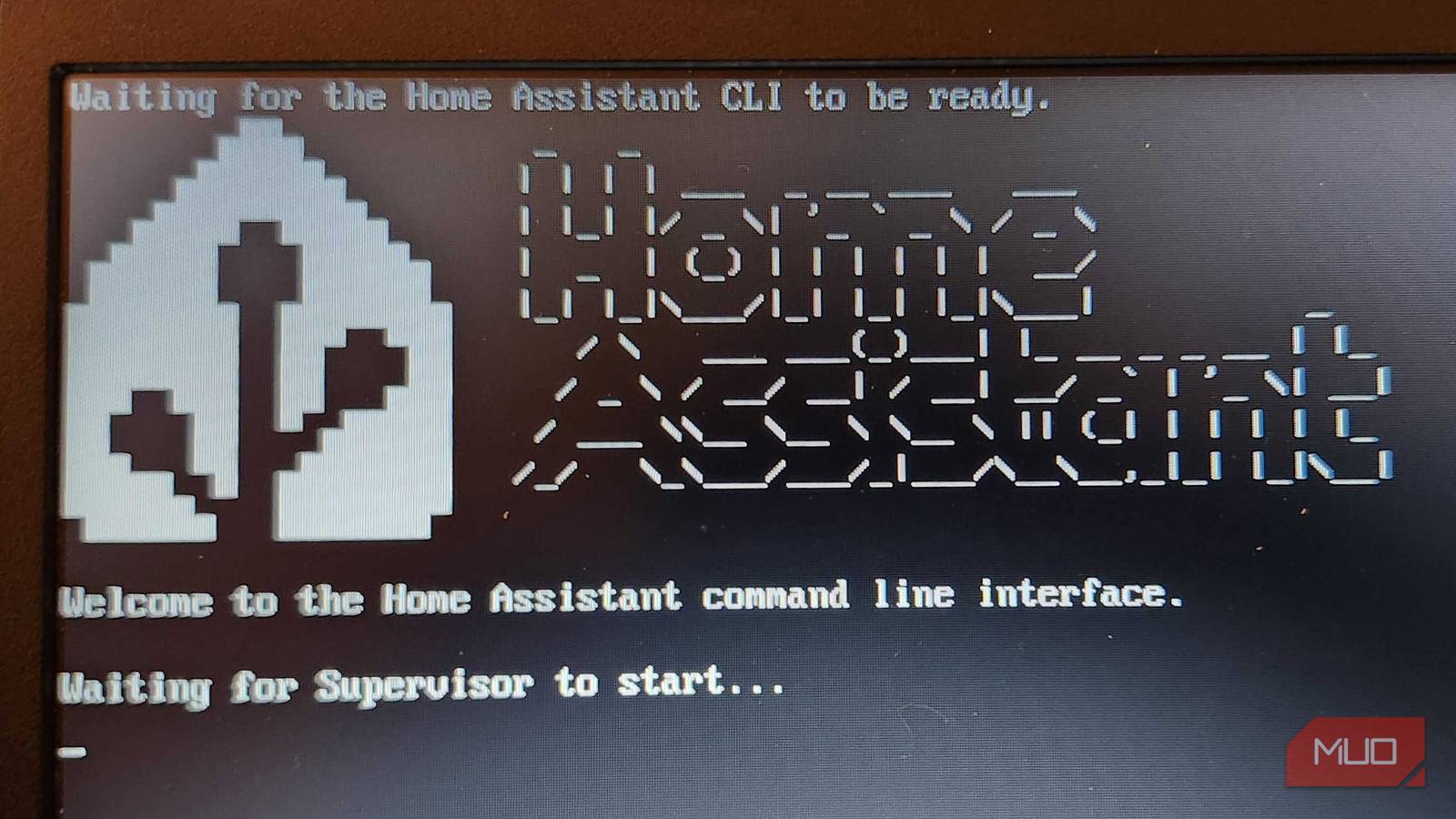
Since I started working here at MUO, I’ve spent a lot of time trying to find ways to modernize and update my smart home. One of the biggest projects I’ve undertaken initially started out sounding like the simplest — finding a way to turn my washer and dryer into smart appliances. After starting this project, I learned that I would need either a Zigbee Hub or a way to control the notifications and sensors to work how I needed them to.
That’s when I started researching and discovered something incredible. I could turn my old Chromebook into a smart home hub and run Home Assistant OS on it to make it into the ultimate server. I just needed to delete ChromeOS, install Ubuntu, and hope that I didn’t brick it in the process.
Changing the operating system on your device can void your warranty or brick your device. Proceed with caution, research, prepare, and set aside plenty of time if you plan to try a project similar to this. MUO is not responsible for any damage caused by attempting a project such as this.
First was the prep work and the research
Taking my smart home to the next level wasn’t going to be easy
If you’re planning to try something similar, I have a few resources I’d recommend. The first would be MrChromebox.tech, a site that helped me flash custom UEFI software directly onto my Chromebook. There’s plenty to do and see here, and I would strongly suggest checking it out in-depth before diving into a similar project. A post by PsalmEqupt on the Home Assistant site also helped detail some of the more intricate steps to installing Linux on my device. Finally, a YouTube video put out by Tonio helped guide me as a visual aid through this process, working hand in hand with the aforementioned articles to bring this to life.
Working with the ASUS C423N, I saw on MrChromebox.tech that I needed to disable Write Protection by removing the battery cable, or by using a SuzyQ cable. So, I began the teardown process to get this conversion started. Some Chromebooks require removing a specific screw, using a jumper, a specific cable, or just unplugging the battery. You can see every method of removing Write Protection, and also see if your specific Chromebook/Chromebox is capable of being altered in this way. Once I verified that I was moving along the right path, it was time to prepare for Linux to enter my life.
Installing a new OS on a Chromebook is kind of scary
It’s surprisingly not as bad as I imagined it would be, however
Now was the time to install the new OS on the Chromebook. Using Rufus, I created an Ubuntu installation image on a flash drive and was ready to proceed. I powerwashed everything off the Chromebook, logged in as a guest, and opened the Developer console. I had to input commands as instructed by MrChromebox to help install Linux. I was greeted with a screen that informed me that my Write Protection was off, and that I could begin the process of flashing my UEFI. This is when things started to get more real, and I couldn’t back down after this particular step if I took the plunge. I was warned to back up my OS, got asked multiple times if I was sure that I wanted to do this, and by typing Y, it would be time to go. I didn’t look back, and I took the plunge.
To be fair, I should have been smart and backed up my ChromeOS installation, but I bypassed that step. I strongly suggest backing it up, just in case something goes wrong during this step. Thankfully, I was lucky, and it worked swimmingly on the first try. I was ready to boot from the USB drive, and I just had to wait and see if I had done everything right up to this point. This was the make-or-break moment of my journey, and I’m happy to say, I made it.

- OS
-
Windows
- Developer
-
Pete Batard
- Price model
-
Free
Ubuntu is completely foreign to me, but it works great
I’m no expert on Linux, but I really like Ubuntu so far
My exposure to Linux/Ubuntu before this was incredibly minimal. Outside of using SteamOS on my ROG Ally X and installing Linux Mint on an HP Netbook that I had during high school, I’m an absolute amateur when it comes to using it. However, after messing around with Ubuntu, I can see why people have such fond feelings toward this OS. It’s very user-friendly, is speedier than ChromeOS was on the Chromebook, and gave me exactly what I was looking for. My initial plan was to repurpose my Chromebook as a dedicated Home Assistant server, installing HomeAssistantOS and removing Ubuntu completely. But after digging around, I discovered that I could run a virtual machine on here and get Home Assistant running flawlessly while keeping Ubuntu.
Since I’m a beginner, I have used Oracle VirtualBox and got to work. There are likely better options out there, but since I’m extremely new to Linux and don’t understand GNOME, I wanted something that would work quickly, efficiently, and easily. To be fair, I felt like I was entering the Matrix when I was using sudo commands to get it already, so I can only imagine that as I learn more about Ubuntu and get more comfortable with how it works, I’ll be more likely to try some different programs in the future.
I could have just bought a hub, instead
But where’s the fun in that, though?

I could have done things much more easily by just purchasing a Zigbee-capable Hub that would have worked with Home Assistant and the vibration sensors I recently installed. But instead, I spent a solid chunk of my weekend ripping apart an old computer, tweaking it, and making it run a completely different OS. But at the end of the day, I’m honestly glad I took this route, because it was a challenging, interesting, and incredibly fun little project.
Hubs are rather pricey, and by pairing a piece of tech that I already had with an adapter, I’ve breathed life into something that wasn’t being used, and also learned that Linux is as nice as people say it is. This may work as a precursor to me finally ditching Windows on my desktop, but I very much need to dedicate more time to learning Linux before taking that major step. First impressions are nice, however, and I already see what makes Ubuntu special.

These 5 lightweight operating systems can make any slow PC fast
Don’t let aging hardware force you into buying expensive upgrades.
It was incredibly time-consuming, but very fun overall
I learned a lot during this project, and I’m eager to learn more
Much like learning Linux, Home Assistant requires some dedication to learn, but the results are great for those who want to make their smart home feel even smarter. There’s a steep learning curve, booleans to make automatons seamless with day-to-day activities, and so much depth and customization for those eager to learn. It’s very overwhelming at first, but there are plenty of YouTube and text tutorials to turn you into a Home Assistant expert in no time.
I’m also glad that I decided to install HomeAssistantOS as a virtual machine, rather than replace Ubuntu with it. This way, I get the best of both worlds — a new operating system to play with and all the benefits of a Home Assistant server. It’s like the gift that keeps on giving at this point, and I’m eager to keep diving deeper into what makes these systems work.
