
Benchmark scores are one way to measure the performance of your PC, but they don’t tell the full story. Windows also has a rather annoying habit of burying important information under layers of menus or obscure tools that the average user rarely encounters.
Just like there’s a hidden score that shows how well your PC runs Windows, I also found out that Windows keeps a reliability score for my PC. It’s called the System Stability Index, and it’s sitting right there on your Windows 11 machine, waiting to tell you everything that’s been going wrong (or right) with your PC.
Windows quietly grades your PC’s health
Meet the System Stability Index you’ve probably never opened

Think of the System Stability Index as a health report for your PC. It’s a simple number that ranges from 1 to 10, where 10 means your computer is in the best shape possible and 1 means you’ve got serious problems. This score is calculated by Windows based on all the crashes, errors, failed updates, and general meltdowns your system has experienced over a period of time.
It doesn’t just count every little hiccup equally, though. Windows is smart about weighing recent failures more heavily than ancient history. So if your PC crashed last week, that affects your score more than a crash from two months ago. This means your score can actually recover if you fix the underlying issues.
How Windows decides if your PC is behaving
Crashes, failed updates, and errors all count against you
Microsoft doesn’t publish the exact formula for calculating the System Stability Index on your PC, but certain issues contribute more heavily to the score. Application crashes are a big one. If your programs are constantly dying on you, your score drops. Windows errors matter too—think Blue Screen of Death (BSOD) moments or system freezes. Then there are driver failures and hardware problems to account for as well.
Another major factor is Windows and driver updates. At times, new updates cause instability, and the system notes this. Finally, things like failed installations, unexpected shutdowns, and general system unresponsiveness all chip away at your score.
The whole calculation is based on data collected over a rolling historical period. The longer your PC is stable, the better your score. But mess things up, and you’ll see it drop immediately. It’s actually a pretty fair system.
It’s built into Windows—no third-party apps required
You don’t need to install any external tools to check your reliability score. The tool is built into Windows and is called the Reliability Monitor. It’s been a part of Windows since Vista, and you can access it in several ways on a Windows 10 or 11 machine. The Reliability Monitor and Performance Monitor are two of the most underutilized tools in Windows still.

The simplest way is to use Windows search. Open the Start menu, type reliability, and click the View reliability history option. Windows will open the Reliability Monitor, and after a second or two, you’ll see a graph showing your stability history over the last month or so.
The tool is a part of the Windows Control Panel, and you’ll find it under the Security and Maintenance section under System and Security settings. Alternatively, you can open the Run prompt using Windows Key + R, type perfmon /rel, and hit Enter.
Reading the reliability graph without guesswork
What those dips, spikes, and red Xs actually mean
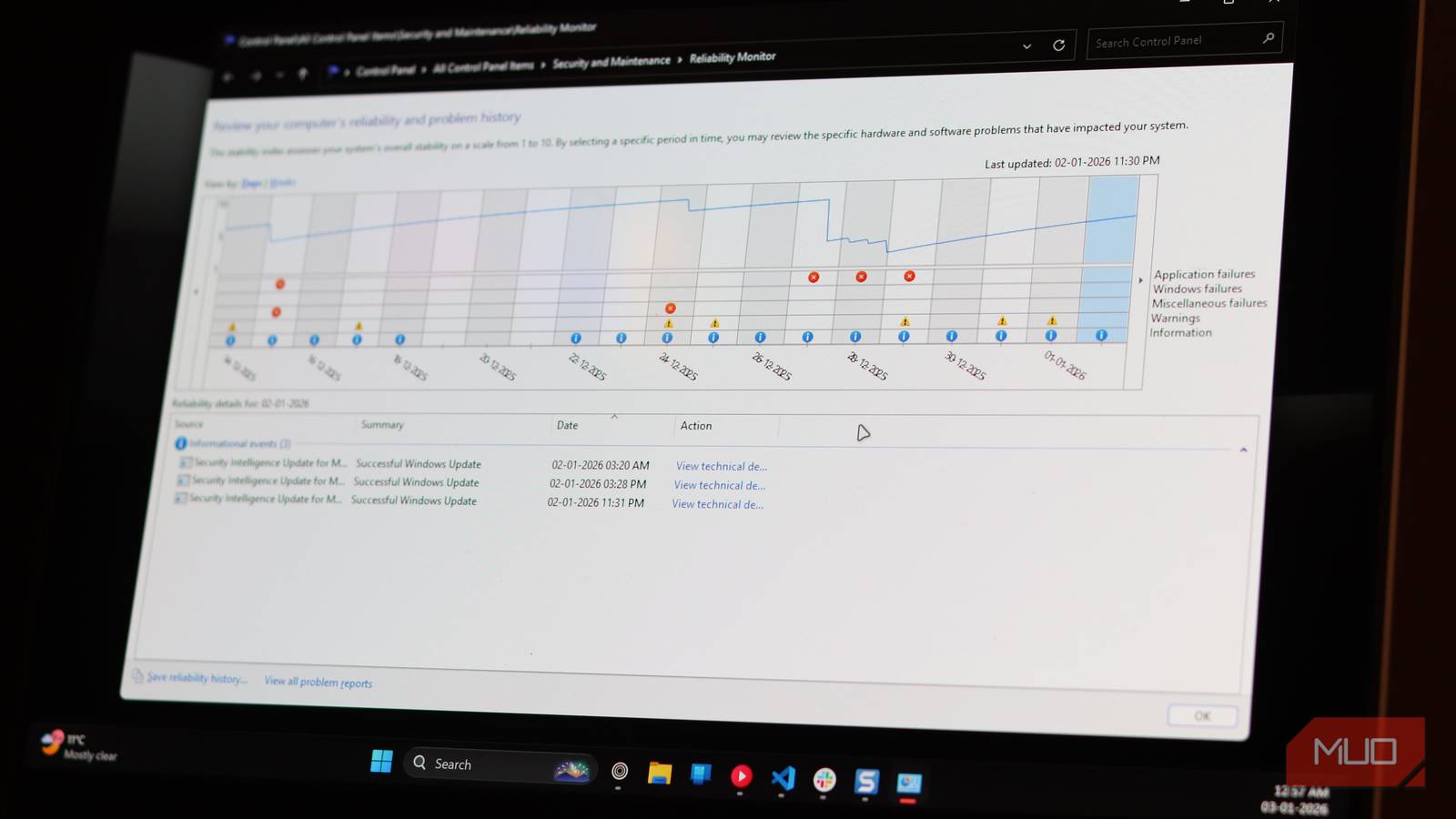
When the Reliability Monitor opens, you’ll see a chart with a line graph running across it. That line is your System Stability Index over time. A flat line hovering near 10 means your PC is a reliable workhorse. Dips in the line indicate any days when errors occurred.
Below the graph, you’ll see five rows of icons representing different types of reliability events. Look for red X icons showing critical errors, yellow warning triangles, and blue information indicators. You can click any date to see what specifically happened on that day. Double-click an entry to dig deeper into the technical details.
This is where this information gets genuinely useful. If your score took a nosedive on a specific day, you can click that date and see exactly what went wrong. Whether it was a Microsoft Teams crash, a failed Windows update, a graphics driver issue, or anything else, the tool shows you everything, right down to the program that failed and, at times, even the reason why.
There is a small catch, though. The Reliability Monitor only keeps about a year’s worth of history, so you’re looking at a historical snapshot, not your PC’s entire lifespan. Also, it won’t show you everything. For deeper diagnostics, IT professionals prefer the Windows Event Viewer. But for most users, the Reliability Monitor has plenty of information.
Why this score matters more than you think
Spot problems early before they turn into real failures
Your reliability score is a window into your PC’s current health. If you’re wondering why your PC is feeling sluggish or unstable, the Reliability Monitor can pinpoint the culprit. Maybe it’s an incorrectly installed app you don’t even realize is causing problems, maybe an outdated driver, or the usual Windows update bug.

My Windows 11 Hasn’t Slowed Down Once Because I Follow These 7 Proven Steps
A little care goes a long way in keeping your PC smooth.
Once you know what’s causing instability, you can start fixing it. Uninstall the problematic software, update your drivers, roll back a bad Windows update, or reinstall software that keeps crashing. Your score will improve as things get better.
The next time your computer is acting up, check your reliability history. You might be surprised at what you find—and you might finally understand why your PC has been acting up. Give it a try, your inner tech enthusiast will thank you for it.
