
Google Photos has a lot of excellent features, including Cinematic Photos, animations and AI enhancements, a decent image editor and collage maker. But some features can be really annoying.
For instance, I don’t want to see all my screenshots and GIFs in the library after they are backed up, hide specific photos from Memories that I would rather not see anymore, or the annoying Google printing service promotions in my feed. Fortunately, it was rather easy to turn off a lot of these annoyances once I knew where to look.
Hide the clutter
Screenshots, GIFs, and memes

The Memories carousel at the top of Google Photos is meant to surface your best moments from years past. Mine often surfaces a meme I saved three years ago or a screenshot of a shipping confirmation. Not exactly the nostalgic trip Google intended.
The problem is that Google Photos backs up everything from your gallery, including screenshots, downloaded images, and those GIFs you shared once and forgot about. They all end up mixed with your actual photos. Fortunately, if you have a Pixel device, Google has a Hide clutter filter that would automatically separate these utility images from your personal photos, keeping them accessible but out of sight.
To hide clutter on your Pixel phone, go to your Profile Preferences > Photos view and turn off Show content from other apps. If you would rather choose to hide clutter from specific apps, then tap Customize by app, choose the app and how it appears on the same screen.
Turn off auto-play
Stop videos and motion photos from playing in the grid

When you scroll through your photo grid, Google Photos automatically plays videos and motion photos. The idea is to give you a quick preview without opening each file. In practice, I find it distracting—my eyes keep getting pulled toward the movement when I’m trying to find a specific photo.
The auto-play also uses mobile data if your videos are stored in the cloud, which adds up if you have a large library. To turn it off, go to Photos settings > Preferences > Photo grid playback. Here, you can disable videos and motion photos separately, so if you only find one type annoying, you can keep the other. I turned off both. After making this change, scrolling through my library feels calmer, and I can focus on finding what I’m looking for.
Block people from Memories
Hide faces and dates you’d rather forget
Memories in Google Photos don’t always know which memories are welcome. After a breakup or losing someone close, the last thing you want is Google surfacing photos of them at random. The same goes for specific dates—maybe an anniversary you’d rather not be reminded of, or photos from a difficult period in your life.
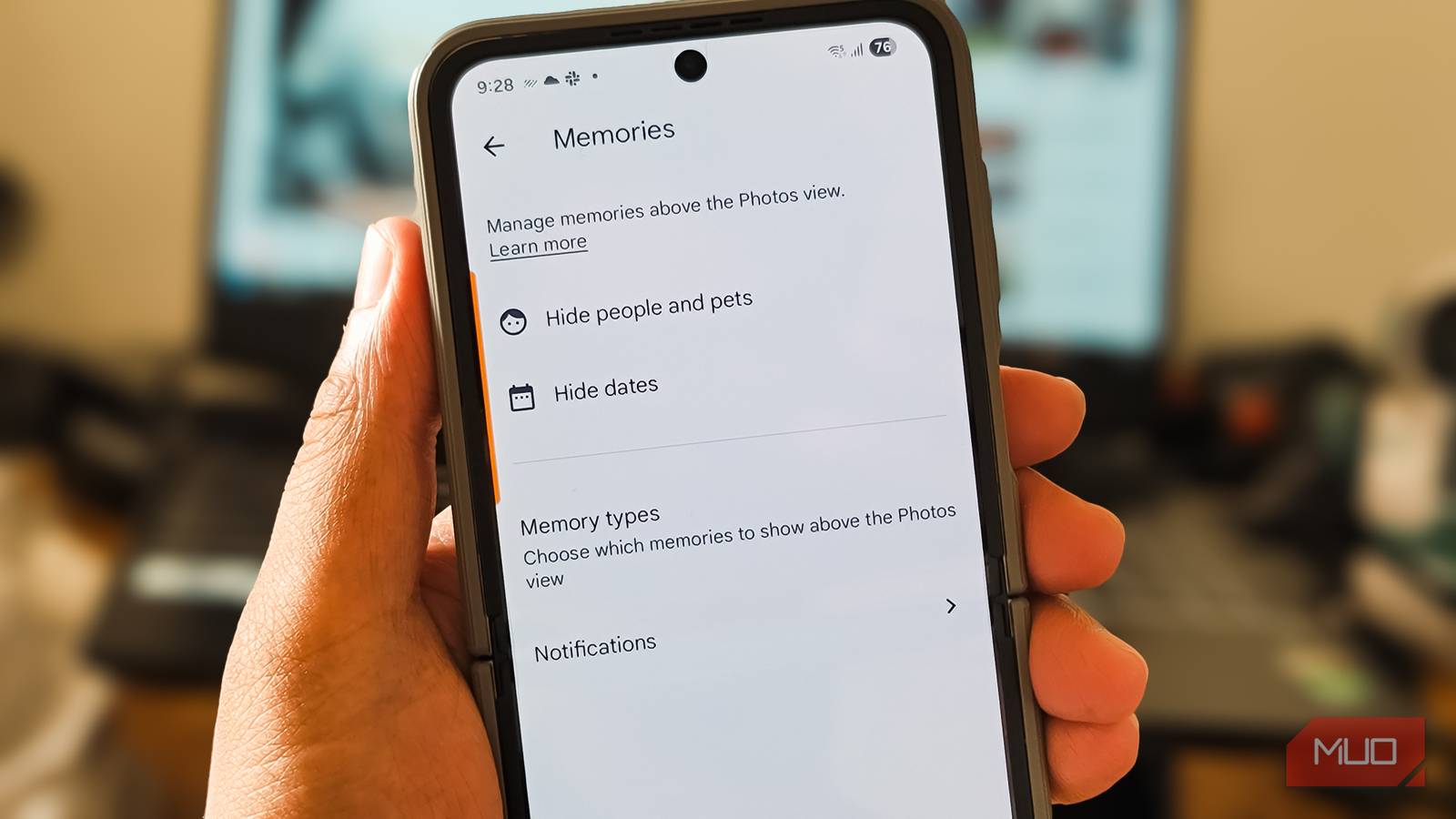
Google Photos lets you hide specific people and dates from Memories entirely. Go to Photos settings > Preferences > Memories > Hide people & pets. You’ll see a grid of faces that Google has recognized in your photos. Tap any face to hide it from future Memories. The person won’t disappear from your library, but just stop showing up in the automated carousel. For dates, go back to the Memories menu and tap Hide dates. You can add specific days or even date ranges. If there’s a week or month you’d rather not revisit, you can block the entire period. I’ve used this to hide a few dates, and it’s made browsing Memories feel less like an emotional minefield.
Disable printing service notifications

Google Photos has a built-in printing service for photo books, individual prints, and other products. This underrated Google Photos feature is perfect for preserving your memories if you actually want physical copies. But if you don’t, the constant promotional notifications can get annoying.
These notifications show up as discount offers and limited-time deals, even if you’ve never shown interest in ordering prints. To stop them, go to Photos settings > Notifications. Under the printing section, toggle off Printing promotions, Printing drafts, and Prints for you. This kills all three types of printing-related alerts. If you’ve disabled Google Photos notifications at the system level, you might not see this section at all, so you’re already covered.
Share without Quick Edit
Remove an unnecessary step before sharing

Google recently added Quick Edit, a lightweight editing screen that appears every time you tap Share on a photo. It lets you crop or apply an Enhanced filter before sending the image. Sounds helpful until you actually use it.
I tried the Enhanced option on several photos, concert shots, food pictures, and a few cat photos, and it made all of them worse. The filter over-boosts brightness and vibrancy, producing results that look more processed than improved. The regular Enhance button in the full editor is already aggressive; this one cranks it up further. And since editing in Google Photos was already simple by opening the photo, tap Edit. Quick Edit saves you exactly one tap while offering far fewer controls.
However, the real annoyance is that Quick Edit pops up on every single share action, even when you don’t want to edit anything. It adds an unnecessary step to something that should be quick. To disable it, open any photo, tap Share, then tap the gear icon in the upper-right corner and select Turn off. If you change your mind later, you can re-enable it in Photos settings > Sharing > Quick Edit before sharing.
A cleaner Google Photos experience
Not every Google Photos feature works the way you’d expect, and some feel more like interruptions than enhancements. The settings above have made my daily experience noticeably better—less visual clutter, fewer unwanted notifications, and a Memories section that actually surfaces photos I want to see. If you’re frustrated with Google Photos but not ready to host your own alternative with Immich, these tweaks are worth a few minutes of your time. The app becomes a lot more pleasant once you turn off the things that don’t fit how you use it.
