
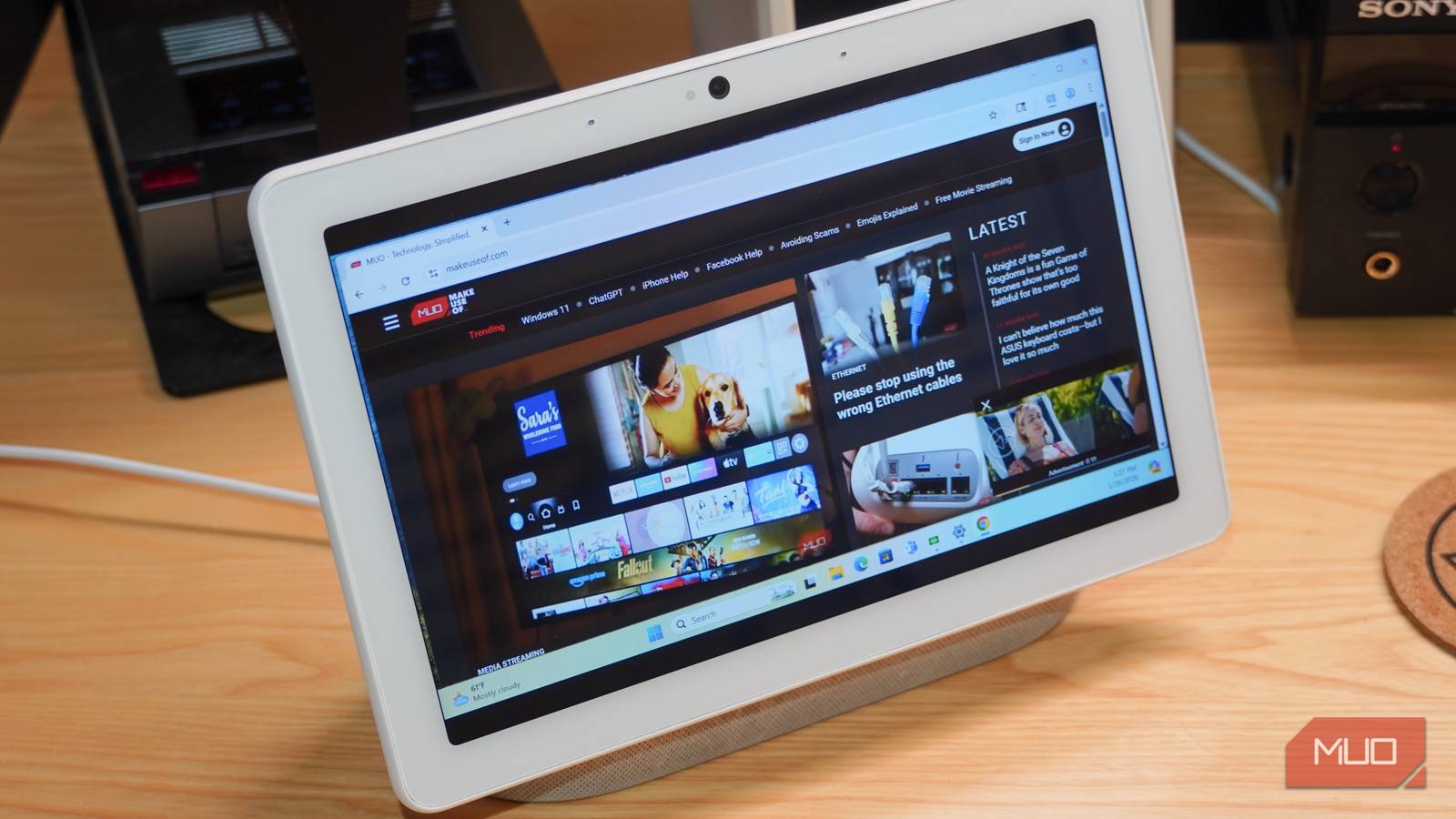
Over the past decade, I’ve gotten more value out of the Google Nest Hub than any other smart home gadget — or any other tech product, for that matter. The 7-inch smart display launched in 2018 for $149, but was frequently sold for much less than that, and I’ve been using it almost every day since. A standard Google Nest Hub adorns my desk and the larger Nest Hub Max completes my kitchen. Out of all the smart display’s features, Google Cast integration stands out.
Google Cast, formerly branded as Chromecast built-in, allows users to beam content from any device on their home network to a Nest Hub or Nest Hub Max. I’ve watched YouTube videos, listened to music, and streamed movies and TV shows on my smart displays. However, the Nest Hub on my desk lies dormant most of the time. I wanted to see if I could put that extra screen to work as an extended monitor for my PC. It turned out to be much easier and harder than expected.
Google Cast is built into every Nest Hub
Cast music, movies, and more — even your PC desktop

First, it’s important to note the limitations of using a Nest Hub or Nest Hub Max as an external monitor. The major one is obviously that both smart displays rely solely on wireless connection to receive content. Moreover, the two home accessories only support Wi-Fi 5 and Bluetooth 5, so they don’t exactly utilize the bleeding edge of wireless connectivity either. These specifications are fine for streaming a song or a video, but fall short of the latency we typically expect from a computer.
The other hiccups come with the Nest Hub’s display size and resolution. The smaller variant is only a 7-inch display with a 1024×600 resolution, while the larger one offers a 10-inch display with a 1280×800 resolution. These smart displays are not only barely HD quality, but they’re also using non-standard resolutions. Both the Nest Hub and Nest Hub Max sport a 16:10 aspect ratio, so your PC’s display might not scale natively.
The smaller, low-resolution panels certainly limit the kinds of use cases for a Nest Hub or Nest Hub Max as an external PC monitor. Neither are great options for tasks that require the most clarity or the quickest responsiveness. However, both the Nest Hub and Nest Hub Max have Google Cast support out of the box, so you don’t need to install any extra apps or software to share your PC desktop with them. You will need a Windows or macOS app that supports Google Cast sharing, but that will be easier to find than you think.

I added a 5-inch secondary monitor to my desk setup and it changed everything
It’s like a HUD for my desktop that reduces distractions and keeps valuable information always in view.
I used Google Cast to expand my PC’s screen
It’s a cool solution that uses the hardware I already have
The cool thing about this method of expanding your PC’s setup is that it makes use of hardware you already own and the software you already use. In my case, I have a Nest Hub at my desk that’s perfect for use as a secondary desktop monitor. An easy way to start sharing content from your PC to a smart display is by using the Microsoft Edge or Google Chrome browser. I keep Chrome handy on every PC I use, and casting from Google’s browser is simple.
Clicking More settings → Cast, Save, and Share → Cast and selecting your Nest Hub display starts a sharing session. Before you start casting, you can click the Sources dropdown to pick between sharing a single tab or your entire screen. The latter will mirror your desktop on a Nest Hub or Nest Hub Max. This is convenient in an office environment, as you can flip around your Nest Hub to share your screen with others.
Technically, there’s no way to “extend” your desktop with Google Cast support in Chrome, but I found a workaround. I downloaded the Virtual Display Driver (GitHub project) for Windows 10 and 11, using it to create an extra virtual monitor. The setup process is seamless — just follow the GitHub page’s installation instructions and select at least one virtual monitor after launching the program. Then, your PC will “think” it has an extra monitor connected.

That way, you can use Chrome’s mirror display feature to cast that virtual display to a Nest Hub or Nest Hub Max. This method helped me turn my Nest Hub into a secondary monitor using only Chrome and the free GitHub project to virtualize a display. By using virtualization, you can set different resolutions for your primary monitor and the Nest Hub, using the perfect aspect ratio for each. Sure enough, it all works.
Another app that can share your PC screen with your Nest Hub on macOS or Windows is AirParrot 3. It’s a paid app that handles network-wide sharing across AirPlay and Google Cast. However, it wasn’t reliable for this use case in my setup, so I opted to use Google Chrome instead.
It’s not a replacement for a dual monitor setup
The latency is a concern, but it’s a usable PC dashboard

I recently bought a wired 5-inch secondary monitor for use as a PC media dashboard, and I wouldn’t trade it for this Nest Hub setup. The experience of using a Nest Hub as a PC monitor isn’t horrific if you fine-tune the resolution, and critically, your mouse tracking speed. It’ll also depend on the speed of your Wi-Fi network — I have a 1-Gig mesh network, so latency was bad, but not that bad.
Really, this is more of a proof of concept than something you’ll use every day. I could see a Nest Hub working as a PC activity monitor, tracking thermals and component usage, or as a media center dashboard. It’d be an outstanding way to run a Home Assistant dashboard, too. Passive tasks that provide glanceable information will work great with a Nest Hub connected to your PC as an extended desktop. Anything more than that, and you’ll have wished you shelled out for a dedicated wired monitor.

- OS
-
Windows, macOS, Linux, Android, iOS/iPadOS, ChromeOS
- Developer
-
Google LLC
- Price model
-
Free
Google Chrome is a versatile web browser with ultimate integration with Google services, including Google Cast. Nest Hub and Nest Hub Max owners can use it to share their entire screen with their smart displays over a home network.
