
I don’t know if you’ve paid attention, but installing apps on a PC can be a real pain. While the Microsoft Store is the safest and easiest way to install apps, there are way too many issues to ignore, from app availability to the lack of ability to install apps in bulk. And we all know how time-consuming installers can be. You have to track down the correct websites, click through multiple prompts, and repeat the steps again and again.
UniGetUI is a free, open-source tool that solves all of this. It’s a package manager that makes finding, installing, and updating stress-free.

- OS
-
Windows
- Developer
-
Martí Climent
- Price model
-
Free, Open-source
UNiGetUI is a clean Windows app that lets you search, install, update, and remove apps from multiple package managers in one simple interface.
What makes UniGetUI special
What it gets right

You can think of UniGetUI as a powerful version of the Microsoft Store. It’s essentially a package manager that makes installing and managing apps a breeze.
To Microsoft’s credit, Windows already has a package manager called Winget. And honestly, it’s excellent. The problem is not what Winget can do, but how you have to use it. For most people, using a terminal window and running commands isn’t exactly convenient.
This is what makes UniGetUI special. It brings the speed of Winget and wraps it in a friendly interface. You can browse apps and download them without dealing with ads, installers, or any errors.
And it doesn’t stop at Winget. It brings multiple package managers like Chocolatey, Scoop, pip, npm, and .NET Tool. This means the only time you’ll actually need to open the Microsoft Store is to download UniGetUI itself. And if you don’t want to do that, you can install it directly using the following Winget command:
winget install --exact --id MartiCliment.UniGetUI
Find and install apps in seconds
From search to install in just a few clicks
Once you’ve installed UniGetUI, getting started is simple. In the Discover Packages tab, simply type in the name of the app you want, and it’ll bring it up. Since UniGetUI pulls results from multiple package managers and not just the Microsoft Store, you’re unlikely to run into empty search results.
You can also search for broad terms like “games,” “productivity tools,” or “open source” and choose Show similar packages in the Search mode menu. This is great for discovering new apps or tools. Once you find what you need, use the checkbox to select it. You can also select a bunch of apps at once and then hit Install selection.
The best part is what you don’t see. You won’t come across installers demanding admin access every five seconds, no pop-ups asking you to uncheck bundled software, and no surprise restarts through an install.
What really makes UniGetUI useful is that it offers information that Winget never does. You can see the app size, publisher details, and dependencies before installing anything. And once you’ve built the perfect setup, UniGetUI lets you export it. This is a lifesaver when you upgrade to a new PC or want to reinstall Windows for troubleshooting purposes. You can even share your package with friends using a QR code.
Automatic updates with control
Stay updated on your terms

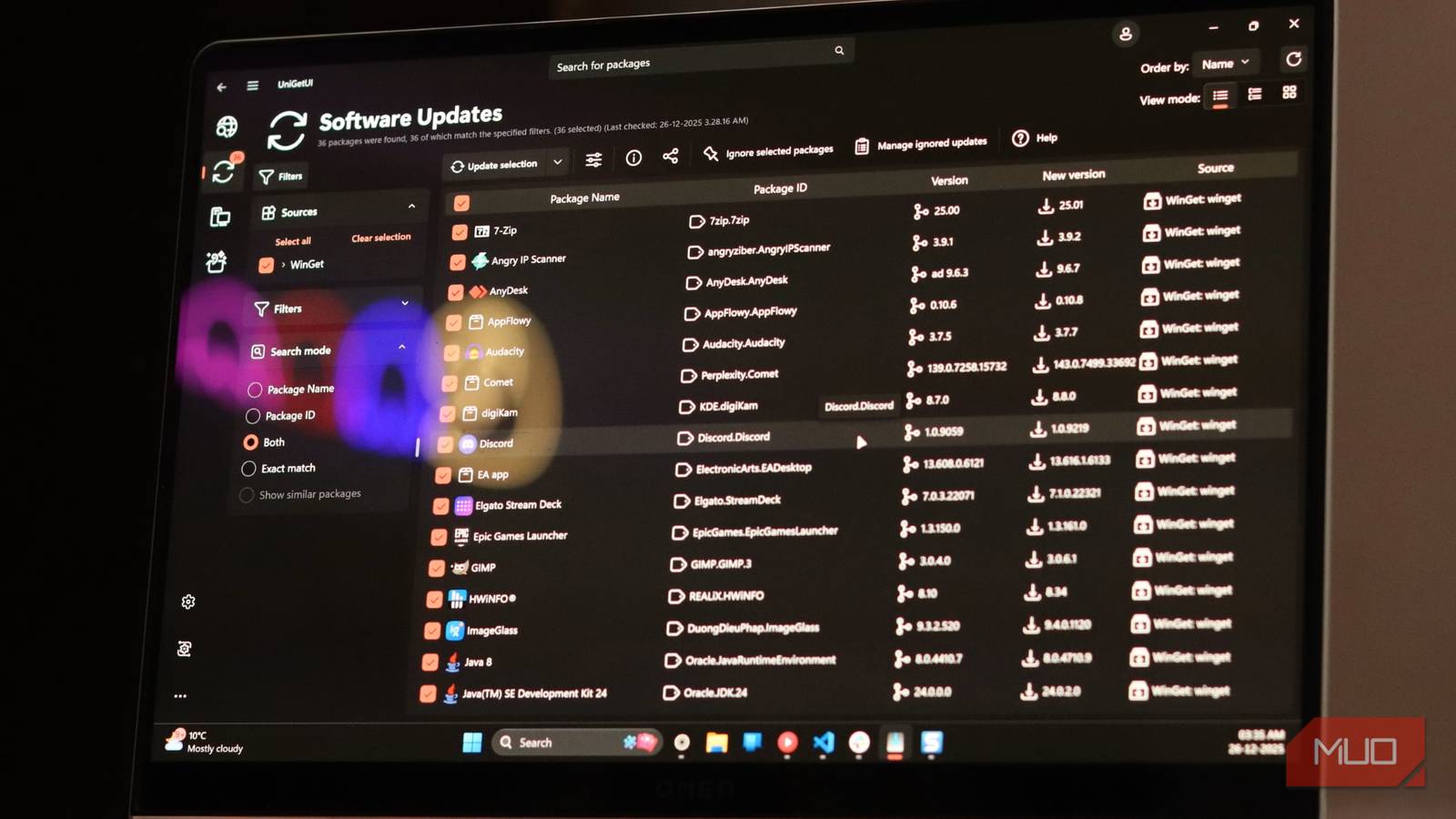
We all know the importance of keeping apps updated. Security fixes, new features, and bug fixes, they all depend on it. Unfortunately, Microsoft Store’s auto-update feature is unreliable at best. UniGetUI, on the other hand, notifies you as soon as an update is available for one of your apps. You can then head to the Software Updates tab to update everything in one go.
This is especially useful for someone like me who installs a lot of apps outside of the Microsoft Store. In fact, when I first installed UniGetUI, it made me realize how many updates I had been missing. And it gets better. You can configure UniGetUI to automatically update apps while telling it to ignore specific ones.
The little touches that seal the deal

The more you use UniGetUI, the more you’ll appreciate its quality-of-life features. For instance, if you want to get an older version of an app because the new update broke something or removed a feature you loved, UniGetUI makes it easy. You don’t have to look for old installers on sketchy websites.
Bulk uninstalling is another underrated feature. If you’ve ever had to remove apps one by one after buying a new PC or going on an app-testing spree, you know how tedious that can be. UniGetUI lets you uninstall apps in the same way it lets you install new ones.
There’s even a handy UniGetUI widget. Yes, a widget that you can access from the Windows 11 Widgets panel. It makes it easy to check for updates and manage them without even opening the app.
For me, UniGetUI is not just a replacement for the Microsoft Store. It has completely changed the way I find new software and manage updates. Sure, it’s not something that’ll appeal to everyone, but those who often switch PCs or like to have control, it’s a game changer.
