
Fixing formatting in Microsoft Word can often take you away from the business end of writing. If it’s a long document, headings jump, images refuse to align, and working with a technical document can be a challenge. Every long document saved in your local drive often feels fragile. Cloud document editors like Typst are based on a modern typesetting system that uses Markdown-style writing with programmable layouts.
Instead of fighting with toolbars and hidden styles, I now focus on content first and let the structure appear as I type with Markdown. I still haven’t climbed the steep learning curve of LaTeX, but now it seems Typst might make it a lot easier. Like me, you can start on the free version of the Typst web app.
Typst separates content from formatting with simple syntax
You write the structure, and the layout appears in a preview
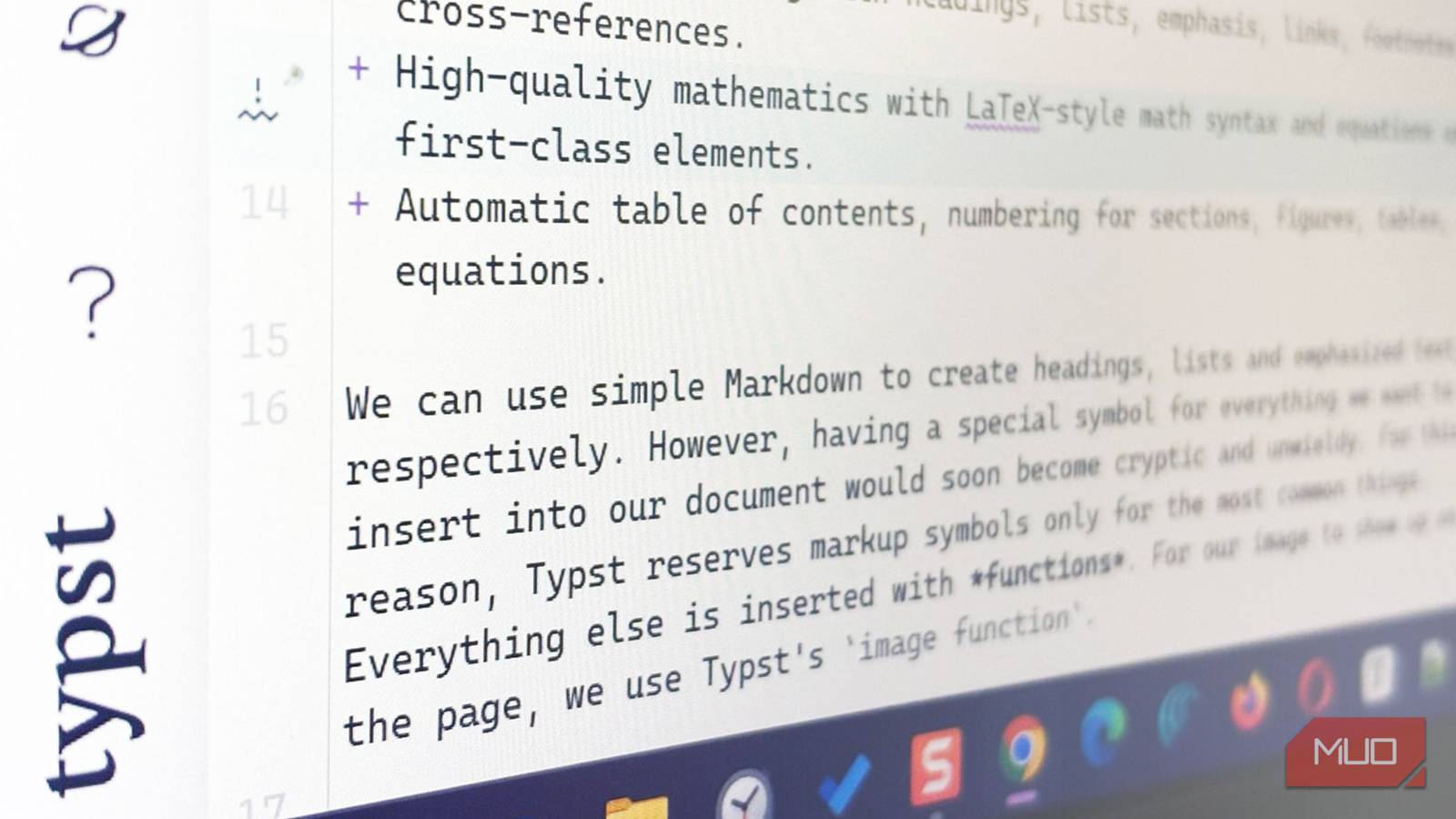
Typst uses clean, markup-based writing where headings, lists, links, and references are defined in plain text. Typst uses markup symbols just for common elements; other content is added via Functions. For instance, headings, lists, and emphasized text can be formatted with markup. Other elements like images, tables, and entire page properties can be inserted and customized with functions. Typst has an autocomplete panel, which makes discovering the functions and their arguments even faster.
Then, instead of manually adjusting font sizes and spacing, you define document rules (called set rules) at the top and let them apply style properties to all occurrences of a specific kind of content (for instance, the “#text” syntax for applying a specific font to an entire document). You don’t have to format paragraphs individually and can start formatting the entire document in one place with the “set” keyword and the rules. For long reports, ebooks, or research papers, that shift alone saved me hours.
I’ll admit, at first I missed Word’s visual toolbar. I was used to clicking Bold, changing fonts from a dropdown, and using other Microsoft Word formatting tricks. Now, after years of using Typora as my preferred offline writing app, Markdown feels way more intuitive (and I can still choose fonts and formatting options from the Typst toolbar).
My familiarity with Markdown has helped me quickly get hands-on with the structure-first mindset of Typst. And for those of you starting to worry about learning another syntax, don’t. The Typst tutorials and documentation are very user-friendly to read.

Why You Should Learn Markdown (And 4 Ways It’ll Come in Handy)
Here’s why Markdown is better than writing in HTML or WYSIWYG editors, and how it can come in handy for you.
Typst makes inserting equations effortless
The layout engine handles complex math with ease

If you’ve ever inserted equations in Word, you know how unpredictable it can get. Typst treats math as a first-class element without using LaTeX syntax. Equations, numbered theorems, footnotes, and cross-references are easier to enter with the Typst syntax and stay consistent across the document. Though Typst isn’t built with LaTeX and has a different syntax, you can jumpstart here with your LaTeX typesetting knowledge.
I initially thought this level of precision was only useful for academic writers. As someone who writes tech tutorials and structured documents, I wasn’t sure I needed such advanced typesetting.
Then I tried building a long technical guide with a few mathematical and chemical equations. Typst handled numbering, lists and sub-lists, calculations, and inserting shapes automatically with its function calls. I didn’t have to learn LaTeX from scratch just for one document, as I just went ahead with Typst’s markdown. That reliability, without mixing two types of typesetting commands, makes it ideal not just for academics but for anyone creating structured content.
Typst isn’t a full LaTeX replacement yet, as it doesn’t have its advanced plotting options and packages for producing technical illustrations. Typst can catch up with community contributions like the CeTZ package. Overall, the easier syntax of Typst is far less confusing for me.
Typst makes formatting precise
The syntax is more intuitive than standard Markdown

One of Typst’s most powerful features is its built-in scripting language. You can use functions, loops, and conditionals directly inside your document. For instance, if you need to generate a table from CSV data, use the #csv function. Want a colorful, reusable, styled box for tips or warnings? Import a package like Showybox and customize its properties as you want.
I was skeptical about mixing code with writing. It sounded like overkill for simple documents. I didn’t want to turn my writing workflow into a programming project.
But in practice, scripting replaces repetitive formatting. Especially for long documents that need precise formatting. Instead of copying and pasting styled elements, you define a reusable component. For recurring layouts like case studies, product breakdowns, or lesson summaries, this control becomes incredibly efficient.
Typst compiles instantly and keeps large documents responsive
Typst uses a lightning-fast compiler for instant results

Large Word documents can slow down quickly, especially when packed with images, footnotes, or tracked changes. Typst uses a fast compiler that updates your preview almost instantly, even for lengthy documents. You get immediate feedback without the lag.
At first, I thought this was just a technical bragging point. Word rarely crashes for me, so I didn’t think performance mattered much.
Then I tested Typst with a long, structured document filled with sections, figures, and references. It remained smooth. No random formatting shifts. No sudden spaces between the paragraphs. You can use the Typst compiler with any other Markdown-enabled editor locally.
Typst supports collaboration and professional templates

The Typst web-based editor with templates, live preview, and real-time collaboration is the best choice for beginners. Multiple users can comment, edit, and resolve discussions inside the document. For teams producing reports, proposals, or research papers, this keeps everything centralized.
I used to rely heavily on Word templates. As it’s an industry standard, there are many Word templates available for free online. Typst has its own growing ecosystem (and that’s a good sign for an open-source app). These templates can help you jumpstart with structured blueprints. You define styles and reusable layouts clearly, and they behave predictably without breaking up when you share them across teams.
PDF output looks professional by default, without endless fixes

Typst can produce publication-ready PDFs with advanced typography, proper font handling, and precise layout control. PDF is Typst’s default export format. Before exporting, fine-tune page size, margins, multi-column layouts, and numbering in Typst. This level of control with the different Typst functions and rules makes the output resemble one from desktop publishing software. The locally run compiler can also export any document created with Typst Markdown syntax into PDFs, images, and web pages.
I used to export Word documents to PDF and then reopen them to fix spacing issues or awkward page breaks. It felt like an extra formatting pass before sending anything to clients or editors. With Typst, what you see in the preview is what you get in the final output. That predictability removes the anxiety of last-minute formatting checks.
Rebuild one of your old Word documents in Typst
Typst isn’t a simple Markdown editor. There’s some amount of learning involved if you want to stylize your documents with advanced functions. For instance, familiarity with block-level and document-level rules takes a bit of practice. My suggestion is that you start small. Instead of fully switching overnight, experiment. Pick a structured document like a report or guide created in Word. Rebuild it using Typst’s markup and styling rules. Microsoft Word has its share of timesaving formatting tips. But with Typst, you might find that once the structure is set, formatting stops being a chore and becomes something automatic as you type the content.
