
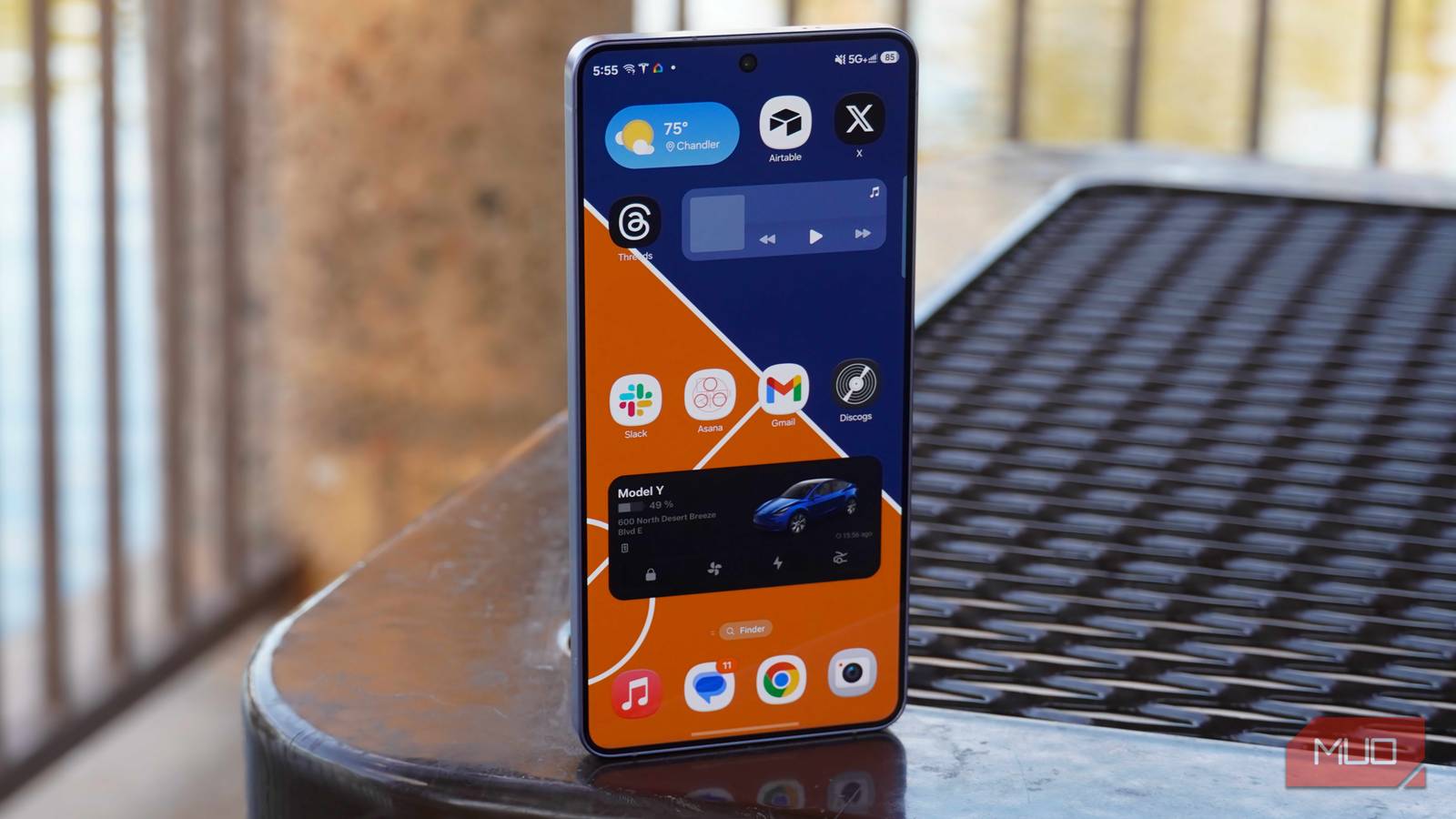
One UI is Samsung’s in-house version of Android, and using it can be a blessing and a curse. Compared to Pixel UI or the bare-bones Android Open Source Project builds, releases like One UI 8.5 include custom features and extra functionality. They also come with extra bloat, and Samsung is known for loading up One UI builds with unnecessary or unwanted pre-installed apps. While some of Samsung’s duplicate apps are actually useful, many are worse than Google’s own offerings.
Every time I set up a new Galaxy phone, there are a few Samsung apps I immediately replace and uninstall. It’s not about removing bloat, but rather, improving productivity by switching to the Google apps that are a better fit for my workflow. If you use the official Samsung apps, you’ll be hard-pressed to find proper cross-platform support outside the Galaxy ecosystem. By using Google apps, I can ensure a consistent experience regardless of whether I’m using iOS, Android, macOS, or Windows.
Samsung Keyboard
I don’t know why Samsung’s default keyboard is still so much worse

One UI doesn’t always make a great first impression. When you first set up a new device, you’ll need to spend quite a bit of time setting up accounts and getting things organized. That requires a lot of typing. By the end of the setup process, you’ll probably be frustrated by Samsung’s default keyboard. The keys feel small and cramped, and having a persistent number row and toolbar further constrain the layout. This arrangement makes you prone to typos, and Samsung’s autocorrect algorithm makes matters even worse.
There’s no easy way to say this — Samsung Keyboard has the worst autocorrect suggestions I’ve ever seen, and it’s laughable the situation is this bad in 2026. Samsung Keyboard will take correctly spelled words and grammatically correct sentences and make them nonsensical after automatic autocorrect suggestions are applied. Even if you go back and retype what you originally wrote, Samsung Keyboard will repeatedly butcher your words unless you manually hit a checkmark to ignore the autocorrect suggestion.
It’s a frustrating experience that I go through every time I review a new Samsung phone. In the end, the result is the same. I swap out Samsung Keyboard for Gboard, the official Google keyboard. It may not be perfect, but the Gboard keys are larger, so I’m less prone to errors. Google’s autocorrect algorithm is significantly better, and the keyboard supports key features like glide typing, handwriting, and dictation. Replacing Samsung Keyboard with Gboard should be the first thing you do when setting up a new Galaxy phone.

- OS
-
iOS, Android
- Price model
-
Free
- App Type
-
Keyboard
Gboard is the official Google keyboard for Android. It offers reliable typing with features like glide typing, handwriting, and dictation. There’s also a built-in emoji and GIF search tool, plus native Google Translate support.
Samsung Calendar
Google Calendar better integrates with my other apps and devices

A calendar app is crucial to keep track of events, stay on task, and plan out your life. If you use a Samsung phone, you’ll see the Samsung Calendar app pre-installed and set as the default calendar app. Some Galaxy phones might also have Google Calendar ready to go, but I had to manually download Google’s version on my Galaxy S26 series review units. That’s a shame, because I find Google Calendar way more stylish, versatile, and useful than Samsung Calendar.
That’s not to say Samsung Calendar doesn’t have a few things going for it. You can personalize event appearances and alerts using Samsung Calendar, and get automatic weather details straight from your calendar event. However, Google Calendar uses the cleaner Material 3 Expressive design language, and it has stellar integration with Google Workspace. Google Calendar and Google Meet are intertwined, so it’s easy to create, manage, and join meetings from a calendar event.
Best of all, Google Calendar is available on all my devices. Whether I’m using Android and Windows or iPhone and macOS, Google Calendar is there. That consistency is why I always swap out Samsung Calendar for Google Calendar when setting up a new Galaxy.

- OS
-
iOS, Android
- Price model
-
Free
- App Type
-
Calendar
Calendar is the planning and meeting app for Google Workspace and Android. It features integration with Google Meet for scheduling video calls and virtual meetings. Additionally, it’s a cross-platform calendar client available across iOS, Android, Wear OS, and the web.
Samsung Gallery
Google Photos is cleaner, has cloud storage, and includes editing tools
One UI is still littered with duplicate apps, like for the system gallery app. Galaxy phones come with Samsung Gallery and Google Photos pre-installed, and you might be wondering which is best to use. It’s a trickier question than you might expect, because Samsung Gallery features a handful of built-in Galaxy AI tools. Audio Eraser removes background noise from videos, while Photo Assist intelligently makes photo edits using AI. These are useful features, but they’re not enough to make me stick with Samsung Gallery.
Many Galaxy AI features rely on Google AI models or cloud servers for processing, which is why they’re not a reason to use Samsung Gallery. If you like Photo Assist, you could use the comparable Ask Photos conversational editing feature in Google Photos. Google has Magic Eraser, Magic Editor, and Audio Magic Eraser too, so the feature set is comparable. Plus, you get up to 15GB of free cloud storage.
If you’re like me and already pay for a Google One subscription, that’s another reason to move to Google Photos. This is another cross-platform app you can easily use outside the Galaxy ecosystem, and I can’t say the same about Samsung Gallery.

- OS
-
iOS, Android
- Price model
-
Free
- App Type
-
Gallery and photo editor
Google Photos is a gallery app, photo editor, and cloud storage solution. It’s an easy way to back up your photo or video collection, make edits using generative AI, or share albums with others. You get up to 15GB of storage completely free.
Other Samsung apps to replace or uninstall
Cleaning up the unwanted Samsung apps preloaded on my smartphone and downloading the Google apps that aren’t there yet are the first steps I take after setting up a new Galaxy phone. While there’s no direct Samsung equivalent, I wish the Google Authenticator app was pre-installed on Android phones. It’s vital for my two-factor authentication workflows, and it’d be significantly more useful to have Authenticator installed in the place of the useless Samsung apps on Galaxy phones.

You’re probably ignoring these 6 bloatware apps on your Android phone
If you have these pre-installed bloatware apps on your phone, it’s really time to remove them.
If you don’t believe me, check the Samsung apps folder on a Galaxy phone. You’ll find apps like Global Goals, Samsung Members, Samsung News, and Samsung Tips — all apps you’ll likely never use. They take up storage space and clutter your app drawer, and that’s why I always remove them.
