
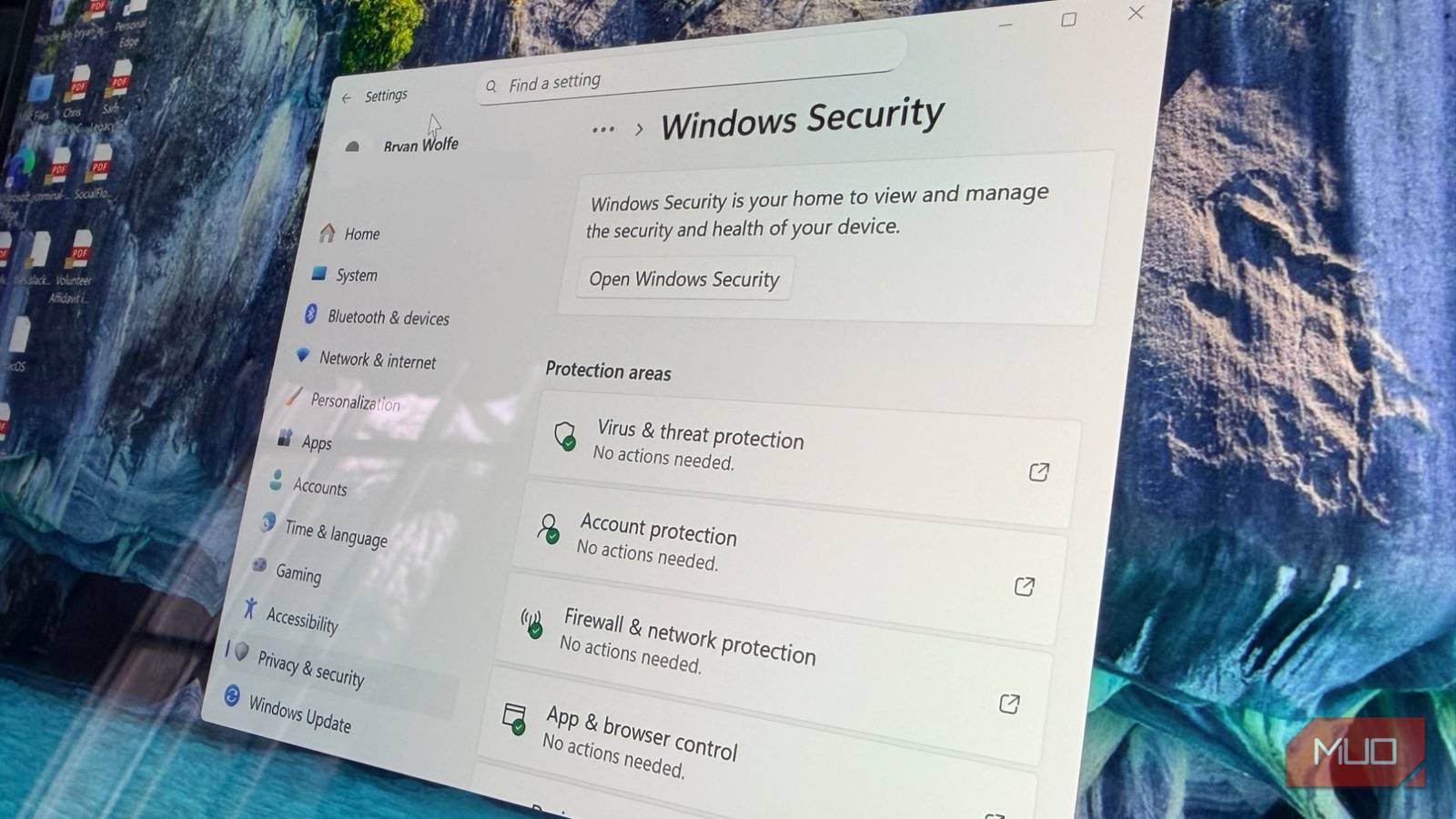
Antivirus programs for Windows have been around almost as long as Windows itself. Recently, I decided to stop relying on one of the many antivirus programs for Windows. Instead, I started using Microsoft Defender’s behavior monitoring instead. The result: no more bloated antivirus suites for me!
Traditional antivirus software, such as that from Norton and McAfee, has dominated the market for many years. These products, which include both free and paid versions, promise to deliver total protection through massive signature databases. To work, they scan every file on your computer for threats. Unfortunately, this type of product isn’t foolproof. Not only can it hog bandwidth, but it can also generate false positives that can disrupt someone’s workflow. These programs are also poor at protecting computers from zero-day attacks, which are new malware that are increasingly prevalent.
Unlike bulky signatures, behavior monitoring tools analyze app behavior in real time. As a result, it’s always looking for something that may be happening on a computer right now. Perhaps it detects unfamiliar servers that suddenly attempt to connect, or a process attempting to encrypt data. When these irregularities occur, behavior monitors proactively block tasks, thereby protecting your computer in a way older antivirus packages cannot.

Yes, you have heard of Microsoft Defender
Catching threats in real time

The first version of Defender was released two decades ago. Since then, it has evolved significantly beyond basic scans. Today, its top feature is behavior monitoring, which is powered by cloud-assisted artificial intelligence (AI) that identifies when activities on your PC deviate from their norm.
The first time I recognized the tool’s prowess was during a routine browser session. I was checking out flight information for a trip I’d like to take with my family later this year. An ad on the website I visited tried to secretly download harmful software onto my computer. This didn’t happen. Thanks to Defender, this process was stopped without any loss or leakage on my end, even without requiring a reboot. Traditional AV would likely have scanned it post-infection, which could have delayed me.
For many, the best thing about Defender might be its cost. It’s free and built into Windows.
Setup is simple

Getting Defender going on my computer was quick and easy; it took me less than 10 minutes. Open Windows Security, then go to the Virus & threat protection section. From there, select Manage settings and ensure the following three settings are enabled: Real-time protection, Cloud-delivered protection, and Automatic sample submission.
With these settings enabled, Windows can detect threats by analyzing patterns across millions of computers while stripping out any personal data before using it. I also suggest enabling Tamper Protection, which can prevent malware from operating behind the scenes and disabling your computer settings. You should also run a full scan.
That’s it. Your computer’s protection is secure.
My improvements
A win in privacy

For my daily work, the difference was immediate. I no longer see annoying pop-ups or rogue messages asking me to install new software. The computer feels quicker since its processing power usage has dropped considerably. Additionally, programs open faster, and the tools I use daily run without slowdowns.
I tracked the difference over 30 days, and the results genuinely surprised me. With my previous paid antivirus installed, my computer used about 18% of its processing power while idle, took 46 seconds to start up, and consumed 1.3GB of memory. It also blocked 12 items during that month — most of which were harmless files it mistakenly flagged as threats.
After switching to Defender, my idle processing dropped to 4%, startup time fell to 21 seconds, and memory usage dropped to 140MB. It caught eight real threats, including two sophisticated ones. Meanwhile, on the privacy front, my old antivirus was constantly sending data back to its company. Defender’s cloud checks are minimal, opt-in, and (for those folks) meet European data privacy standards. As someone who pays close attention to how software handles personal information, I care about this.
Making the switch
Configuring Defender

To begin using Defender as intended, follow these relatively pain-free steps.
First, remove your old antivirus by going to Settings -> Apps, then tap Uninstall next to it. Restart your computer when this is done. Next, update Windows by going to Settings -> Update and clicking “Check for updates.” This will confirm that you have the latest security definitions for Defender installed.
From here, open the Windows Security app, then go to Virus & threat protection, followed by Manage settings. Enable all real-time protection options and enable potentially unwanted app blocking.

As an added step, test your system by visiting eicar.org and downloading the EICAR test file. It’s entirely harmless, but to Defender it will appear to be malware. As a result, it should remove it promptly, indicating the system is functioning as intended.
If you miss the ability to run manual scans on your computer, you can install the free version of Malwarebytes to run occasional scans. There’s no reason to purchase the paid version, in my view.
Make the switch
Switching to Microsoft Defender has shown me that modern security doesn’t have to come with bloat. Gone are the days of noisy alerts, heavy background scans, and questionable data collection from oversized antivirus suites. Defender’s built-in, AI-driven behavior monitoring handles threats quickly and effectively, without slowing down the system or compromising privacy.
In a landscape where new digital threats appear every day, simplicity and responsiveness matter most. Microsoft Defender delivers both, quietly securing my PC in real time without demanding attention or payment. For me, that’s the future of Windows protection: fast, efficient, and trustworthy.
