
Graphic design was revolutionized when Canva first came around. No longer do you need to be a graphic designer and Photoshop expert to craft compelling thumbnails or make graphical assets of any kind. Canva did all the hard work with a simple web-based editor, a huge selection of templates, and access to a large library of stock images and icons. That said, for those who still like a classic desktop-based app for graphic design, I’m still loving the Affinity app for PC and GIMP is always a powerhouse and so is Penpot.
But as with any software success story, Canva quickly moved to a freemium model and put most of its best features and content behind a paywall. Today, there is little you can do on Canva without paying, especially when you’re trying to use their graphic library. I endeavored to find a free Canva alternative that would let me easily and cleanly make graphics without running into paywalls, and I found it.
Snappa is fast and free
You get full access to millions of design resources without paying
Canva is great, but the best design resources on Canva are behind a paywall that can make it frustrating to use. Snappa is totally free, has the same ease of use as Canva but with the distinction of being able to use over five million graphic design resources — including stock photos, icons, and vectors — without paying.
Whether you’re making a YouTube thumbnail, social media post or you need to create and print a flyer or poster, Snappa makes it fast and easy to make a professional-looking graphic without paying, though the Pro version is $10 per month and gives you the ability to export an unlimited number of projects. I was able to experiment with various thumbnail styles and utilize a seemingly endless library of high-resolution backgrounds, crisp vectors, and expressive icons.
Again, Canva offers a similar workflow, but you often encounter a “Pro” icon on the best photos and icons, leaving you with only basic choices if you don’t want to pay.

This open-source Photoshop rival is better than it has any right to be
I didn’t expect much from a free Photoshop alternative—but Krita seriously overdelivers.
Graphic design on the web
Snappa is entirely web-based and is fast and fluid

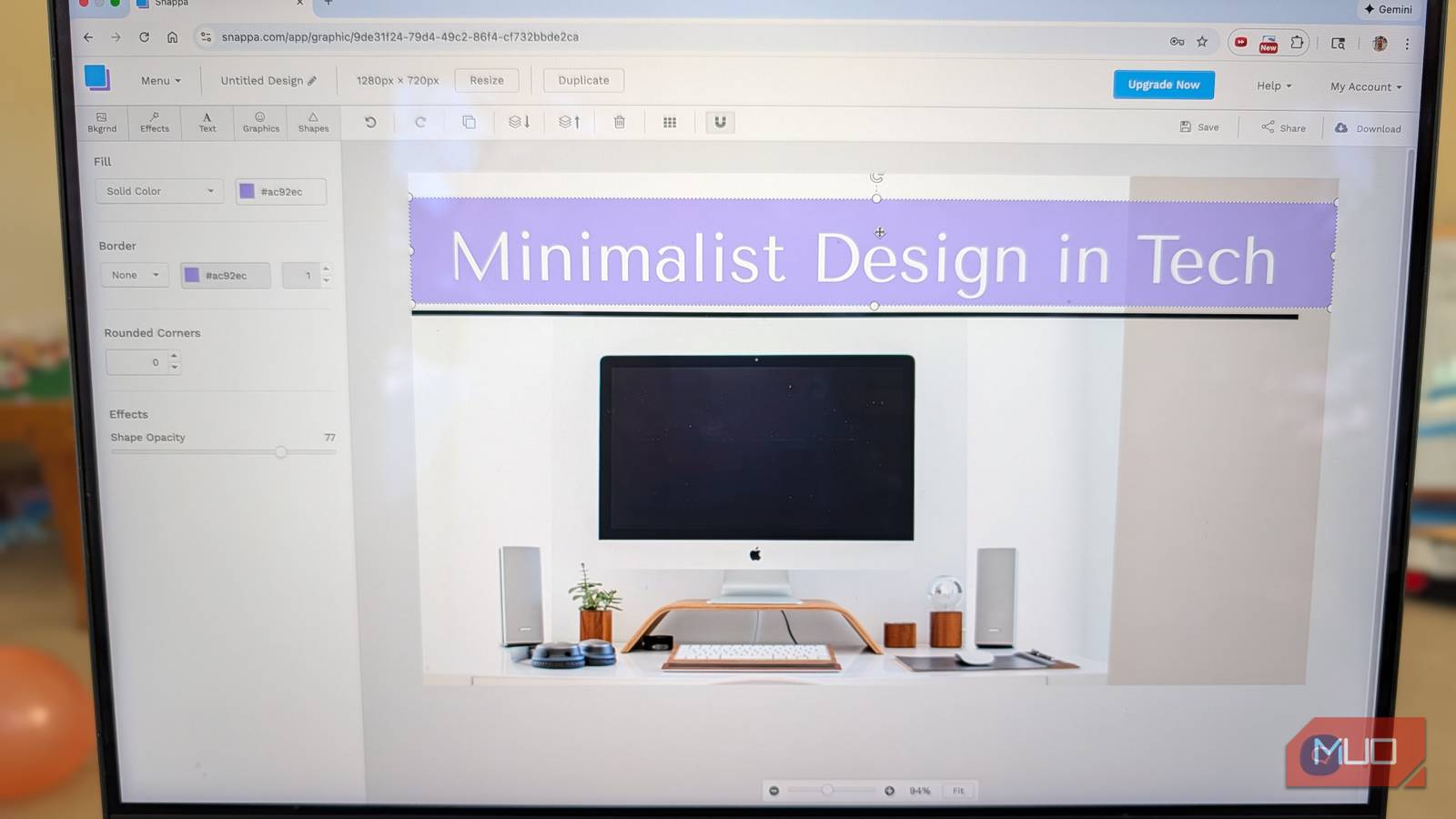
Whether resizing vectors or stylizing text, or doing even more complicated things like moving elements back a layer and adjusting opacity, Snappa works with a drag-and-drop editor where what you see is what you get. There are five main tabs on the left that keeps everything simple:
- Backgrounds: Choose from millions of high-quality photos or patterns that in one click are added to your workspace.
- Effects: Once you pick a background image, the Effects tab lets you adjust saturation, hue, and other attributes of the image, or you can apply a blur to the background to help make the foreground pop.
- Text: Snappa has a rich text editor to make it easy to get text just right on your graphics. I particularly like how you can adjust both letter spacing and line height for your words — which isn’t found in all graphics tools I’ve tried.
- Graphics: This is where you come to access Snappa’s huge library of icons, vector and photos.
- Shapes: Through this menu you can easily add shapes to your graphic, where you can then add a border and specify color and border weight, or fill your shapes with color and adjust their opacity.
Snappa makes it easy to get started
Presets save a lot of time

If you’re not sure where to get started, Snappa presents you with a variety of presets when making a new graphic. This is ideal because the dimensions of a YouTube thumbnail is different from an Instagram story, and Snappa has all of the correct dimensions loaded into its presets to save time.
Beyond these options, Snappa is split between your workspace on the right and options on the left. For example if you click on a shape or image on the right, the left panel will reveal the options. So if you select a shape, you can change the fill color, add a tweak a border, then adjust the opacity. If you choose an image, you can rotate or flip it, or use AI to remove the background. Choosing text lets you adjust the font, style, letter spacing, and line height, all within the panel on the left.
One major downside
The free version only lets you export three graphics per month

The big asterisk with Snappa is that you can only export completed work three times per month for free. For many, like me, that only need occasional graphics for special projects, this is just fine. I can live with this limitation if it means I don’t have to pay for Snappa. However, if you want to have unlimited exports, you’ll have to pay $10 per month. This compares favorably to Canva Pro, which is $14.99 per month.
The big asterisk with Snappa is that you can only export completed work three times per month for free.
For occasional graphic work, Snappa is powerful and free
If you’re like me and only need to do occasional graphic work and don’t want to pay a subscription fee, Snappa is ideal. The main caveat is that unless you pay $10 a month for Snappa Pro (which is still a third cheaper than Canva Pro), you’re limited to just three downloads per month. For what I need, that’s plenty.
