
Many people would agree that Windows Search is unreliable. In fact, it’s not uncommon for experts to suggest other tools to address Windows Search’s shortcomings. This points to a fundamental issue. I have had times when I typed something into Windows Search and got only half-relevant results.
However, what if the problem isn’t just about the feature itself? I’ve recently started investigating Search more, and it’s becoming clear that even though the feature can be better, there are other elements that magnify its weaknesses. If we fix these, we’ll have a better user experience using the Windows Search feature.
We treat Windows Search like File Explorer with a search box
Why this assumption feels logical — and why it sabotages results
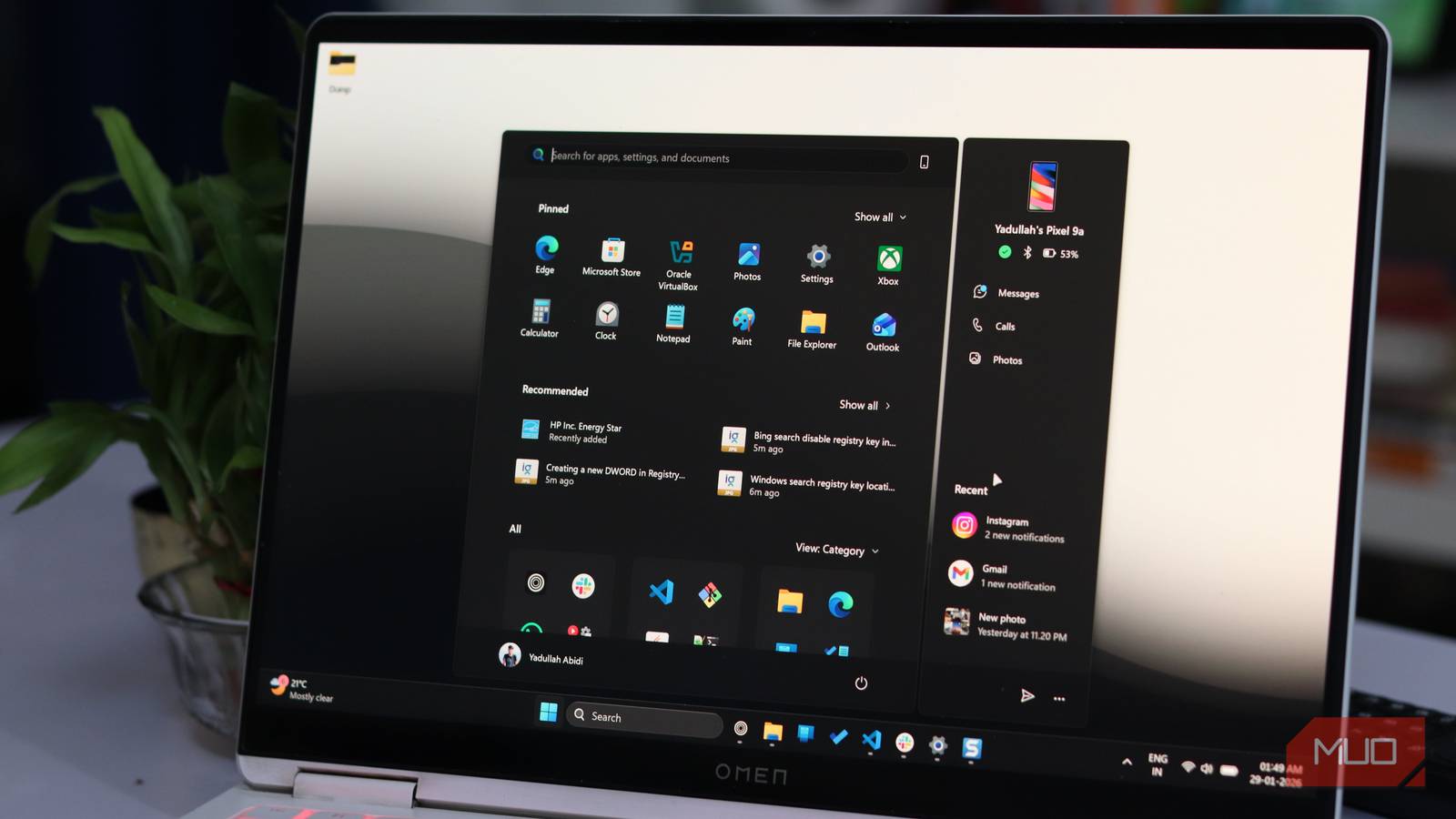
The confusion with Windows Search is that the OS comes with two search tools.They share the same underlying engine in many cases, but operate at different scopes. The first is the search feature in the top-right corner of File Explorer. This search works for the specific folder you’re viewing. Then there’s the Start Search feature that searches the entire system. You trigger this second search by pressing the Windows key and typing.
If you mistake the File Explorer search for Windows Search, you’ll be in for a surprise. File Explorer’s search respects folder structure and is a filter that narrows files within the current folder.
However, Windows Search ignores folder boundaries. Even if you have a well-organized file system, it will still surface results based on three criteria: what you’ve accessed recently, what you’ve accessed frequently, and what matches your query terms. It instantly becomes the wrong tool if you use it and expect folder-aware navigation. Misuse makes it feel broken, even if it works perfectly.
Windows Search is optimized for recall, not precision
Partial memory beats exact filenames every time

I’ve seen several people use search in the same way they would query a database. They type the exact filename, use exact spellings, and the exact format. This works well if you’re using File Explorer search, but the real strength of the Windows Start menu’s search is that it assumes people won’t perfectly remember things.
Results are scored behind the scenes. It uses signals that can return different results for different users using the same search term. The result will reflect when you accessed an item, how long it was open, and whether you edited it. This is an intentionally personalized system.
It’s similar to how we humans generally think. We may not know or recall an exact filename, but we’ll be able to recognize the right file when we see it. Windows Search exploits this by showing you the most plausible matches and allowing your brain to recognize what fits best.
Indexing explains why some searches feel magical and others fail
What Windows pays attention to — and what it ignores

Indexing is an invisible layer of search, and this sometimes makes Windows Search feel inconsistent. When it works — for example, when it finds a PDF by its text — it feels magical. Other times, it fails to find a file you can plainly see, which is frustrating. The difference between these two scenarios is what has been indexed.
There are certain folders that Windows indexes by default. Examples are Desktop, Documents, Downloads, Pictures, Videos, and Music. However, it doesn’t automatically index other files and directories like secondary hard drives, external drives, network locations, and certain system folders. The implication is that Windows Search will not find your active work stored on a D:\ drive or a network share. While you may assume search is broken, the reality is that it was not designed to look in these places.
It’s frustrating when Search finds personal files but not work files you know are on the machine. It helps to know that search cannot find what is not indexed, and this knowledge makes you plan file storage, especially if you expect those files to be indexed.
Power users don’t search harder; they search earlier

My search habits have evolved, but the real difference is not how, but when. I now hit the Windows key to start a search reflexively. To find an app, I hit the Windows key and type three letters. If I need a specific sound setting, I hit the Windows key and type “sound.” When I hit the Windows key and start typing a filename, it surfaces the best results. Rather than making Windows Search a last resort for lost files, it’s the command palette for the entire OS.
This approach to Windows Search is fundamentally different from the mindset of “I can’t find this file, let me search.” This feature is meant for proactive retrieval rather than reactive hunting. Rather than navigating folders in the hope of stumbling over what you need, you describe what you want and allow the system to locate it.
I still use File Explorer search a lot. However, I do so knowing that it does a different job. I can narrow down to “draft” versions if I am inside a folder with 200 files by using File Explorer’s search. However, for global retrieval, I use the Start menu. So, before you start trying to fix Windows Search, be sure you are using it correctly.

I found a better way to find every document I need at work
One app that pulls lost documents out of your chaos in seconds
Windows Search isn’t broken
The most important point is that Windows Search isn’t broken; you just need to stop fighting it. One thing I no longer do is obsess over renaming files so they’re more searchable.
Of course, you may not like every part of Search. For instance, I’d rather stop searches from showing web results. However, for general everyday use, it works just as intended.
[ad_2]
Source link