
I have cleverly used my old Android phone as a TV remote, a security camera, a baby monitoring device, and even turned my phone into a webcam. However, tablets with their large screen sizes are more useful devices, so I decided to use them as a replacement for three expensive gadgets that I was planning to buy.
From a portable monitor to a digital photo frame and a Stream Deck macro controller, my old Android tablet has saved me from at least three expensive devices that I had added to my cart.
Portable monitor
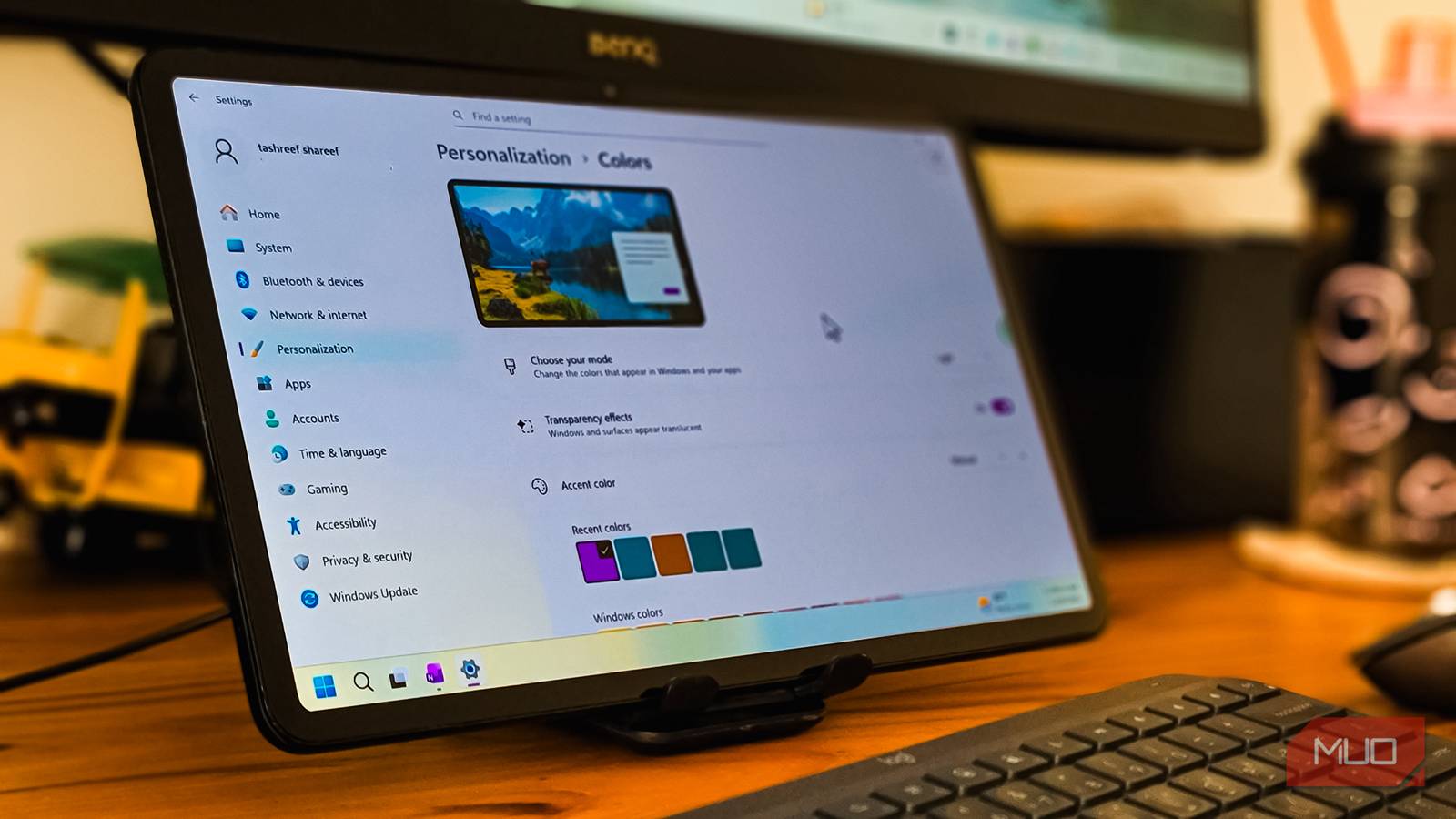
GlideX turns it into a portable monitor

I have a dual monitor setup at home, and I’ve tweaked my second monitor to make it twice as useful by changing a few settings. While a dual monitor setup is essential for my workflow, it’s not practical when I’m traveling.
I was contemplating buying a portable monitor for my laptop. Budget options start at around $80, and anything decent will set you back over $100. But then I decided to repurpose my Android tablet to see if it could work as a secondary monitor. To my surprise, it does, and does it exceptionally well for what’s only a free software-based setup.
The biggest advantage of using a tablet as a secondary monitor is touch input. Budget portable monitors don’t offer this, but my tablet lets me tap, scroll, and pinch-to-zoom on the extended screen. It’s handy for chat apps, reference docs, or monitoring panels. Plus, you don’t need to carry an additional power brick or power bank to power it.
GlideX is a free ASUS utility that makes this possible. It can turn any device, be it your phone, a tablet, or even another laptop, into an extended display. It works in both wired and wireless modes, though a USB connection needs Developer Options and USB debugging enabled on your Android device.
To set up your tablet as an external monitor, install GlideX on Windows from the Microsoft Store, then get the companion app on your Android or iOS device. Connect both devices to the same Wi-Fi network, open GlideX on your PC, go to Cross-device operation, click Search for device under Extend, and accept the screen-share prompt on your tablet.
Once connected, the tablet behaves like a normal secondary monitor. You can drag windows to it, use Alt+Tab, and treat it like any other display. In the Preferences panel, you can adjust resolution up to 1080p at 60 FPS and choose between Dynamic mode (auto-adjusts to network quality) or Manual mode for locked settings.
If you have an ASUS device, you’ll get extra perks with GlideX Exclusive, including support for two simultaneous devices and up to 2K resolution, but the free version works fine for most people.

- OS
-
Windows, macOS, iOS, Android
- Price model
-
Free
A free Stream Deck device
Create a remote macro control deck for Windows

Stream Deck is a gaming desktop gadget that can also boost your productivity, and I’ve been thinking of getting one for myself for the longest time. If you’re unfamiliar, it’s a physical device with customizable buttons that can trigger actions, launch apps, switch scenes while streaming, or execute complex macros with a single tap. Streamers love it, but plenty of non-gamers use it for productivity workflows too.
As I waited for the festive sale to begin before making the purchase, I started searching to see if I could turn my tablet into a Stream Deck-like macro controller. The search ended with Touch Portal.
Touch Portal is a free app that turns your phone or tablet into a software control surface. It connects to your PC or Mac over Wi-Fi or USB and lets you trigger actions from tappable buttons like a hardware Stream Deck. You can create multiple pages and layouts for different tasks, customize button icons and colors, and set up complex action sequences that execute from a single tap.
The setup looks tricky, but creating a basic macro controller layout doesn’t take much time. First, download the desktop app from Touch Portal and the mobile app from the Play Store, connect both devices to the same network, and pair them. To do this, launch the app on your PC, then click the QR icon in the bottom toolbar. On your tablet, open Touch Portal, tap the Settings tab in the top right corner, and choose Setup Wizard. Select the QR Code option and scan the QR code displayed on your PC.
On your PC, open the Pages tab and click an empty block to open the Edit Control Screen dialog. Under General, click Launch Apps & Games. Keep the Launch drop-down set to Windows Apps if you want to add a shortcut for a Windows app. For third-party apps, click the Windows Apps drop-down and choose Other Applications and Games. Then click the empty drop-down and choose the app you want to add—for example, Slack.
Now we need to add an icon for the button. In the right panel, click the image icon, then choose From file if you have a local icon of the app saved. But to make it look more like a Steam Deck, download the Ikon pack from Touch Portal. Then click the From Iconpacks option, choose Add Pack, and select the icon pack you downloaded. Now select the icon (Slack in this instance) and click Add. Finally, click Save and Close, and your first button should appear on your tablet. Repeat the same for all the apps you want to add.
The free version covers basic functionality, though the Pro version costs a one-time $13.99 for advanced features. While Touch Portal supports advanced configurations and lets you fine-tune controls for specific apps, I only need a basic setup with 8–10 frequently used apps that I can access with a touch. So, the free version is all I need for now.

- OS
-
Windows, macOS, iOS, Android
- Price model
-
Free, Premium
Touch Portal turns your phone or tablet into a highly customizable macro control deck, letting you trigger shortcuts, multi-action macros, and integrate with streaming, editing, and automation tools to boost workflow efficiency.
Digital photo frame
Apps that turn your tablet into a photo slideshow device

A good digital photo frame with a 10-inch HD display will cost you anywhere from $60 to $80. My old tablet has a higher resolution display, exceptional touch input, and a whole lot more storage. So I decided to turn it into one.
The real challenge, however, was finding an app that would automatically rotate photos as slideshows. After trying several options, FoToo turned out to be the best option considering the price and features on offer.
FoToo is a photo frame slideshow app that can show your photos from cloud storage (Dropbox, Google Drive, Google Photos, OneDrive, Local Network) or your tablet’s gallery. The free version of the app is limited to a single pan-style transition, which, I must say, is not the prettiest.
However, for a few dollars, you can upgrade to a Premium version for non-stop slideshows, unlimited skips, over 15 transition effects and the current date and time stamp that gives your tablet the authentic photo frame look. You can also schedule to auto-start the app and slideshows, and a timer to save battery. Honestly, I think the upgrades are worth the price.

- OS
-
Android
- Developer
-
Bopp Studio
Fotoo turns your old tablet, phone, or TV into a beautiful digital photo frame and slideshow player, streaming pictures from your gallery or cloud with music, transitions, and weather/time overlays.
Making the most out of my old tablet
Dedicated hardware obviously has advantages. A real portable monitor might offer better color accuracy and refresh rates. A Stream Deck has tactile buttons with physical feedback. A dedicated photo frame draws less power and has purpose-built software.
But for my needs, my old tablet handles all three jobs well enough. It’s not sitting in a drawer collecting dust anymore, and it’s saved me at least a couple of hundred dollars on gadgets I was about to buy. If you have an old tablet lying around, it’s worth giving these setups a try before spending money on dedicated hardware.
[ad_2]
Source link