
Windows 11 has plenty of useful preinstalled apps, and one of them is Snipping Tool. The built-in screen capture tool lets you record your screen, take screenshots, and even annotate live. It’s a handy tool for basic screen capturing needs without investing in a full-blown screenshot app like ShareX.
However, one of my favorite features in Snipping Tool is its OCR capability that lets you extract text from both handwritten and printed text with great accuracy. While ShareX also has an OCR feature, it’s suitable for typed text only, which is why the built-in app has been such a useful addition to my text extraction needs.
The Snipping Tool’s text recognition is surprisingly accurate
Extracting text from images, PDFs, and even QR codes
Microsoft added the Text Extractor feature to Snipping Tool during the major update it gave the app back in 2023. Since then, the text extraction has evolved to be a lot more accurate, and it now handles a wider range of content than when it first launched.
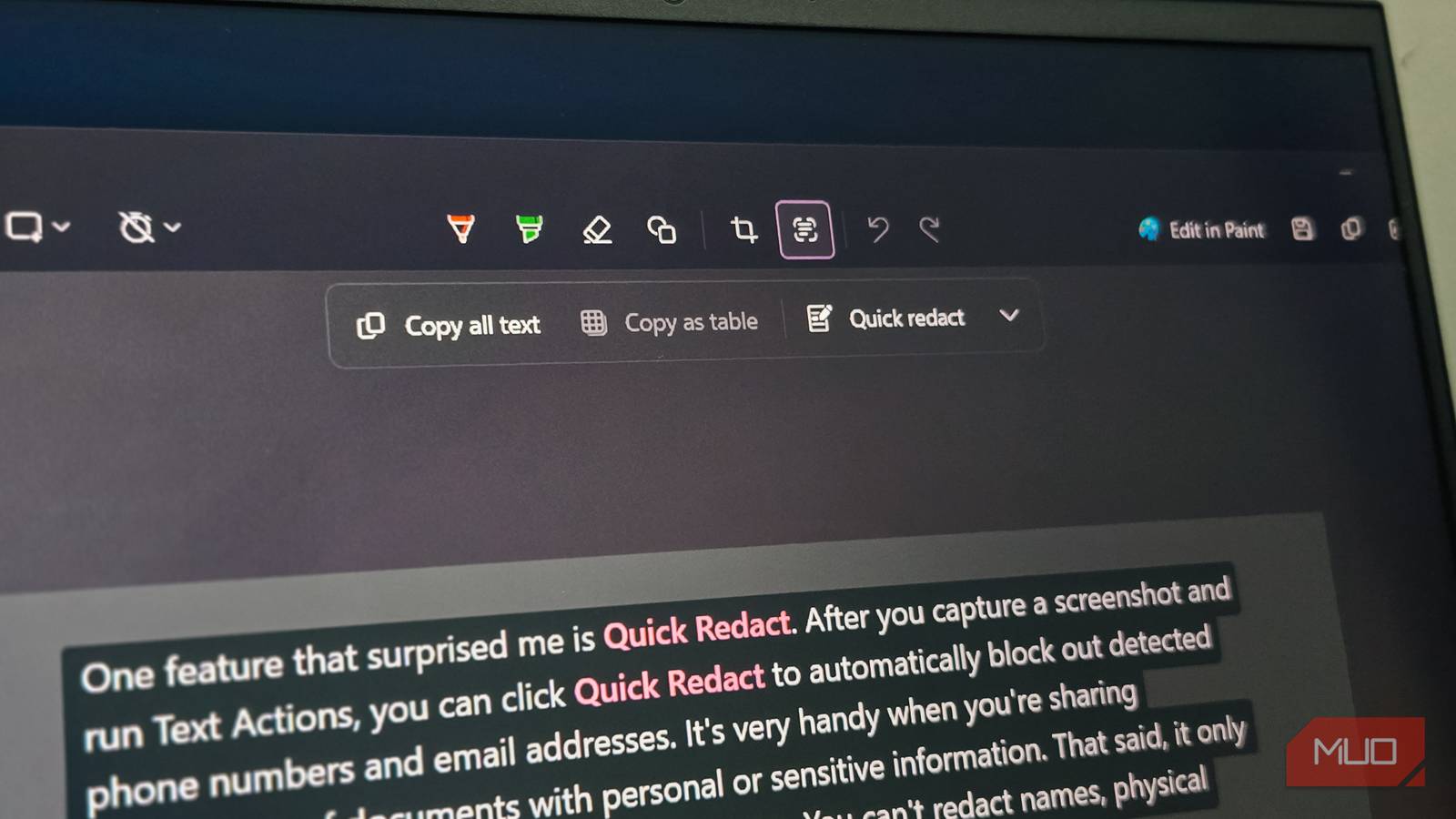
There are two ways to use it. The first is to capture a screenshot of whatever contains the text you want, then click Text Actions in the toolbar. Snipping Tool highlights all the recognized text, and you can select specific portions or click Copy all text to grab everything at once.
The second method is even faster. Press Win + Shift + T to trigger the Text Extractor directly without opening Snipping Tool first. Just drag over the area containing text, whether it’s on a web page, a PDF, or an image, and click Copy all text to copy it to your clipboard. I use this shortcut far more often because it skips the screenshot step entirely.
One feature that surprised me is Quick Redact. After you capture a screenshot and run Text Actions, you can click Quick Redact to automatically block out detected phone numbers and email addresses. It’s very handy when you’re sharing screenshots of documents with personal or sensitive information. That said, it only detects phone numbers and email addresses. You can’t redact names, physical addresses, or other types of sensitive data, which limits its usefulness.
Snipping Tool can also copy recognized text as a table using the Copy as table option, which is useful when you’re extracting data from screenshots of spreadsheets or structured documents. It even scans QR codes and extracts the embedded text or URL, which is a neat bonus I didn’t expect from a screenshot tool.
It’s faster than every other OCR method I’ve tried

Before Snipping Tool got its OCR feature, my workflow for extracting text from images was tedious. I’d take a screenshot with one tool, open it in another app with OCR support, wait for it to process, and then copy the result. With Snipping Tool, everything happens in one place.
It also runs entirely on your device. There’s no uploading to an online service and waiting for results, which means it’s faster and better for privacy. And because it’s tightly integrated into Windows, I can trigger it from anywhere with a keyboard shortcut. I don’t need to switch apps or open a separate tool.
Another thing I appreciate is how it handles mixed content. If a web page has both regular selectable text and text embedded in an image, Snipping Tool pulls everything out in one pass. Without this, you’d have to manually copy the selectable text and then run a separate OCR tool on the image portion. It saves a small but noticeable amount of effort.
It has some limitations
Handwriting recognition and low-quality images can be hit or miss

The OCR in Snipping Tool isn’t perfect. Handwritten text recognition, for instance, can be hit or miss. It managed to read even my messy handwriting, but the output wasn’t as clean as I wanted. I found that a dedicated tool like the OCR Text Recognition Tool from the Microsoft Store does a better job with handwritten notes.
Low-quality images are another weak spot. If the source image is small or has a low resolution, Snipping Tool may throw an “image too small” error and refuse to process it at all. Even when it does process lower-quality images, the accuracy drops noticeably. Blurry text or unusual fonts give it trouble, and you’ll often end up with garbled output that needs manual cleanup.
Formatting is also not preserved. Whatever you extract comes out as plain, unformatted text. If you’re pulling text from a neatly laid out document, you’ll lose all the structure, columns, and spacing. For basic text extraction, this is fine, but it won’t work for anything where layout matters.
A built-in OCR tool is what most people need
I don’t extract text from images every day. It’s something I need occasionally, maybe when I come across an error message I can’t select, a text-heavy image, or a scanned document. For those situations, having a capable tool already built into Windows saves me from installing and maintaining a dedicated OCR app.
That said, if your work regularly involves extracting text from handwritten notes, low-resolution scans, or documents in multiple languages, a dedicated OCR tool will serve you better. Snipping Tool’s OCR is fast and convenient, but it’s not designed for heavy-duty text recognition. For the occasional extraction from a reasonably clear source, though, it’s become my go-to.
