
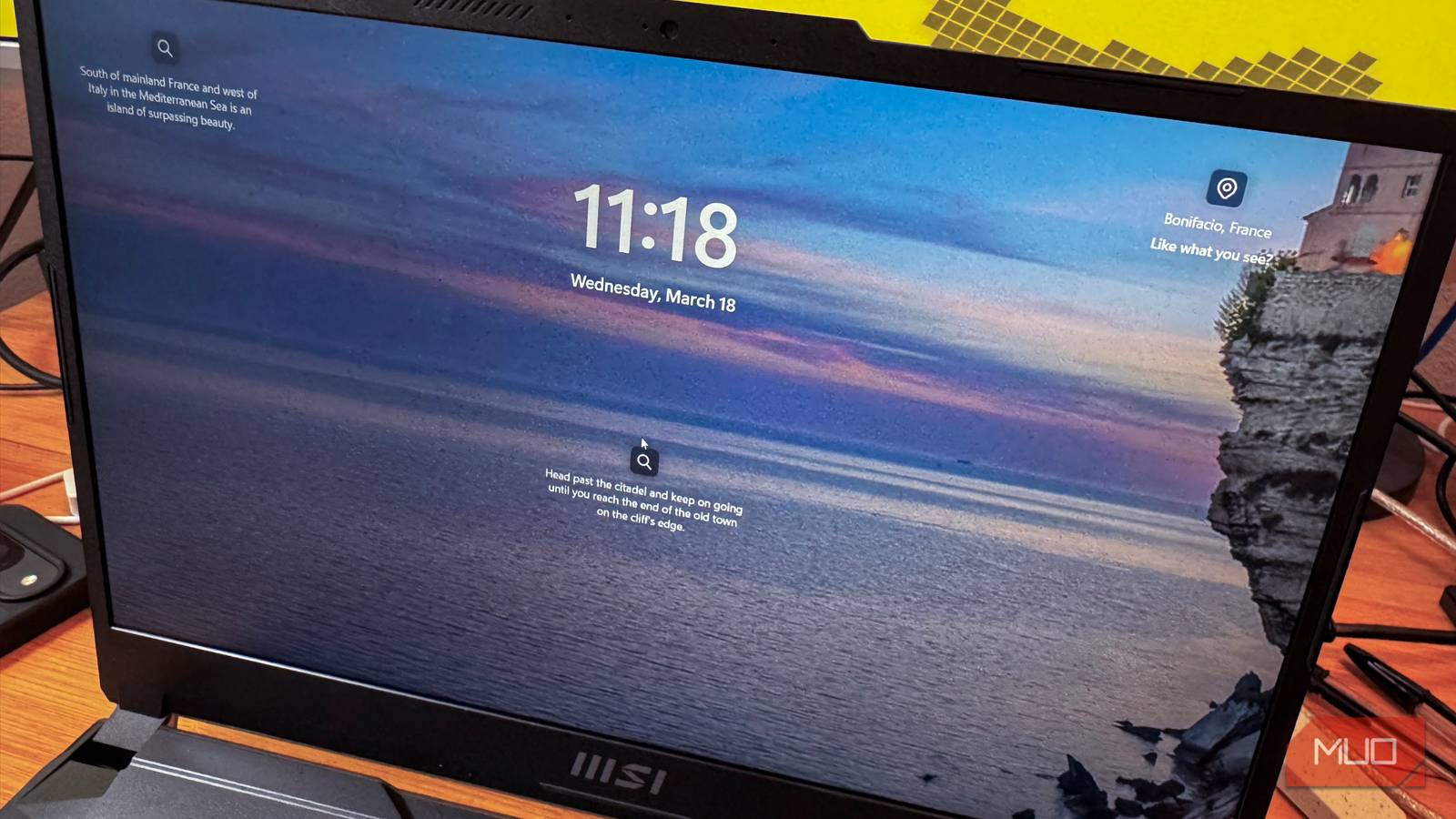
We’ve all been there: We’re working away on our PC, maybe in a coffee shop or library, and we have to leave it for a moment, to grab our order or to greet an old friend. You can lock it manually, but I know I can often forget. Even at home, leaving my PC unlocked could end up with someone in my family seeing what I’m working on. Maybe that’s not an issue for you, but I’m guessing it could be.
Luckily for people like us, Windows has a built-in feature called Dynamic Lock that handles this for you automatically. It pairs your PC with your smartphone via Bluetooth and locks the screen within about 30 seconds of your phone moving out of range. Now you don’t have to remember to do this manually and can stop beating yourself up about it.
While Dynamic Lock has been around since about 2017 via the Windows 10 Creators Update, most of us don’t even know it’s there. Here’s how to set it up and use it.

What is Dynamic Lock
And how does it work?

Windows uses Bluetooth-based proximity detection. Basically, Dynamic Lock monitors the Bluetooth signal strength between your PC and paired phone, then triggers the lock when the signal drops below a certain threshold, like when you move away. The feature is on both Windows 10 and Windows 11, and takes about 30 seconds to engage. The big caveat here, though, is that you have to take your phone with you for this to work.
You’ll need a PC with Bluetooth enabled, a smartphone with Bluetooth (Android or iOS), and you have to pair the devices first. TO pair your phone, you’ll first want to make sure Bluetooth is enabled.
I was able to pair both my iPhone and Pixel 9 to my laptop via the Bluetooth settings on each phone.
For iOS, go to Settings > Bluetooth > Other Devices and pair. On Android, head to Settings > Connected devices > Pair new device.
On PC, you can make sure all is working in Settings > Bluetooth & devices > Devices. Just scroll down to Other devices to see your paired phones.

- OS
-
Windows
- Minimum CPU Specs
-
1Ghz/2 Cores
- Minimum RAM Specs
-
4GB RAM
- Software Version
-
24H2
Windows 11 is Microsoft’s latest operating system featuring a centered Start menu, Snap Layouts, virtual desktops, enhanced security with TPM 2.0, and deeper integration with Microsoft Teams and AI-powered Copilot.
How to enable Dynamic Lock
In Windows, you’ll find the spot to turn on Dynamic Lock in Settings > Accounts > Sign-in options > Dynamic Lock. You’ll want to check the “Allow Windows to automatically lock your device when you’re away.” When you do, a little animation will appear that shows your paired phone or phones.
Now when you walk far enough away with your paired phone, your PC will lock itself down and keep you safe from prying eyes.
What to know about its limitations
It’s a safety net, not a replacement

The feature only works if your system is also idle; anything keeping your PC active will keep it from locking down when your phone goes out of range. Locking takes up to 30 seconds, too; it’s not immediate. Plus, if you leave your phone at your desk or table, it won’t work either. The habit of hitting Win + L is really the best, as it will lock your Windows PC without hesitation.
Dynamic Lock can also misfire on occasion, like if your phone’s Bluetooth cuts out temporarily from a low battery, a glitch, or some interference. When this happens, the fix is easy, of course. Simply sign back in.
In fact, you can pair Dynamic Lock with an easy way to sign in as well: Windows Hello. If you’re locking your PC more often, you’re also signing in more often. Instead of having to type your password in each time, Windows Hello lets you sign back in with your face or fingerprint instead. Together, Dynamic Lock and Windows Hello are a natural pair: One locks your PC when you walk away, while the other gets you back in fast when you come back.
Ultimately, this will make locking your PC feel less like a freedom-stealing chore and more like something that just works.

How to Configure a Windows Hello Fingerprint Login on Windows 11
A fingerprint is a quick but secure to log into Windows. Here’s how to set up fingerprint recognition on Windows 11.
Set it once and forget it
If you’re a careful, PC-locking person with great habits, you still can benefit from Dynamic Lock. Even cautious users forget from time to time. It’s an easy-to-set-up, low-friction way to make sure that if you do forget to lock the screen, your PC will take care of it for you. It’s especially useful in shared spaces like open offices, coworking spots, or public spaces.
If you really want to get fancy, you can pair Dynamic Lock with a screen timeout either via the Lock Screen or Screen Saver features on your Windows PC.
Whichever you choose — a simple Dynamic Lock solution or a pairing with timed lockouts and Windows Hello, you’ll be much safer as you go about your workday.
