
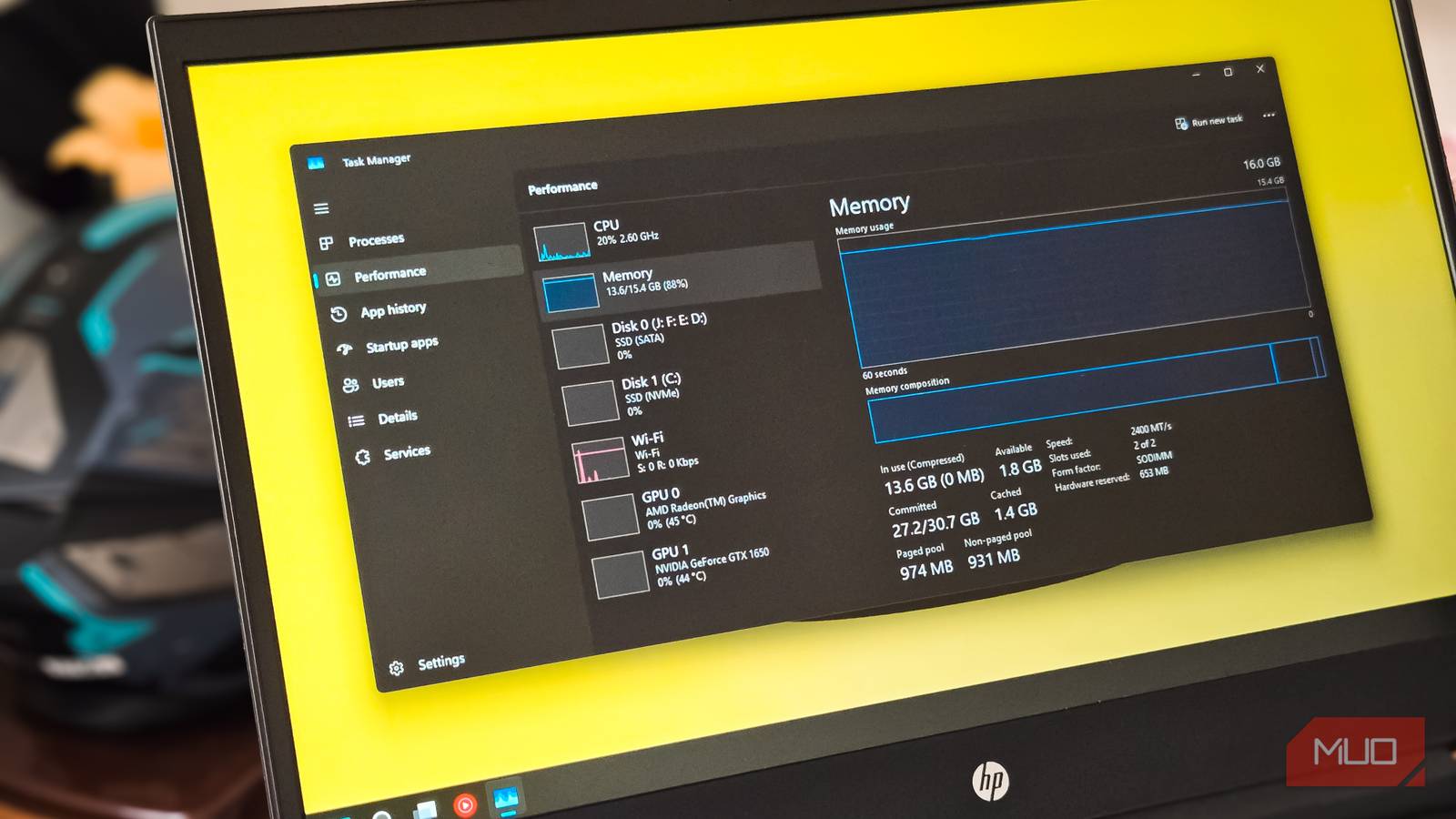
Have you ever gone to Task Manager to figure out why your PC feels so slow, so sluggish? If you have, you might have noticed that nothing looks obviously wrong, but memory use is high and your machine is crawling. Why doesn’t Windows tell you what’s going on?
Turns out that the Task Manager isn’t showing you the full picture. Windows consolidates dozens of background service processes under a single parent entry called svchost.exe, and there can be a ton of these running at once. You can expand each one to see the services nested inside — but Task Manager won’t tell you which of those services is actually eating your RAM. To find out what’s really using up all the RAM, you need a totally different tool. It’s called Resource Monitor, and it’s been there all along.

Why Task Manager groups processes this way
It’s a design decision

There are a ton of background services running on your Windows machine at any given time, like Windows Update, the print spooler, Bluetooth support, and telemetry collection. Instead of giving each one its own isolated process (making things slower and more resource intensive), Windows bundles them together under svchost.exe, or Service Host. It’s a design decision that came about in Windows 2000 and makes the OS more efficient. That said, it makes diagnosing resource problems much harder for you when tring to figure out what’s going on.
In Task Manager, you can see eight or so entries all labeled svchost.exe, each with a different memory and CPU footprint, with no obvious way to tell them apart. Even if you expand the view in the Details tab, you won’t see the type of granular data on individual services inside the shared host process. That’s where Resource Monitor comes in.
How to open Resource Monitor
Step by step
You can get to Resource Monitor in a couple of different ways:
-
Press Win + R, type
resmon, and hit Enter - Open Task Manager, go to the Performance tab, and click the three-dot menu in the upper right corner, then Resource Monitor
- Search for Resource Monitor in the Start menu
Once it’s open, you’ll see a more detailed breakdown than anything Task Manager offers — separated into CPU, Memory, Disk, and Network tabs, each showing per-process data in real time.
What you’re looking at
The Memory tab is where you want to look if you’re investigating RAM issues. It has columns for each process.
- Commit (KB) – the amount of virtual memory reserved by the OS for the process
- Working Set (KB) – this is the actively used memory for that process
- Shareable (KB) these bits of memory could theoretically be shared with other processes
- Private (KB) this is memory held just for that process; not shareable
If you’re looking for issues, pay attention to Working Set and Private. Sort by descending, and you’ll get the RAM hogs to the top of the list.
Finding what’s hiding inside svchost.exe
How to read the service names

Here’s why you want to use Resource Monitor. To find which svchost.exe instance is eating your RAM, start in the Memory tab.
- Click on the Memory tab to sort it — find the svchost.exe entry in the Processes table and sort by Working Set to identify the high-RAM instance
- Note its PID
- Switch to the CPU tab, find the matching svchost entry by PID, check its box, and the Services section below will filter to show what’s running inside it
The service identifiers aren’t always self-explanatory, of course. If you see a name you don’t recognize, you can cross-reference it fairly quickly. Press WIn+R, type services.msc, hit Enter, and then find the service name in the list (you can look in the Description column to see what it actually does). You can also just Google it; most have well-documented purposes.
Once you’ve identified the culprit, you have a couple of options. You can stop it temporarily and see if that clears things up, disable it at startup if you don’t need it, or research whether it’s behaving oddly or is just a momentary process that will chill out once it’s done.
When Resource Monitor isn’t enough

For most of your RAM mysteries, Resource Monitor will be just fine. But if you’re dealing with a process that’s hard to identify, suspect malware might be involved, or just want deeper per-thread and handle-level data, you can check out Process Explorer (part of the free Sysinternals suite). It can show you more details, like which specific DLLs a process loads, what file handles it has open, and it can verify process signatures against something like VirusTotal directly from its interface.
Stop guessing and start looking
You’ve got the tools to see exactly what’s happening under the hood of your Windows PC; it just takes a little know how to find and use them. The next time your machine slows down and you can’t figure out the issue in Task Manager, head into Resource Monitor, sort by Working Set, and expand the resulting svchost.exe entries. The answer is almost always in there.

- OS
-
Windows
- Developer
-
Mark Russinovich
- Price model
-
Free
The suite contains over 70 individual tools covering process and memory management, network monitoring, disk analysis, and security auditing. Standouts include Process Explorer (a powerful Task Manager replacement), Autoruns (which surfaces everything that launches at startup), Process Monitor (which logs real-time file system, registry, and process activity), and TCPView (which maps active network connections to individual processes). You can install it from the Microsoft Store for automatic updates.
[ad_2]
Source link