
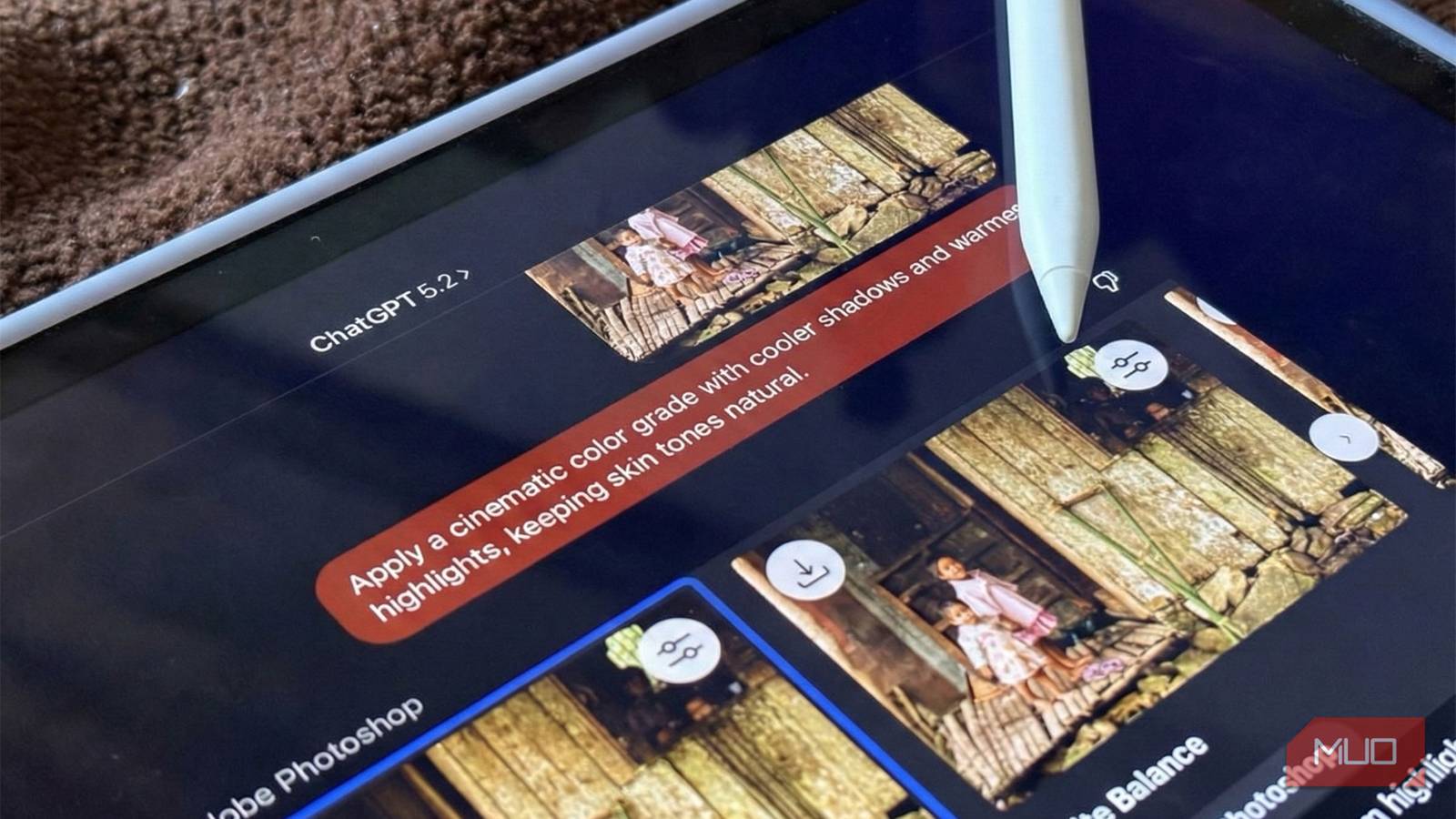
Using Photoshop inside ChatGPT sounds like a heavyweight crashing a welterweight’s bout. Image generation is baked into ChatGPT after all, with DALL-E 3. But after running a sample batch of ten photos through it, I get the logic behind using an outsider like Photoshop as a connected app in ChatGPT. Even if you don’t get the full power of desktop Photoshop. That’s by design. Instead, the integration democratizes image editing into a natural-language conversation for everyone. Image editing is kept simple: describe the edit, wait a few seconds, and iterate. If you already lean on AI for generating images, this is a smooth way to tweak images without opening another app or purchasing Photoshop.
Natural language editing makes quick fixes feel effortless
Just describe the edit you want
Photoshop in ChatGPT works almost like an add-on. It’s a connector that runs edits with simple prompt requests like “blur the background” or “make the colors pop.” You upload a photo, type what you want, and the integrated Photoshop Firefly engine applies the adjustments automatically. For those struggling with the full-blown power of Photoshop, the lack of complexity can be useful for quick edits.
Of course, this is a drastic dumbing down, and it comes at a cost for those who want to be more hands-on. I’m used to nudging controls like exposure by specific increments or visually fine-tuning a curve until skin tones look just right. In the chat workflow, I have to start a conversation when I really want a precise numerical tweak. Using the Photoshop + ChatGPT combo can be a climbdown for those well-versed with Photoshop. In fact, it feels like I’m using a Photoshop alternative for image edits instead of the industry behemoth.
The flip side is that most people don’t want to think in histogram curves and color channels, especially within ChatGPT. This integration is clearly tuned for speed, accessibility, and simpler edits. Accept that, and you can move through edits significantly faster than launching the full Photoshop software for throwaway assets.
ChatGPT will display multiple Photoshop previews in a carousel for some image edits. This visual overview is nice as it allows you to choose a suggested edit and continue editing them with more prompts. Alternatively, you can use the sliders on the top-right of each image preview. Images can also be opened in the free Photoshop Web from ChatGPT.
Image retouching fits neatly into any ChatGPT workflow
Use the same space where you draft and brainstorm

ChatGPT is an entire workspace for many of us. Let’s say you are on a project. Being able to drop an image directly into that same thread and prompt, “Make the background black and white while keeping the subject in full color,” keeps you in a single mental and digital workspace. For content creators, that means less context switching: no juggling multiple apps, no exporting and re-importing, just a more fluid conveyor belt from idea to text to visuals.
The ChatGPT and Photoshop combo works as a staging area for light edits. I could draft article sections, paste in sample screenshots, tweak them inline, and then copy both text and visuals into a CMS without launching an image editor. Think of it as an AI shortcut for speedy image edits that usually derail focus.
For certain kinds of users and image needs, this may not be optimal. For instance, a serious photo editing session needs everything from file management to color-managed previews. The Photoshop connector cannot do that. Also, editing inside a chat tab can feel cramped when you don’t want to upload multiple files into ChatGPT.
Keep expectations realistic with limited controls
Ideal for quick, high-quality enhancements

The integration has started with a limited subset of features. The Adobe Support page says you can modify a part of an image, tweak settings such as brightness, contrast, and exposure, and add effects like Glitch and Glow, all without losing image quality. These constraints sound like a drawback, but they actually can be a better use of your time. When you’re editing, you’re nudged toward quick impact instead of disappearing down the rabbit hole of micro-corrections.
From my perspective, as someone comfortable with layers, masks, and non-destructive workflows, the limits can be frustrating. I tried a few operations — like complex background removal and adjusting some small part of a photo. You can pull these off in desktop Photoshop, but this early chat-based version just isn’t built for that (yet). So, it’s essential to keep expectations and reality on an even keel.
Over time, though, these constraints will become part of a productivity triage. If an image truly required advanced retouching, I’d send it to full Photoshop from the beginning. Everything else, like social cards, quick hero images, and simple thumbnails, can stay in ChatGPT and get edited iteratively with a few conversational passes. Let’s wait and see if we can reuse other image prompts, like from Dall-E with Photoshop in ChatGPT.
Iterative prompts turn feedback into a ChatGPT collaboration
Refine images conversationally

Perhaps the most underrated advantage of Photoshop in ChatGPT is the iterative feedback loop with just prompts. Start with a broad prompt: “Make this brighter,” and then refine based on what you see: “Make the people pop,” “Make the text area sharper,” or “Add a subtle vignette around the subject.” At first, I found this conversational iteration strange. There’s a mild friction in translating a visual thought into words, especially when you know exactly which control you’d drag in Photoshop. Also, you might need to tweak the images with sliders if some prompts don’t work as intended (for instance, the prompt failed to apply a vignette in the photo above; I had to adjust the sliders).
But once I stopped myself from chasing perfection in a single pass, the quick incremental prompts helped steer the image where I wanted. Adobe says new features and prompt ideas will be added regularly. So, I expect the Photoshop connector will get more fine-tuning power over time.

These 6 AI Photo Editors Are Better Than Photoshop: Here’s Why
Ever since the AI boom, you no longer need expertise or big bucks for Photoshop. Check out these AI alternatives instead.
Try editing your vacation photos entirely in chat
Take your next batch of low-stakes images, like vacation photos, and start doing all the edits conversationally to see how much time and context switching you can actually save. Experiment with different types of prompts and see what works.
