
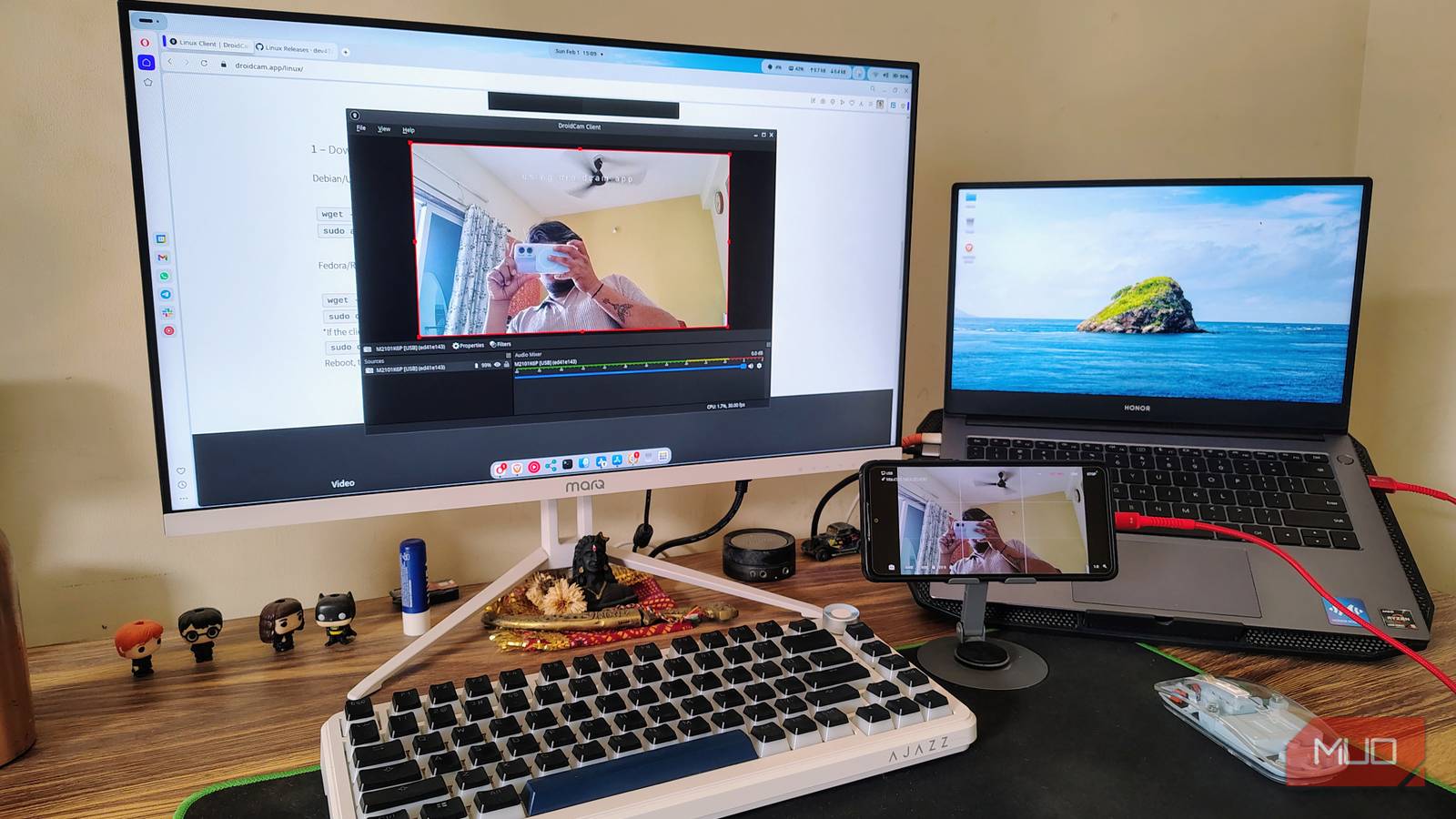
At the start of 2026, I revived my old laptop by installing Linux. It was too old to run Windows 11, but it was still in good condition, so I didn’t want to throw it away. And to my surprise, everything was going smoothly. Performance was fine; the latest Linux distros felt complete, until I had to join an online meeting on Google Meet with that dusty old built-in camera.
At first, I thought about buying a new webcam, but later I realized I already had one lying in my drawer of doom. It was my old $100 Android phone, which I turned into my webcam with the DroidCam app.

- OS
-
Android, iOS, Linux, Windows, macOS
- Developer
-
Dev47Apps
DroidCam turns your Android or iOS phone/tablet into a high-quality wireless or USB webcam for PC, compatible with Zoom, Teams, and OBS. It offers HD video, low-latency streaming, and audio support, making it an excellent, free alternative to traditional webcams.
What is DroidCam?
A utility to bridge the gap between two hardware platforms

When you are dealing with two unique ecosystems, there’s this irritating lack of continuity that hinders the workflow. Especially when you want to make hardware from different ecosystems work together. That’s exactly the problem we face when we want to use an Android smartphone as a webcam with our Windows or Linux desktop.
Now, different smartphone manufacturers take different approaches to this situation. Motorola has Smart Connect, which integrates Windows and Motorola phones nicely, and Samsung has DeX. But none of these works with Linux or other smartphone OEMs.

You probably have an old Android lying around — here are 6 clever ways to use it
From a handheld gaming device to a wireless security camera, your old Android still has plenty to offer.
That’s where DroidCam comes into play. It supports both Windows and Linux after a one-time setup and works flawlessly. It works by intercepting the video feed from your Android’s camera and “piping” it into a virtual driver on your PC.
This means that once the connection is established, your computer treats your phone exactly like a USB plug-and-play webcam. Whether you are using Google Meet, Zoom, Microsoft Teams, or OBS for streaming, your phone appears in the dropdown menu as a standard video source. The software supports both video and audio, allowing you to use the phone’s surprisingly capable microphone array if your desktop lacks a dedicated mic.
How to set up DroidCam
Improving your webcam quality is easier than ever
While you can set up DroidCam with Wi-Fi, for a stable, uninterrupted, high-quality video output, I recommend a wired connection. This also benefits the phone by keeping it charged during continuous camera use. Setting up DroidCam with a wired connection is also easier, and offers zero latency and keeps you away from the shenanigans that come with wireless connections.
Before we head into app setup, you’ll need to enable USB Debugging in Developer Options in Settings. For that, go to Settings -> About Phone -> Tap Build Number 7 Times -> More settings -> Developer options. Here, toggle USB Debugging on, then follow the steps below.
- Install the DroidCam app from Google Play.
- Launch the app and allow it the required permission.
- Now install the DroidCam client on Windows or Linux.
- Connect your phone using a USB cable.
- Once done, launch the PC client and click Add device.
- From the pop-up, select your device. (If your phone does not show up, restart it and refresh the list.)
- Click Add the selected device.
- Now click Start/Activate.
That’s it! As soon as you hit Start, your phone will launch the camera, and your desktop webcam will be replaced by its clearer, crisper optics.

9 Ways to Make Your Old Android Phone Useful Again
Don’t toss that old Android device just yet! With a little creativity, you can give it a second life.
Using an old phone as a webcam makes so much sense
Upcycling, camera quality, and more
While using a smartphone camera as a webcam definitely offers a quality advantage over similarly priced webcams, there’s more to the story than meets the eye.
The first, and the one that impacts us all, is sustainability. We are living in an ever-growing pile of e-waste, not to mention the skyrocketing prices of electronics due to the silicon shortage. The best way to tackle this is to repurpose the electronics you already have, and you’ll save a few bucks in the process.
I’m also impressed with the overall camera quality, even on my old, $100 phone. It has better low-light performance than a webcam and overall, sharper focus. Depending on your phone, the autofocus could be significantly better than a webcam, and you may also be able to use HDR and other advanced features. Another plus point is the microphone quality. I don’t actually use my Android smartphone webcam like this (as I have a dedicated mic), but the microphone on your smartphone is probably a big improvement on the integrated one on your webcam.
Get yourself a smartphone desk-mount, and you’re good to go
Use the best camera you already have instead of buying a new one

One might argue that a large, old smartphone adds clutter: an extra cable and a mounting solution (or a stand, a gooseneck arm, or a dedicated phone clamp). Adding a mount and dangling cables can feel like a step backward, as everything is going wireless. There’s no denying that a phone mounted on something like a tripod takes up more space than a tiny webcam mounted on your monitor.
But for me, the transition from a standard webcam to a wired Android setup is a revelation in the quality-to-cost ratio. The only investment is a USB cable and a cheap desk mount (a mini tripod or a phone clamp), and you get a video conferencing tool that does almost everything for the same price.
