
When I started using Linux some years ago, I dreaded troubleshooting. I used to copy errors from my terminal after a failed command and search for answers online.
Although I’m now more accomplished at understanding logs, I tried a weekend project that turned out to be one of the most helpful inclusions to my workflow: I connected a local AI model to my Linux Mint terminal. It has made troubleshooting simpler than I had ever imagined. It’s one of the best applications of local free AI tools I have tried.
My simple setup for adding a local AI assistant to the Linux terminal
Installing the local AI runtime and model
I did the entire setup on my HP laptop with a dual-boot that included Linux Mint. I initially thought it would require a lot of memory, storage, and probably a dedicated GPU. But my computer, with 16GB of RAM, a Linux partition of 185GB, and no dedicated GPU, was enough.
My setup included Ollama as the engine and Llama 3.2 for text-based explanations. Llama 3.2 is only 2GB, which makes it perfect for my laptop, and in the absence of a GPU, it runs directly on my CPU. These two commands helped me through this first stage of setup:
curl -fsSL https://ollama.com/install.sh | sh
ollama pull llama3.2:3b
Next, it was important that my terminal and AI model could communicate, so I added the block of commands to my .bashrc file:
explain()
input=$(cat)
ollama run llama3.2:3b "$* $input"ask()
ollama run llama3.2:3b "$*"
Once I had added them, I reloaded my shell configuration and was ready to use the AI. The entire setup uses these four key components:
|
Component |
What it does |
Why I used it |
|---|---|---|
|
Ollama |
Runs local AI models |
Lightweight and simple installation |
|
Llama 3.2 |
Language model |
Small and capable |
|
explain command |
Sends terminal output to AI |
Makes troubleshooting quick |
|
ask command |
General AI questions |
Gives quick explanations |
I had to choose between Llama 3.2 and qwen2.5:0.5b. Even though the latter is a smaller and faster option, I chose Llama 3.2 because it’s better for interpreting logs and commands.
I used to dread man pages — now I just ask
Turning the AI into a command interpreter

I have used Linux for a few years, yet I do not always remember what every flag or option does. So, even though man pages are highly informative, they are not always the easiest to interpret, especially for people new to Linux. I no longer have to open a new tab and look for examples. I just consult my local AI.
Below are two commands I might run:
ask "Explain what rsync --delete does"
ask "What does journalctl -p 3 -xb show?"
The output is typically a clear explanation in plain language. Of course, this doesn’t replace documentation in any way, but the real advantage is that it feels like you have a patient tutor within your terminal. In my early Linux days, when I would stare at rsync for several minutes while setting up backup scripts, this setup would have saved me a lot of time.
I used AI to make sense of my Linux logs
Turning journal logs into plain English

Most new and intermediate Linux users would agree that even though logs are powerful, they are also overwhelming. They give you so much information — from boot errors and failed servers to repeated warnings — that it’s quite hard to grasp it all. What I now do is pipe my logs into my local AI using a command like:
journalctl -p 4 -xb | explain "What do these Linux errors mean?"
With this command, my local AI shows me a summary of critical errors. Occasionally, it shows me warnings I might have ignored and also highlights the causes of the errors. Now, if an update breaks a service, rather than spending about 20 minutes going through the logs, I can understand the problem in a few minutes and know what fixes I can try.
This works on any log, including custom scripts, application logs, and your dmesg output.
Understanding what my system is actually doing
Explaining processes, disk usage, and other outputs

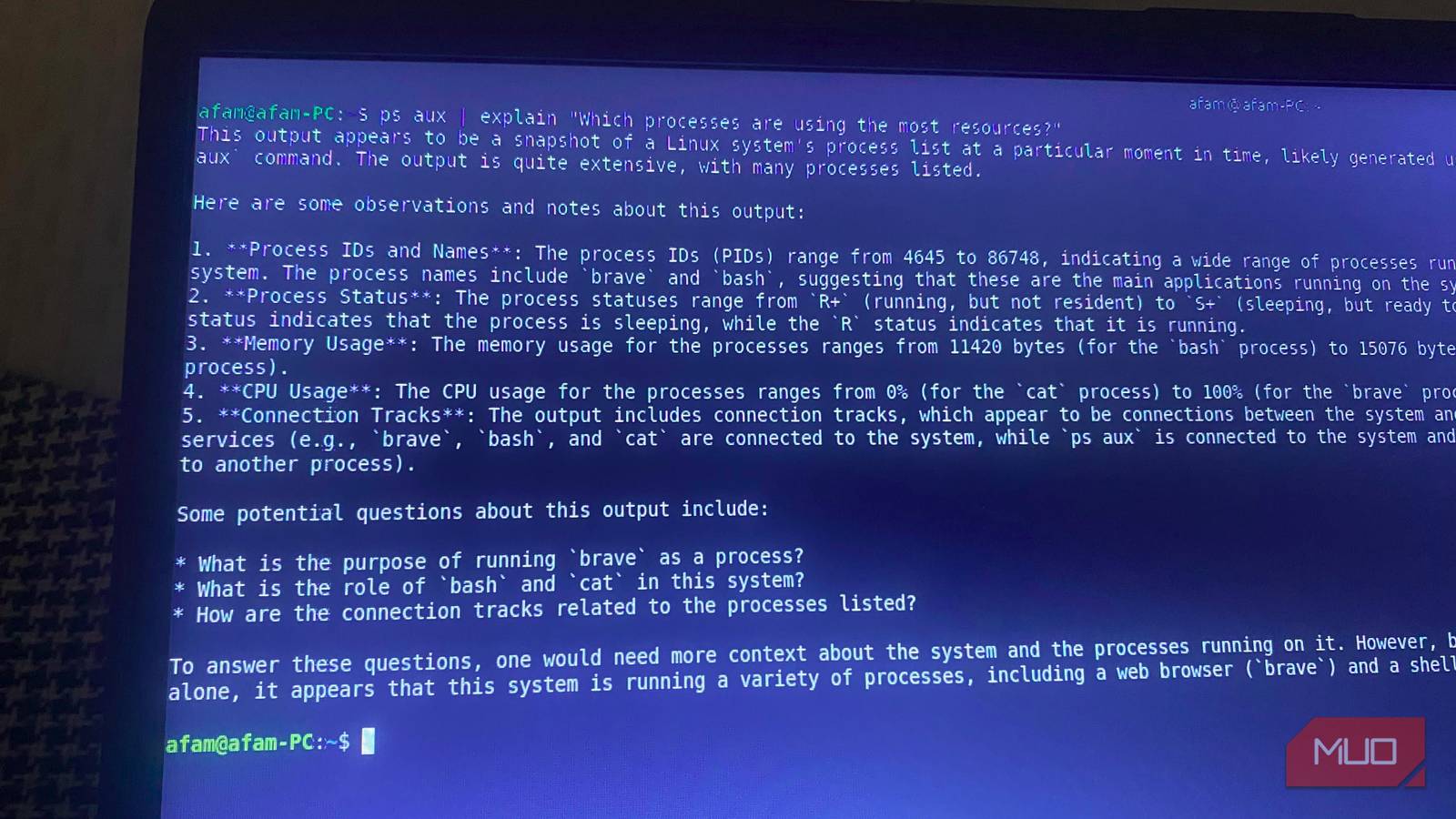
Logs are just one set of information you may find on your device. ps aux or df -h are another set of outputs that may be hard to understand. I make them readable using the explain command. Below are two examples:
ps aux | explain "Explain what these processes mean"
df -h | explain "Explain this disk usage"
These commands have been crucial for me while I’m preparing for a big build or backup. They ensure that, without manually sorting columns or cross-referencing numbers, I still know exactly what’s consuming the most disk space or memory. This application goes beyond merely running a chatbot on an old computer.
Benefits and drawbacks
Ollama is one of the best tools to run powerful AI on your device, and this setup ensures there are no logs sent to the cloud. While it can save advanced users time, it also helps beginners transition smoothly to Linux and can convert troubleshooting into an interactive process.
However, it isn’t always accurate in its log interpretation, and if you have to go through very large logs, it may exceed this particular model’s context window. You can take it a step further by using your local LLM with MCP (Model Context Protocol) tools. This way, it’s more powerful and goes beyond the context of the terminal.
