
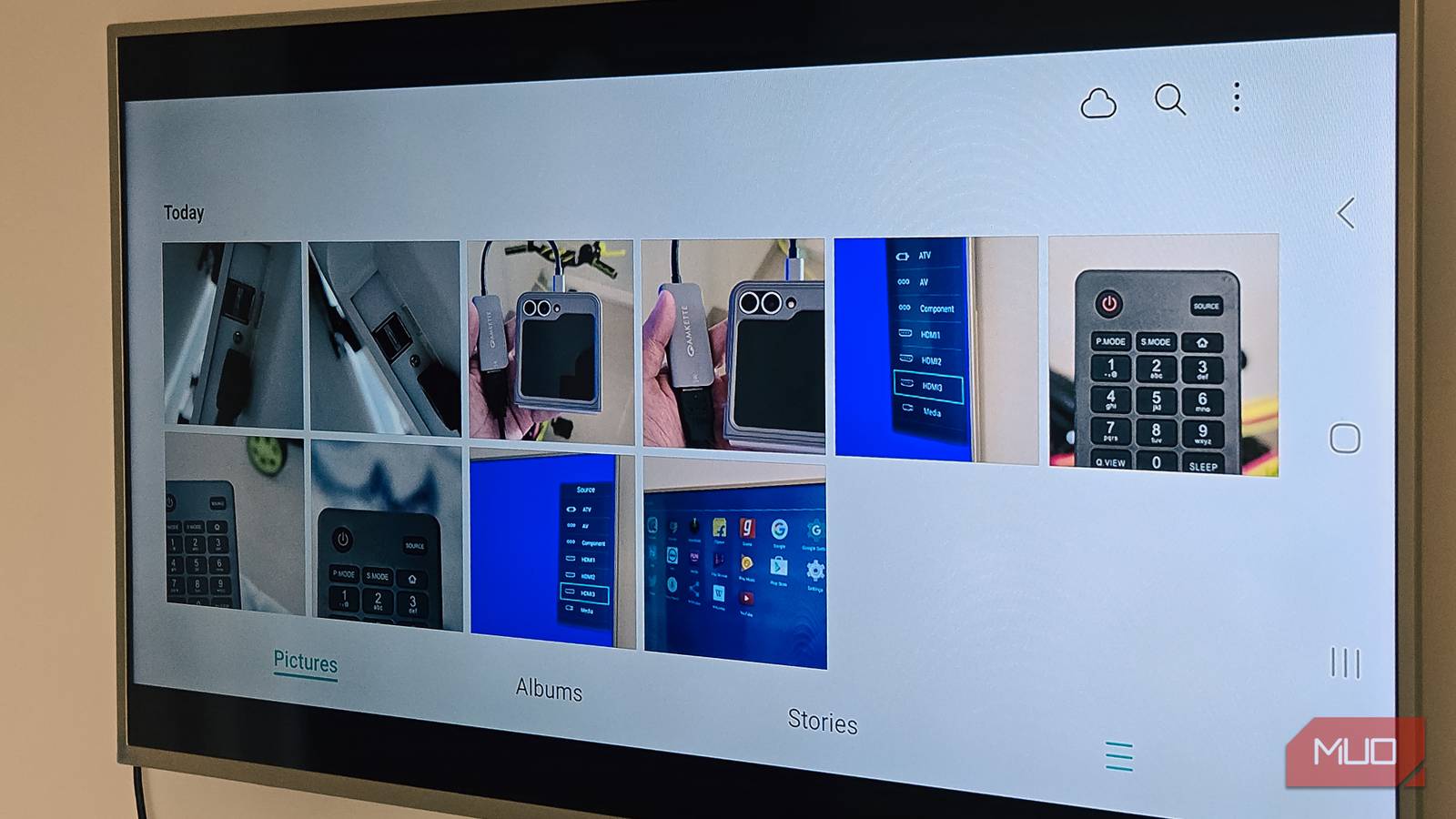
TVs are always better than smartphones for media consumption. When I want to watch something from my phone, like videos or photo albums, I simply cast it to my TV using the Smart View feature on my Samsung phone (other phones have similar features too), and all you need is both devices connected to the same Wi-Fi network.
However, screen mirroring has its fair share of quirks. One, you can’t stream DRM-restricted content. Second, the wireless connection is often laggy, and you need a smart TV or an external streaming device (such as Chromecast) for it to work. But if you plug your phone into your TV with a simple HDMI-to-USB-C adapter, you can discover a few interesting features that help you overcome these quirks and then some.
Watch movies and shows from any app
A wired connection bypasses DRM restrictions that block wireless casting

If you’ve tried casting Netflix, Disney Plus, or Prime Video using Smart View or the built-in Cast feature, you’ve probably seen a black screen or an error message. That’s because these streaming apps use DRM (Digital Rights Management) protections that block wireless screen mirroring. The apps detect the wireless connection and refuse to display the video on your TV, even though the audio might still play.
A wired connection sidesteps this entirely. Plug a USB-C multiport adapter into your phone, connect an HDMI cable from the adapter to your TV, and switch the TV’s source to that HDMI input. Your phone’s screen mirrors directly to the TV, and streaming apps play without any DRM issues. The restriction seems to only affect wireless connections, not wired ones.
This is especially useful if your TV doesn’t have a native Netflix app or isn’t a smart TV at all. Instead of buying a separate streaming stick, you can turn your phone into a streaming device. However, for this to work, your phone must support USB-C video output (DisplayPort Alt Mode), which unfortunately, not all phones do.
Turn your TV into a PC
Samsung DeX turns your phone and TV into a desktop setup
The most useful Samsung Galaxy feature I have used is its ability to turn your phone into a PC when connected to an external display. If you have a Samsung Galaxy flagship (S, Note and Z Fold series), plugging it into a TV doesn’t just mirror the screen, but launches Samsung DeX, a full desktop environment. Your TV displays a PC-like interface with a taskbar, resizable app windows, and a system tray.
Once DeX activates, you can connect a wireless mouse and keyboard to your phone via Bluetooth to work directly on the TV screen. If you don’t have a keyboard handy, a virtual keyboard pops up on your phone screen when you need to type. The phone itself also turns into a trackpad, so you can navigate using touch gestures without any extra accessories, and the trackpad works surprisingly smooth with support for two-finger scroll and pinch-to-zoom.
What makes DeX particularly useful is how it handles streaming apps compared to regular mirroring. When I use DeX to watch Netflix on the TV, the app runs in a proper full-screen mode that looks and feels much better than the stretched mirror view you get from a basic HDMI connection. The entire experience feels more polished, like using an actual computer rather than just projecting a phone screen.
For Samsung phones that don’t officially support DeX—like the Z Flip series—Android also has a hidden Force Desktop Mode option in Developer Options. It’s nowhere near as refined as DeX, but it gives you a basic desktop layout with movable windows that works in a pinch.
Turn your TV into a digital photo frame
A wired slideshow looks far better than anything wireless casting offers

I’ve used Smart View to show photos on the TV before, and it was never a great experience. There’s always a noticeable delay when swiping between photos, the image quality looks pixelated compared to the original, and the TV takes a moment to catch up every time the screen changes. It works, but it feels clunky.
A wired HDMI connection offers a much better experience. Once your phone is plugged in, open the Samsung Gallery app (or Google Photos), navigate to the album you want to display, tap the three-dot menu, and select Slideshow or Start Slideshow. The photos advance automatically and display on the TV in full quality with no lag, no pixelation, and no delay.
Turn your TV into a speaker
Use a wired connection to play music through your TV speakers

Another simple but surprisingly useful feature lets you turn your TV into a speaker. When you connect your phone to the TV via HDMI, the audio output automatically routes through the TV’s speakers. So if you want to play music, a podcast, or any audio from your phone on a larger speaker, just plug in and hit play.
This is useful when I’m in a room where the TV doesn’t support wireless casting or when the Bluetooth connection keeps dropping. A wired connection is more reliable with no dropouts or audio sync issues. The TV will also display your phone screen, which you can ignore if you only care about the sound. If there is no audio, check that your TV’s sound output is set to TV speakers rather than an external device like ARC or optical.
A single cable unlocks more than you’d expect
All of this depends on your phone supporting USB-C video output, and the experience varies by device. Samsung Galaxy flagships offer the most polished experience with DeX, while other Android phones may only give you basic screen mirroring.
If you’re shopping for a new TV and want to make the most of these features, it helps to check out the right features before buying so your TV and phone work well together. But even with a basic setup, plugging in a cable is worth trying before you spend money on extra gadgets—you may already have everything you need to do more with your smart TV than you realized.
