
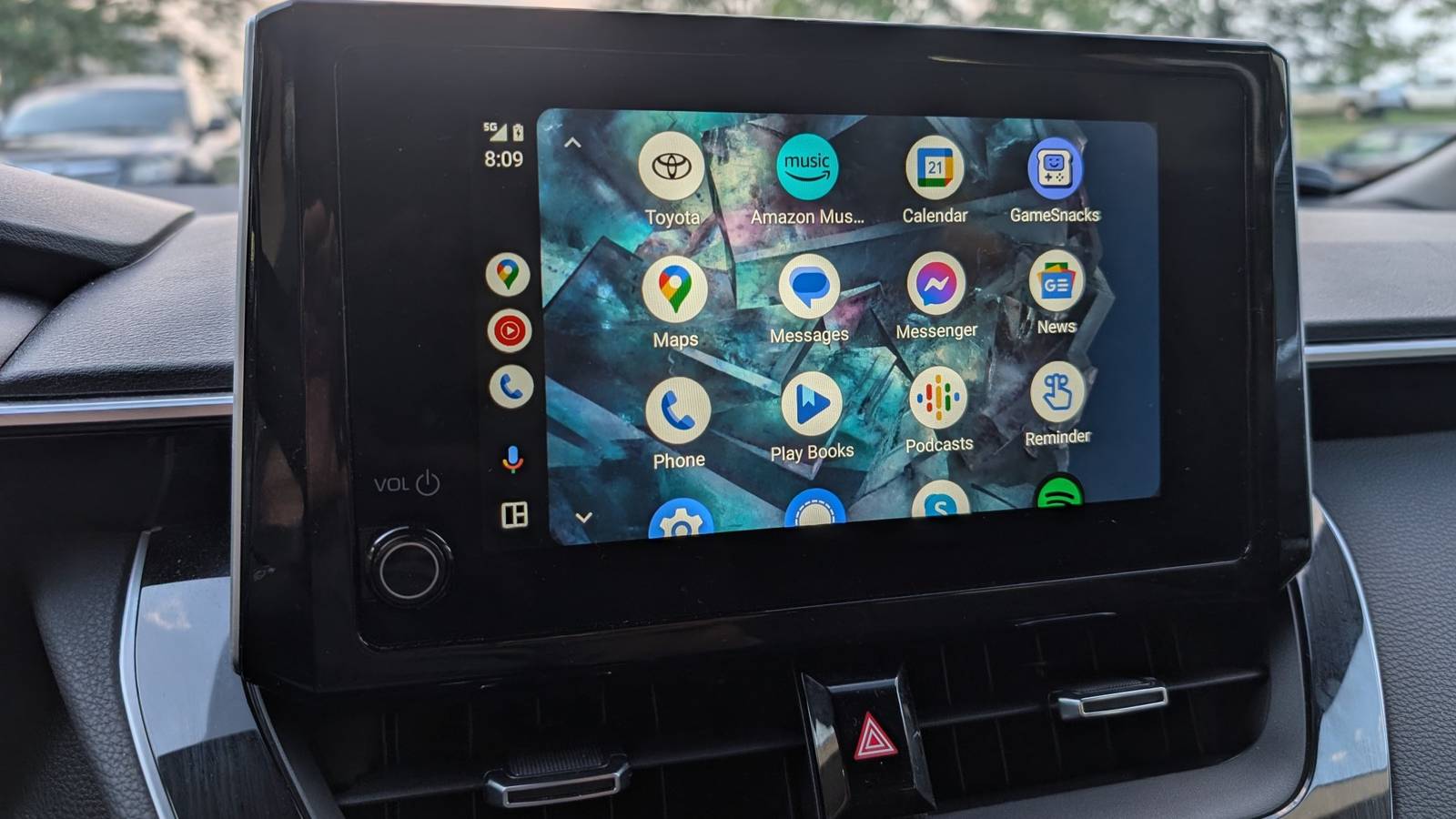
Imagine you are driving in a new city, relying entirely on your favorite navigation app in your car. Then, right at the moment when the navigation app is about to tell you which lane to take, the dashboard screen goes completely black, and Android Auto disconnects. Sounds frustrating, right? Well, in that instance, you have to either stop midway or go with your gut feeling and take the lane on which you already are, only to realize that the U-turn is four miles away.
Not only navigation, but when Android Auto suddenly disconnects, the music also cuts off, leaving you with boring silence. In the past, I’ve faced this issue multiple times, and after trying all the troubleshooting steps, I was able to pinpoint the culprit. It was a single, deeply buried USB setting on my phone.

The root of the disconnect problem
It was neither my car’s nor the cable’s issue

Before we get to the fix, it is important to understand why this happens. If you search online for Android Auto disconnection issues, you will find several possible causes. Some will suggest clearing the cache, reconnecting, restarting your phone, restarting your car’s head unit, and so on.
I tried all of these solutions, and none worked for me, which may not apply to your problem. The Android Auto connection works on a handshake method. When you plug your phone into your car via the USB cable, the two devices perform a handshake to figure out what they are supposed to do with each other.
Should the car just charge the phone? Should it treat it as a USB drive and read the files? Or should it launch Android Auto?
Sometimes Android’s aggressive battery management features or security protocols get confused. Mid-drive, the phone might revert to a charging-only state to protect the device, which disconnects Android Auto from your car. To fix this, we have to force our phone to prioritize Android Auto the moment it gets plugged in.
Change the default USB configuration
Buried deep inside Developer Options, this is the fix you need
To change how your phone handles USB connections by default, you need to access a hidden menu, which is known as Developer Options. If you have never used this menu, and it sounds intimidating, then don’t worry. As long as you tweak the settings that are for normal users, then you are good.
For unlocking Developer Options, you have to follow the steps below:
- Open the Settings menu on your phone.
- Tap on About Phone.
- Tap on Software Information.
- Look for the build number and tap seven times on it in quick succession.
- You may be asked to enter your password or pattern to confirm. Once you are through, you will see a message saying “Developer Mode enabled.”
After this, you have to tweak the USB settings inside the Developer Options menu. Here’s how to do it:
- Go back to the Settings page. You will see a new menu called Developer Options. Tap on it.
- Under the Networking section, tap on Default USB Configuration.
- By default, this is likely set to No data transfer or Charging phone only.
- Change this setting to File transfer or Transferring files. If the Android Auto option is available, then you have to choose that.
By manually choosing this option, you are clearing the air for your phone to default to Android Auto when it is connected to a car. I personally have never experienced a random Android Auto disconnect.

4 reasons why I choose wired Android Auto every time
I use cable to use Android Auto to avoid these problems.
Other ways for a stable connection
A few other minor software tweaks that you can try
The above solution worked for me, but that may not be the case for others. There are a few other solutions that you can try to get a stable Android Auto connection.
Turn off Battery Optimization for Android Auto
- Go to Settings -> Apps.
- Locate Android Auto and tap on it.
- Select Battery.
- Change the setting from Optimized to Unrestricted. This allows the app to run at full power.
Clear app cache
- Head to Settings -> App.
- Locate Android Auto and open it.
- Tap on Storage.
- Tap the Clear cache button. This removes any temporary glitches that may be causing the issue.
Stable connection, enjoyable ride
After weeks of frustration, dropping navigation in the worst possible situations, changing USB cables, and doing whatnot, this one hidden feature finally keeps the connection steady. Android Auto is the way Android users enjoy their favorite music, make or receive calls, messages, play games (when parked), know about the weather, etc., straight from their phone. However, sometimes Android Auto can get a bit distracting, but a single setting can tone down this distraction.
