
Setting up a smart home can take some planning. You have to figure out which smart home assistant you prefer and want to utilize. There are so many different kinds of smart home devices, so you have to decide which ones you want to look into first. There’s also the need to make sure you’re buying devices that will connect with one another, so knowing if they follow Zigbee, Matter, Thread, or another protocol is vital.
Your Wi-Fi is most likely going to be one of the most important parts of setting up a smart home. Assuming you’re going to be using your Wi-Fi to connect these devices, you want to ensure that your network is powerful enough. If it isn’t, there is something you can do to make sure it works well enough to get the most out of your devices.

I struggled with my Wi-Fi working for all my devices
My upstairs smart bulbs rarely stayed online
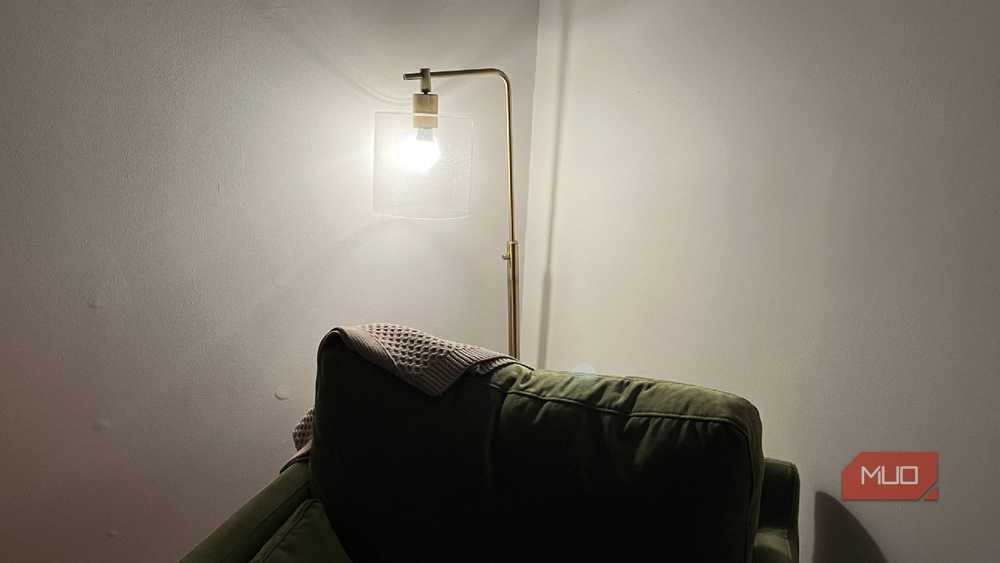
I set up a few smart bulbs in the upstairs rooms of my home. Walking up the stairs and being able to tell my Amazon Alexa speakers to turn the bedroom lights on was a huge part of wanting them. This would alleviate fumbling around for the light switch, especially when carrying either laundry or my toddler, who was kicking and screaming before a bath.
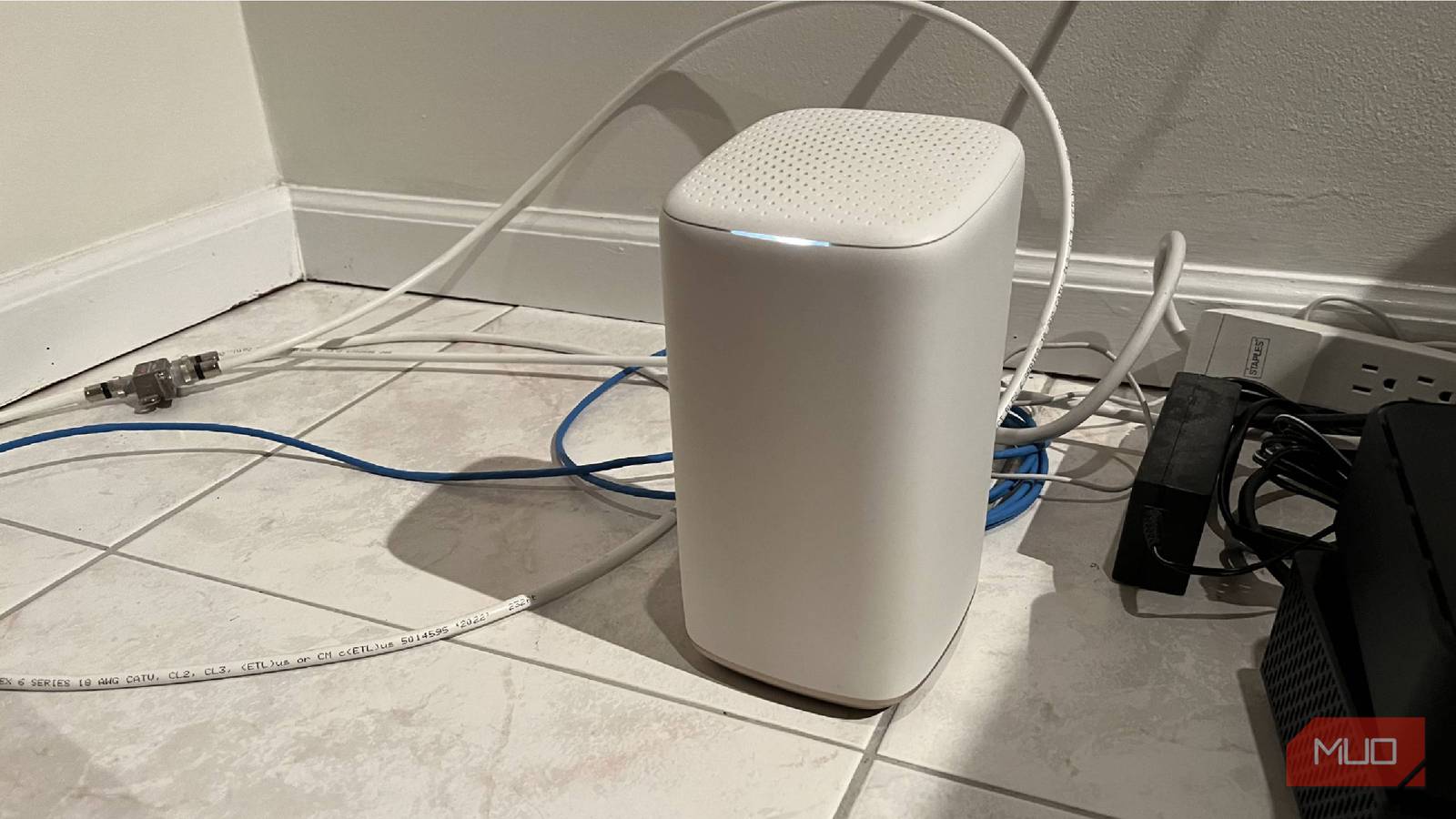
Unfortunately, my bedroom, as well as my daughter’s bedroom where we also put a smart bulb, was the farthest away from the Wi-Fi router in the home. The router was installed in the downstairs family room because that’s where the existing line was when we purchased the home. Had I been more forward-thinking about the process, I would have had the installer move it to a more central location in the home, helping the signal spread more easily throughout the house.
For the most part, the Wi-Fi works well in the house, even in some rooms upstairs. But the lamp next to my wife’s side of the bed is the farthest possible spot from the router. Installing a Wi-Fi smart bulb in her lamp has proven difficult, as occasionally it works, and sometimes, the signal isn’t strong enough, and it doesn’t respond to voice commands.
I’d had to use my phone as a personal hotspot before, just to finish writing something. This simple Wi-Fi relocation helped eliminate the need for that.
The same goes for my Ring Video Doorbell outside. Because it’s outside, the Wi-Fi doesn’t reach the area of my front porch incredibly well. We have had times when the Ring Video Doorbell stopped working because the Wi-Fi signal was weak. I’ve had to reset the doorbell on multiple occasions just to get it up and running again.
I did purchase a Ring Chime to extend the Wi-Fi to all the Ring devices around the house. We have many cameras throughout the house and property, including a floodlight in the backyard as well as a Video Doorbell that the previous owner installed near the garage. That improved the connection to those devices, but I was still struggling with my bedroom.
I elevated the Wi-Fi router for the time being
This is one step until an inevitable bigger change
We have a mantel and a fireplace in one area of the family room where the router is. I extended the cable and elevated the router to be on my mantle. The wall you see behind it isn’t actually made of rock, so it doesn’t interfere with the signal. I wasn’t sure if this would make a huge difference, but it has helped the Wi-Fi reach upstairs more efficiently. Moving it from the farthest corner of the downstairs area to at least another more central portion of the room and raising it has helped make the Wi-Fi signal slightly better for the upstairs.
This has proven to be useful enough that the Wi-Fi in my bedroom works better. The smart bulbs connect more consistently. When I’m doing work from my bed, the Wi-Fi signal shows full strength, rather than the two bars that I was typically getting. I’d had to use my phone as a personal hotspot before, just to finish writing something. This simple Wi-Fi relocation helped eliminate the need for that. It was a cheap way to make my smart home work better than expected.
This worked for me in a pinch, because I figured why not give it a try? If it didn’t work, there were other options I was going to take. Before I even thought about writing this story, I had planned to focus on some other techniques people can try to boost their Wi-Fi for their smart home devices. But this actually ended up working well enough to become the focus of the piece.
What else to consider in order to boost the Wi-Fi
Keep 2.4GHz for your smart home devices

I had considered installing a mesh network in my home to improve the Wi-Fi coverage. Mesh networks create their own high-speed network throughout the home. You can place multiple mesh routers throughout your home in order to eliminate dead zones. This blankets the space with a more consistent Wi-Fi signal.
Another option you can try is kicking your smart home devices off your main Wi-Fi and putting non-smart home devices on the 5G connection on your router, if it offers that. This will reduce the number of devices using the 2.4GHz connection, which is typically the one that smart home devices need. Limiting the devices on that connection can make it stronger, as Internet of Things (IoT) devices tend to use 2.4GHz. This is ideal for more widespread coverage, making it easier for your devices to connect to one another throughout the home. Using the 5GHz connection for options closer to the router will not only free up space for other devices but also give a stronger signal to the devices using it.
A simple router placement changed my smart home device problem
I was going to focus on eliminating dead spots in my network by introducing a mesh Wi-Fi system. But changing where the router was in the room and elevating it has proven useful for the problems I was having. This may not work for every person, but it did help my signal reach a higher level, which was the issue I was facing. There are steps you can take to boost your Wi-Fi signal for your smart home devices.
