
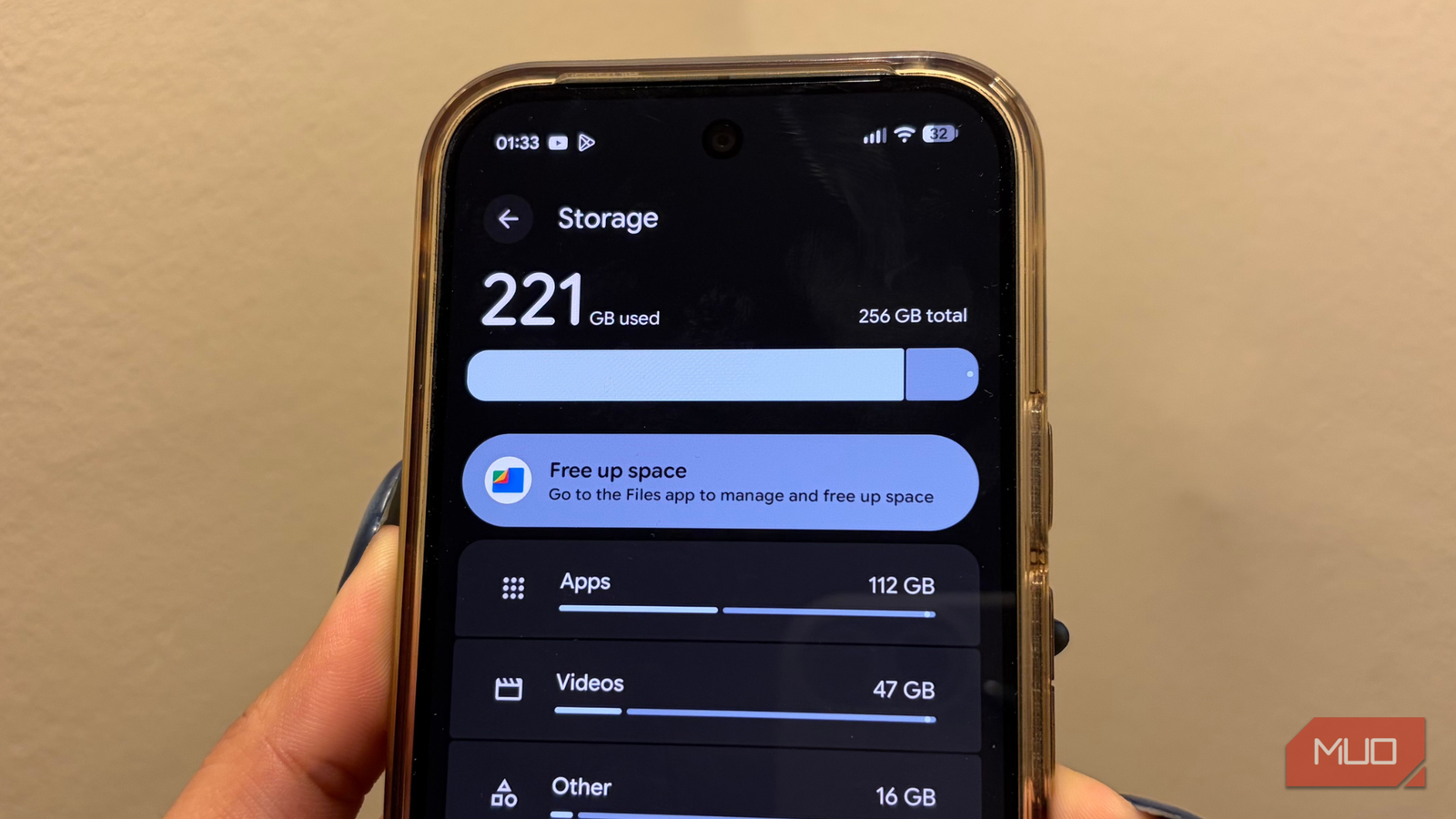
Those dreaded “low storage space” warnings really stress me out, whether I’m using an Android phone or an iPhone. There’s nothing more annoying than being forced to clear space right when you’re trying to download an app, take a photo, or update your phone. And while freeing up storage on an iPhone without deleting your favorite apps is already possible, I had completely hit my limit by constantly uninstalling apps on Android just to make some room.
That’s when I stumbled upon a hidden menu on Android that helps free up storage space without sacrificing the data you need on your phone. So, if those warnings make you as uneasy as they make me, this one trick you’ll definitely want to try before deleting anything important.

Why deleting apps and photos is not enough
The sneaky data hiding in your phone

There are plenty of ways to clean up storage on your Android smartphone, but most of us only tackle the obvious stuff. Photos, unused apps, and random files we downloaded once and forgot about are usually the biggest storage hogs. Deleting these does help, but even after clearing a lot of content, your phone often still feels low on space.
That’s because there’s a whole layer of data sitting quietly in the background. Cached files, leftover app data, and hidden system clutter continue to take up storage, even though you never see them in your regular file view. Since these files are not visible on the surface, they are quite easy to miss. So, that’s where Android’s hidden settings come in. They help you understand what’s actually taking up space and all the overlooked data, while freeing up more storage without deleting important files or personal data.
The storage cleaner that’s tucked inside your phone

I was honestly shocked when I discovered this secret menu on my Samsung. I couldn’t help but wonder why other Android phones don’t have something similar. It’s called the SysDump menu, and it’s a hidden feature that lets you clear temporary system logs. Beyond that, it provides access to advanced debugging tools, such as RAM usage and network logs. Over time, all this data can quietly pile up and take up a lot of storage, so regularly clearing it is an easy way to free up space.
To access it, open the Phone app on your Samsung device and dial *#9900#. Tap the Call button, and a menu will suddenly appear on your screen. Look for the option enabled “Delete dumpstate/logcat” or something similar and tap it. Confirm by tapping OK, and the system will clean up those hidden logs.
With just a few taps, you can reclaim storage that was quietly being used in the background without having to delete any of your apps or data that’s important.
Using this hidden menu on a Samsung phone helps you reclaim valuable storage and also improves your device’s performance by reducing lag caused by accumulated system logs. The best part is that this process does not touch your personal data, apps, or any other important files, making it a safe and reliable way to clean up your phone. It won’t cause any issues on your phone and will give it more room to breathe and operate smoothly.

I’ve used Samsung for years, but these 5 features make me feel like a pro
It’s sad that most Galaxy users never find or try these features.
Your Pixel could use a cleanup too
The easy way to tidy up your phone
Since I personally own a Pixel, I’m always on the lookout for ways to free up storage whenever it’s needed. Quite recently, I managed to recover 5GB of system storage using an open-source tool, which was great. It definitely cleared a significant amount of space, but I still felt there was room to free up even more. That’s when I discovered Files by Google and decided to see how much of a difference it could make.
Files by Google is a free Android app that doubles as a file manager and a storage cleaner. It not only helps free up storage efficiently but also makes it easier to find your files quickly. On top of that, it lets you securely share files offline with nearby users via Quick Share, making it a very versatile tool.
Here’s how you can clean up storage on your Pixel using Files by Google:
- Tap the three-line menu and select Clean.
- Select Clean from the left-side menu.
- Go through Delete duplicates, Delete memes and more files.
- Select the files thoroughly and prepare to Delete.
- When the confirmation pop-up appears, tap Clear to proceed.
The simple process helps you reclaim even more storage on your Pixel without touching your personal files.
When you clear junk files using Files by Google, they are permanently deleted. Make sure to review the files before confirming so you don’t accidentally remove something important.
Clear room for what’s next
Cleaning storage on my phone is strangely satisfying, almost like watching one of those oddly satisfying cleaning videos on Instagram or YouTube. It’s that level of instant gratification, where you can see space being reclaimed in seconds. Beyond just the feel-good factor, it actually makes room for what’s next, whether that’s new apps, photos, or updates.
Sure, we all know the usual ways to free up storage using standard settings, but these are hidden menus and tools that can work even more magic. It also makes your phone noticeably faster, smoother, and more responsive.
A little bit of maintenance sporadically goes a long way. Once you’ve done it, you’ll wonder why you didn’t make it a habit sooner.
