
I get distracted embarrassingly easily. As I’m writing this, a Replit ad playing before a podcast has already pulled my attention away. The lamp on my desk has 16 different colors, and it’s starting to feel like cycling through them is somehow more urgent than completing this paragraph. Now, imagine how different this paragraph would look if I started talking about how easily my phone pulls me in. One notification, or even just one quick “I’ll check this,” and I’m suddenly three hours deep into a TikTok scroll.
Like most, I can’t exactly afford to lose hours (or even an hour) to mindless scrolling. This is why I’ve always looked for ways to limit how often I reach for my phone, especially during deep work blocks. I’ve tried all sorts of creative ways to keep myself from getting distracted, but then I saw the viral $59 Brick device that promises to physically stop you from picking up your phone. I loved the concept, but didn’t quite love the price. So, in pure tech-journalist fashion, I thought: why pay $59 when I can build my own version for less than a dollar? And that’s exactly what I did.

What is the Brick?
The app blocker you can’t cheat

If this is the first time you’re reading about the Brick device, it’s a small NFC-powered gadget designed to help you manage your screen time. The way it works is pretty clever: you set up custom modes in the Brick app where you choose which apps to block, and then you tap your phone against the Brick device to activate it. Your apps will remain blocked until you physically walk back to the Brick and tap your phone again to unlock them.
If you’re wondering why not just use Screen Time limits or third-party apps that do the same thing, it’s because the key difference is physical friction. With Screen Time limits, you can just tap “Ignore Limit” and you’re back to doomscrolling. Even with the option to block an app entirely, you can override it by entering your Screen Time password.
While I’ve found third-party app blockers like Opal work better (and I relied on them before this), there are always ways to bypass the limits. Essentially, the app works… until it doesn’t. Once I find a way to bypass it, it’s subconsciously always on my mind. The next time I’m trying to push through something with zero willpower, I’ll use it and spend hours doomscrolling.
That’s the fundamental problem with software-only solutions — the override is always just a few taps away, and your brain knows it. With the Brick, which you can magnetically stick to your fridge (or just place far away from you), there’s no shortcut.

If you want your apps back, you have to get up, walk over, and tap your phone. That ten-second walk is often all it takes to snap you out of the subconscious instinct to reach for your phone and make you ask: do I actually need this, or am I bored?
An NFC tag + the Foqos app is all you need
Same concept, fraction of the price

The concept is great, but the Brick costs around $59 for what is, at its core, an NFC tag in a neat 3D-printed magnetic case. A pack of 10 NFC tags costs roughly $5, so one NFC tag comes down to half a dollar! This means you can technically replicate the Brick experience for under a dollar. I first tried to create an automation in the iPhone Shortcuts app to replicate the experience, but quickly realized there were a lot of limitations there.
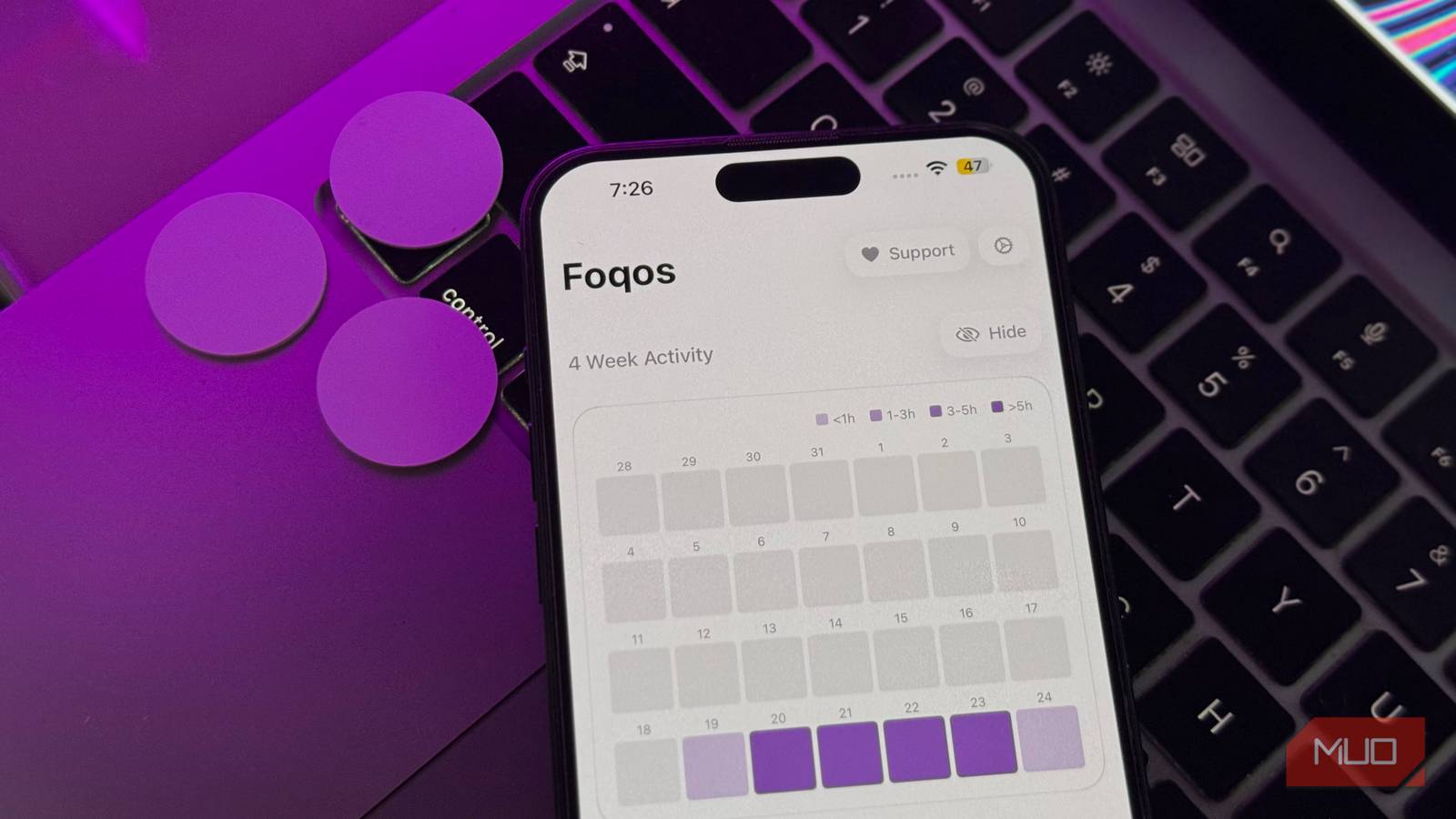
Then I found a completely free, open-source app called Foqos. This app uses Apple’s Screen Time API to do the same thing Brick does, with an NFC tag or a printed QR code. I went with the NFC route since I wanted the experience to feel as close to the Brick as possible.
Note: Foqos is only available on iOS currently. However, the developer recommends trying out Switchly for Android.
Once you install the app, you grant it Screen Time permission, and then create a profile with all the apps you’d like blocked. I’ve created three separate profiles: Work, Study, and No-phone time (for when I’m not studying or working but also don’t want to be glued to my phone).
Once your profiles are set up, you write them to your NFC tag through the app. You can choose different strategies to begin and end sessions, like manually starting and ending sessions through the app, using an NFC tag, a QR code, or a combination of NFC + Manual or QR + Manual. You can also choose to focus for a set duration, then unlock it with an NFC or QR.
That’s it! When you want to focus, tap your phone to the tag, and whichever profile you’ve selected kicks in. I’ve placed the three NFC tags I have for each profile in another room, so just like the Brick, I have to get up to switch modes. Similar to the Brick’s app, Foqos has a Strict mode that doesn’t let you delete the app while you’re in a focus session.
The best investment in my focus cost less than a dollar
I’ve been using this app for almost 10 days now, and it’s singlehandedly the best change I’ve made for my productivity. The app also displays statistics on how much you’ve focused, and my total focus time for my Work profile is 55 hours. I have a Work session going on as I write this that just crossed 5 hours! My longest session so far has been 8 hours and 43 minutes.
Not only am I getting everything I need to get done on time, I also feel a lot more relaxed, less anxious, and more present. I’ve been reading every night and actually enjoying downtime, instead of filling every quiet moment with my phone. So, $59 saved, I’m also reclaiming hours every week that I used to lose to mindless scrolling. If you’re on the fence about the Brick but don’t want to spend the money, just try this. Give it a week. Trust me.
