
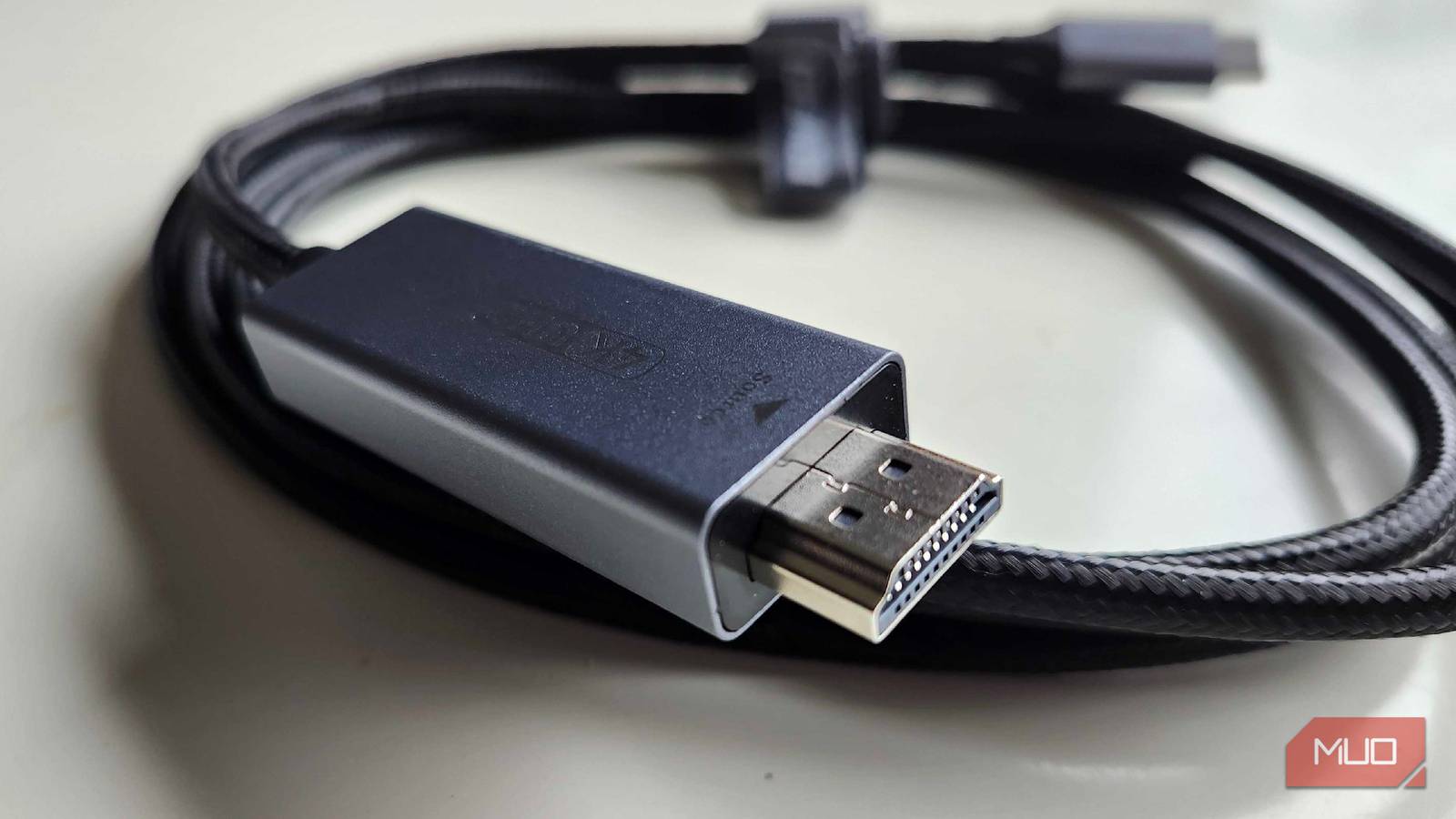
When you walk into your local big-box store to pick up a new HDMI or DisplayPort cable, you can typically grab one off the shelf without thinking twice, right? HDMI to HDMI works exactly as you’d expect, and the same goes for its more PC-centric counterpart. Heck, even a DisplayPort-to-HDMI converter will work exactly as you expect when you plug it in, providing a beautiful picture on any display.
After getting a portable monitor, I figured it would be the same kind of deal. Walk into my local Walmart, grab an HDMI-to-Type-C cable, and gain the ability to play my favorite games anywhere I’d like. Well, after multiple incorrect cables, I finally learned what I actually needed, and I’m here to make sure you don’t make the same costly mistake as yours truly.
Not all cables function the same
Unidirectional, bidirectional, DP Alt Mode; there are so many things to learn

After purchasing a few different HDMI-to-Type-C cables, I discovered something incredibly frustrating: none of them worked with my portable monitor. While you may think you can walk into any typical store and get a cable with this particular set of plugs, you’ll need to ensure you’re getting cords that go in the right direction. HDMI is typically bidirectional, meaning that either plug can send or receive video and audio, but HDMI to Type-C is a completely different ballgame.
Most Type-C to HDMI plugs are unidirectional, meaning they can only send or receive video in one direction. All the cords that I ended up getting from my local stores only supported Type-C input and HDMI output, which would explain why they didn’t work with my portable monitor. It just took me far too long to realize this, and I’m glad that return policies are a thing.

- Length(s)
-
6ft
- Brand
-
BENFEI
- System Compatibility
-
HDMI to Type-C
- Externally Powered
-
Yes
Verify the source input before purchasing
I’ve been so used to cords just working that I didn’t even think about this step
Seeing as I’ve been spoiled by HDMI and DisplayPort, I didn’t even think to try to verify this particular step before buying the initial set of cords that I got. Even other Type-C to Type-C connectors that I’ve used in the past, primarily to hook up my SteamOS-powered ROG Ally X to the portable monitor, worked in either direction. I figured that any old cable that had an HDMI and Type-C connection would work. Even browsing on forums, I learned that I wasn’t alone in my struggle of trying to figure out why this wouldn’t work.
HDMI-to-Type-C cables are typically considered active cables. There’s a small chip that converts the DisplayPort Alt mode of the Type-C signal into something HDMI can read. By translating the data from the Type-C DP-Alt connection, the cables are unidirectional, so I can’t connect them in any specific way. I needed a cord that would read the HDMI connection and convert it into something that the DP-Alt could properly read. The reverse of every cord that I had bought up to this point, basically. USB-C is the shape of the plug, but not the signal itself, and I learned that the hard way. Imagine if HDMI-Alt mode had been more popular: this could have even been more confusing.
These cables need power
After learning the error of my way, the answer was incredibly obvious

Seeing the answer now, it feels almost obvious why things didn’t want to work. If HDMI is going to be displayed, it needs additional power. If you are looking for a cord that can display from HDMI to Type-C, it will need an additional power connection. This could come in the form of an additional power connector on the plug itself, or a small adapter that comes off the original cord.
- Standard cable: USB-C (Phone/Laptop) > HDMI (TV).
- What I needed: HDMI (Console/PC) > USB-C (Monitor).
Some newer HDMI 2.1a cords do actually deliver more power than you’d expect, but to deliver a video from HDMI to Type-C, you’ll typically need around 5V and some current to actually get it moving. Since HDMI plugs typically only provide enough power to read the EDID data, they don’t have the power to convert it, which explains exactly why those other cables weren’t working for me.
Limited-use scenarios for cables
Seeing as cables like this aren’t so commonplace yet, it’s easy to get confused

Seeing as it took this long to get to a point where I could use my portable monitor with something like my Xbox Series X or my PlayStation 5, I finally understand how my parents felt back in the day when they called everything a Nintendo. After being accustomed to having so many different bidirectional cables in my life, finding a cable that requires a secondary power supply and has only a limited use case can be incredibly confusing, especially for first-time buyers. You’ll also want to make sure that you’re not bottlenecking your refresh rate with a cheaper cable, so pay attention to the output resolution and Hz count. Most portable monitors are 1080p, so a 1080p/60Hz cable should work perfectly for you.
Pay close attention to the source and the output of the cord, as the majority of cords you can buy from somewhere like Walmart or Best Buy are only going to work from a Type-C device to display on a TV, not the other way around. It can be headache-inducing to say the least, but as long as you’re looking for a cable that has power-delivery near the HDMI input, you should be in the clear.

I finally learned why my TV needs HDMI while my PC needs DisplayPort
DisplayPort is the go-to standard for gamers, while HDMI is preferred by home theater buffs — have you ever stopped to ask why? This is the reason.
Work and play are now portable
But it’s silly to think about how long it took to get here
Portable monitors are becoming far more common, especially when you can get your hands on them for incredibly cheap. Some make the process simpler by including Mini-HDMI inputs, so you can bypass this entire frustrating step. Others toss you to the hypothetical wolves and don’t tell you what you need. That’s why I’m here, to help you avoid the same headaches I faced along the way.
Now, if I want to play my favorite games on the go? I can. OrI can connect the HDMI output on the back of my graphics card to another monitor in my dual-monitor setup. It took a while to get here, but I’m beyond glad that I figured out how to finally make everything work.
