
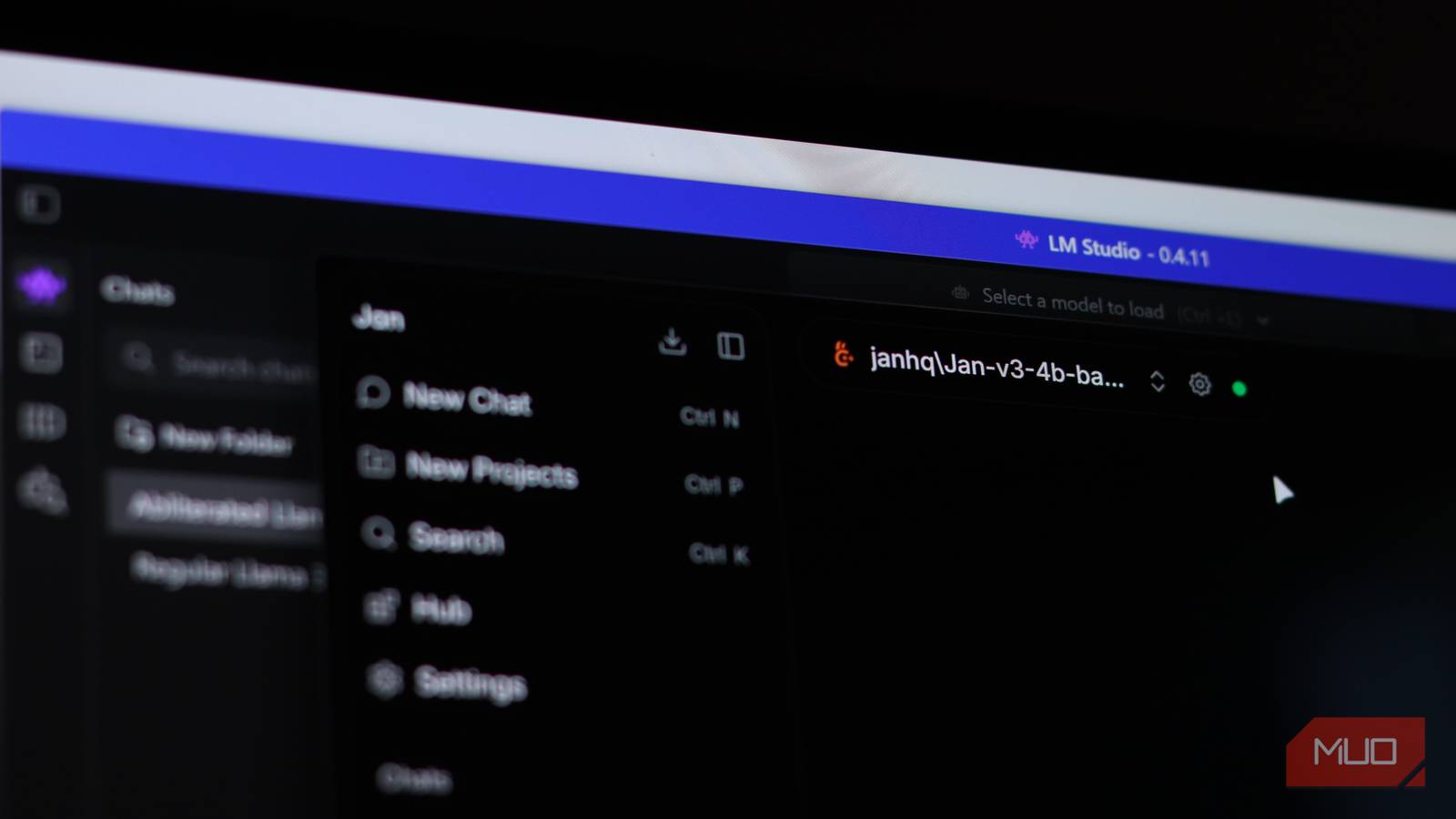
LM Studio has been my go-to app for running local LLMs since I discovered it. It’s easy to use, the UI is well-polished, and you can have any AI model up and running in a matter of a few clicks — even if you’ve never touched a terminal in your life. It’s one of the best tools if you want to enjoy the benefits of a local LLM.
But while LM Studio is free to use, it isn’t open-source. Some of its components, especially the command-line tooling, carry open licenses, but the app itself is proprietary software. For a tool that can easily sit at the core of your local AI workflows, risking a license change whenever the parent companies want is a risk I was uncomfortable with, and then I found Jan.

I thought I’d miss LM Studio. I didn’t
Why Jan feels like a real replacement for LM Studio
The alternative that eventually ended up replacing LM Studio for me is Jan. It’s a desktop application that lets you run LLMs fully offline — much like LM Studio, but not only is it completely free, it’s also open-source, with all the source code being available on GitHub. There are no licensing surprises, no proprietary lock-ins, and no fine print you need to worry about.
The interface is a lot like ChatGPT, which may be a good or bad thing depending on your taste. If you’re new to the concept of local LLMs, though, it’s familiar, clean, and welcoming. Jan was made to make local AI accessible to everyone, so the UI design imitating ChatGPT isn’t an accident. You get a chat window, a model hub, and a settings page that doesn’t require developer-level expertise to understand.
If you’re switching from LM Studio, the model library will feel familiar too. You can browse and download popular open-source models like Llama, Gemma, Mistral, Qwen, DeepSeek, and more directly from within the app. Models are also tagged to tell you whether they’ll run well on your hardware or if they’ll be a bit too much to handle.

Jan also comes with an OpenAI-compatible API server. This means that you can point other tools like Cursor, Open WebUI, custom scripts, and whatever else you might be building at Jan’s local server and have it run just as it would when communicating with OpenAI’s API. This is great to test out code and prototypes before you start interfacing with OpenAI’s actual (and paid) API. The server also has CORS (Cross-Origin Resource Sharing) support by default, which makes it quite easy to hook up to web projects.
Performance, although dictated by the model you’re using, is also quite similar to LM Studio. Token usage isn’t significantly different from LM Studio either, and the raw inference engine is essentially the same. You also get built-in extensions in case you want to extend the app’s functionality.

- OS
-
Windows, macOS, Linux
- Developer
-
Jan
- Price model
-
Free, Open-source
A free, open-source AI chat assistant that runs local large language models on your PC, no cloud required.
The privacy benefits are actually meaningful
Local models, no cloud, no surprises

Running AI locally is already the privacy-conscious choice; however, using Jan lets you go a step further. Everything from your preferences, chat history, model parameters, and the model itself stays on your machine. There’s no account to create, no telemetry data to worry about, and no cloud dependency required. You can have a fully airgapped AI user experience if you want it.
Two drawbacks of this approach are that first, you’re limited to the AI models your hardware can run, and second, open-source LLMs that you can download and run aren’t always as good as their online counterparts. There are tasks that you should use a local LLM for, but it can’t do everything.
Jan lets you remedy this by supporting remote APIs like OpenAI, Anthropic, Claude, and more if you want cloud access to their respective models. This approach doesn’t require you to choose between the two. It’s local (and private) by default, but you always have the option to choose cloud-based models when the task at hand requires one.
It’s not flawless
The rough edges you’ll notice quickly

If you’re switching over from LM Studio, you’re going to miss the detail it brings, especially in GPU layer configuration, which is far more visual and accessible in LM Studio. Additionally, features like document analysis are more mature. Jan has been catching up, but if you want fine-tuning control for every inference parameter, LM Studio is the better choice.
If you prefer working in the terminal, Ollama beats both LM Studio and Jan. As such, startup times for both visual LLM programs are comparable, but slower than Ollama. Jan sits somewhere in the middle of the competition — more transparent than LM Studio and significantly more user-friendly than Ollama.
It quietly became my default
Why I stopped opening LM Studio altogether
There’s not much stopping you from shifting to Jan from LM Studio. The learning curve is almost flat, and most of your models and data will carry over cleanly. The difference is in ownership of your local AI stack. With Jan, you’re in full control, and no unexpected pivots or licensing changes will catch you off guard.

I now use this offline AI assistant instead of cloud chatbots
Even with cloud-based chatbots, I’ll always use this offline AI assistant I found.
In practical, daily use, Jan does everything LM studio does, except it comes with the peace of mind that comes from software you can actually audit. You still get all the control and advantages you need, just without any potential hassle.
[ad_2]
Source link