
One of the cooler things about Windows is the clipboard history. It’s a feature that I like so much, I have a third-party app to replicate it on my Mac (Paste, if you’re curious). Being able to pull up items I’ve copied maybe three or four copies ago is a killer feature that I just can’t do without. Remembering what that URL was before I copied a couple of images and a headline is key to staying productive in my day to day work.
What I didn’t know is that there’s an option to sync my clipboard history across devices. That sounds great until you realize that anything you copy — credit card numbers, bank account details, or other sensitive data — will be uploaded to Microsoft’s servers so you can paste it on your “other supported devices.” That’s a security risk and worth paying attention to.

How clipboard history works in Windows 11

Windows stores a rolling history of copied items and makes it accessible via a simple Win + V shortcut. The history holds up to 25 items, and once you hit that limit, the older entries drop off the bottom of the list. It can hold plain text, HTML, and images under four MB; anything bigger will copy normally, but won’t show up in the history. The shortcut opens the clipboard panel inline wherever your cursor is, making it super easy just to paste it wherever you’re typing. You can navigate up and down the list with your arrow keys, then hit Return to paste your selection from the history.
You’ll only have your clipboard history while your computer runs; a simple reboot will clear out the list. The only copied items that last beyond a restart are pinned items, which don’t get pushed off the 25-item list.
Only text will copy across during this sync; images or other media will not.
The cloud sync option
What it actually does

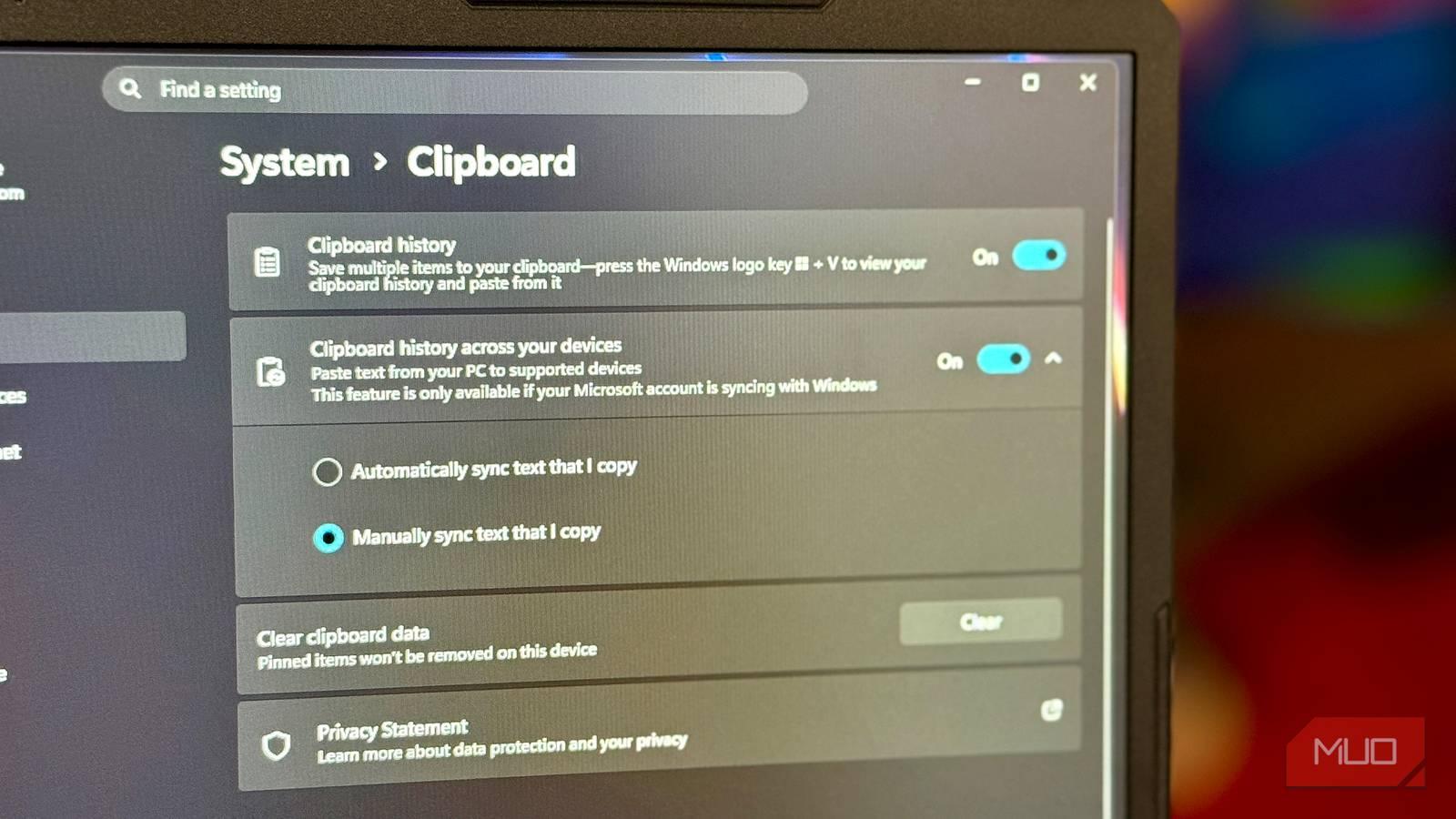
Clipboard history is off by default, but you can enable it in Settings > System > Clipboard. Toggle Clipboard history ON, and then you can set Clipboard history across your devices to ON as well.
You’ll then see options: Automatically sync text that I copy or Manually sync text that I copy. The former option will send all your stuff you copy to Microsoft’s servers, while the latter will wait until you hit the three-dot menu next to the copied item and tell it to sync.
Setting the first toggle will send all the text you copy to Microsoft’s servers so it can be available to your other authorized devices. If you copy 2FA codes, passwords, credit card numbers, or any text, it will go automatically. Microsoft says it encrypts your data, which it should, but it’s still living on their servers tied to your Microsoft account.
How to manage cloud sync safely
The middle road

Sure you could just turn off clipboard history altogether, but that seems a bit extreme. Personally, I leave the clipbaord history on and set the cloud sync toggle to Manually sync text that I copy. That way, nothing gets hoovered up and sent to Microsoft’s cloud servers without me knowing. Sure, I have to have a little foresight to know what I might need available on my other PC, but that’s a small price to pay for keeping any sensitive data I copy from winging its way to the cloud without any oversight.
There’s also a way to clear your clipboard history as you go. In System > Clipboard, just below the Clipboard history across your devices toggle, you’ll see a button to Clear clipboard data. Just click the Clear button and it will all go away (except pinned items; those stay on the current device).
You can also clear your clipboard history via the Win + V shortcut. Hit the Clear all button just above the list of clipboard items to get rid of it all. Now your family can’t just hit the shortcut and see what you’ve copied.
Other clipboard history settings worth knowing
Pin or delete?

To pin an item, hit Win + V, click the three-dot menu on any entry, and select Pin. These items stick around even after a reboot or Clear. They also take up a slot from your rolling 25-item limit: If you have 3 pinned items, your rolling limit becomes 22 items. Pinned items are great for things you paste frequently, like email sign-offs, home addresses, and canned replies.
If you want to delete one of the history items, open with Win + V and then click the three-dot menu for that item. Select Delete and poof, it’s gone.
Enable Clipboard history, but safely
Clipboard history is one of those things that seem like you won’t need it, but then you end up using it constantly once you try it for a while. It’s definitely entered my workflow process and stayed there.
That said, don’t feel like you need to sync it to the cloud. If you only work on one PC, that’s especially true. If you do have a second (or third) PC and you want to access some clipboard history on the other machines, consider just enabling the manual sync. It’s a little extra hassle, but your data will be all the safer for it.
[ad_2]
Source link