
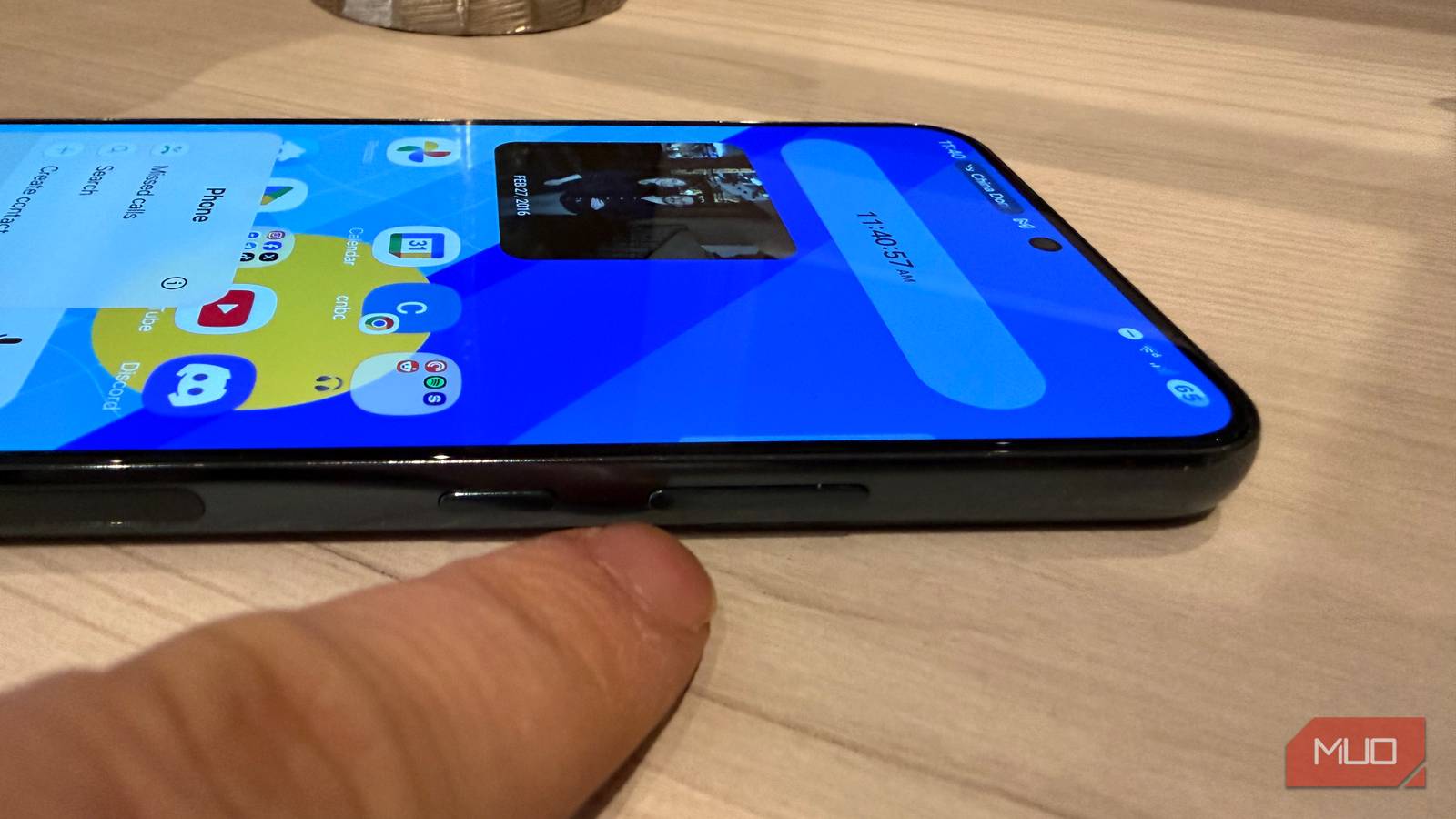
The volume buttons on your phone can do more than just adjust volume. In fact, that’s what I sought out to do: you see, every day I go on a jog with my phone and my headphones (but I’m not using Anker’s killer budget ANC headphones), and if I want to advance the track, I have to fish out my phone from my pocket to access the lock screen to change tracks. What if I could just reach into my pocket, blindly feel for the volume buttons, and advance the track that way?
Turns out, mapping your volume buttons to change the track on your audio is possible (this is Android, after all — anything is possible). On a Samsung Galaxy, there’s an easy Good Lock module to make this work (plus other modules you can use to make your Samsung Galaxy feel faster), and if you have a Pixel, you too can take back control of your volume buttons to control media.
The volume buttons are a wasted opportunity
They can do more than just control volume

Your power button does triple duty on most phones — a single press unlocks, a double press launches the camera, and a press-and-hold opens Gemini. Why can’t the volume buttons do more? On most devices, the volume buttons are the easiest to feel when the phone is in your pocket, since they take up a lot of physical space, making them ideal to control your media without you looking.
How to set up Sound Assistant to customize volume button behavior on Samsung Galaxy
Just install Good Lock first
To remap the volume buttons on your Samsung Galaxy, you’ll first need to install Good Lock, which is Samsung’s fantastic customization suite that offers many modules and apps that allow you to deeply customize the software on your Galaxy without any development knowledge. Follow these steps to enable Sound Assistant, which is the module you’ll need to control the behavior of your volume buttons.
- Download Good Lock
- Within Good Lock, search for and install Sound Assistant
- In Sound Assistant, scroll to Media key shortcuts — Turn on Control Music with Volume Keys
- You can specify whether the top button goes to the next song or the previous song. It really doesn’t matter, and you can tweak this based on how you usually place your phone in your pocket.
But what about volume control? You can do both! With this module enabled, a short tap of volume up or down will still adjust the volume, but a long press will change the track. This gives you the best of both worlds and lets you change the music without looking at your phone while it’s in your pocket, just by pressing and holding the volume buttons. You can even use Sound Assistant to animate and stylize the on-screen volume panel.

- OS
-
Android
- Developer
-
Good Lock Labs
How to customize volume buttons on Pixel
Just download this free app
If you have a Google Pixel (some are leaving Samsung for Pixel), you can also easily customize the behavior of your volume buttons so that you can use them to control media. To do that, you’ll need to download a free app called Volume Button Changer. Once you install that, here are the steps to getting your volume buttons to change tracks when your screen is off:
- Install Volume Button Changer
- Grant the app Accessibility settings to let it control your buttons
- Change Volume Up Actions (While screen is OFF) to “Next Track” (under Choose Action pick “Media”)
- Change Volume Down Actions (While screen is OFF) to “Previous Track”
The major downside to this method is that your volume buttons will no longer control volume when the screen is off — it will just change tracks. One way around this is to just use voice commands if you’re using headphones, by saying “Hey Google, volume up.” But now, when the screen is off on your Pixel, you can use the volume button to change the track.
Another method to adjust volume easily
Use voice commands to change tracks or adjust volume

While I love the idea of using physical buttons that my phone already has to control media playback, especially when I’m jogging, an even easier method of controlling your media is to use voice commands since you’re probably already using Bluetooth headphones anyway. You just have to make sure “Hey Google” is enabled. To do this:
- Open the Google app
- Tap your profile picture in the upper right -> Settings
- Open Gemini Settings
- Open Talk to Gemini hands-free
- Turn on “Hey Google”
Now, you can use your voice to say things like “Hey Google, next track” or “Hey Google, volume up” without even touching your phone.

I’ve used Samsung for years, but these 5 features make me feel like a pro
It’s sad that most Galaxy users never find or try these features.
Take full advantage of your buttons
Your volume buttons can do more

Back in the days of custom ROMs and peak Android tweaking, there were methods to customize and change almost every aspect of your Android experience. Today, thanks to customization suites like Good Lock, you don’t have to be a developer to have control over your hardware. Using the volume buttons for more than just volume has been a great quality of life improvement for me and is super convenient, as I can now change my music while jogging simply by reaching into my pocket and using the volume buttons.
[ad_2]
Source link