
Your router is your portal to the outside world and a vital part of how you interact with the internet. Most of the time, you’re advised to leave your router alone unless you know what you’re doing. There are settings in there that, once tweaked, could stop you from getting online.
But there are also router settings that are very much worth tweaking, as they can make your home network faster and safer.
Changing the DNS settings on your router is one of the simplest, fastest, and most effective network upgrades you can make—and it costs absolutely nothing.
What “default DNS” actually means
Your ISP’s settings might not be bad, but they could be better
When you set up a new router, it automatically pulls DNS settings from your internet provider. The Domain Name System (DNS) converts website names into IP addresses so your browser knows where to connect. Every time you visit a website, open an app, or stream a show, a DNS request happens in the background. DNS is basically like a big phonebook for the internet.
But if you’ve never changed anything, that request is almost certainly being handled by your ISP. That doesn’t make your ISP’s DNS malicious, but it does mean that it could be better. That’s because most ISP DNS solutions don’t prioritise privacy features like encrypted DNS at the router level, and typically don’t give you content filtering or logging options, which can be handy.

Why you should change your router’s default DNS
It’s a tiny, privacy-focused tweak for your whole network

There is a knock-on effect from that, too. Your ISP’s DNS isn’t malicious, as said, but it’s a small privacy problem that you can easily fix by swapping it for an encrypted DNS provider. It’s a small change that makes a proper difference to your online privacy.
Your ISP can see every domain you visit
Even though most websites now use HTTPS, DNS lookups still reveal the domains you visit unless you’re using encrypted DNS like DNS-over-HTTPS (DoH) or DNS-over-TLS (DoT). Many ISPs log DNS queries, and in countries like the US,UK, and wider EU, filtering infrastructure already exists at the ISP level. Switching to a privacy-focused DNS provider doesn’t make you invisible, but it does reduce how much passive browsing data flows through your ISP’s resolver by default.
The default ISP DNS lacks built-in protections
Your ISP’s DNS isn’t a security black hole, but most third-party DNS providers have extensive additional protections in comparison. For example, your default ISP DNS may attempt to block some malware, phishing, and other dangerous content, but it doesn’t go as far as third-party solutions.
For example, NextDNS gives you custom DNS profiles to use across the devices on your network. This allows you to customize DNS settings per device, which in turn gives you greater control over what can be accessed without compromising on speed.
But even if you don’t want customizable DNS profiles, secure DNS providers like Quad9 and Cloudflare significantly boost your security and privacy with minimal effort.
How to change your default router DNS
It only takes two minutes—and there is another solution if this doesn’t work
Here’s the thing: changing your router’s default DNS settings sounds really technical, but it’s more straightforward than you think.
I’ll admit that how straightforward it is depends on your router, but for the most part, it’s a simple process.
Open your router’s settings panel with its default IP address

First, you’ll need to log into your router’s admin and settings panel, typically accessed through your browser and its default IP address. Now, if you don’t know that IP address, don’t worry, as there are a couple of ways you can find it.
First, check the router itself. The default IP address for the router settings panel may be on a sticker or similar. If not, you can always try an internet search for “[router name] default ip address,” which usually finds what you need quickly.
But if not, your operating system also has a handy way to reveal what’s known as the “default gateway.”
- Windows: Press Win + X, open the Command Prompt/Terminal, and input ipconfig. Scroll down and find the IP address alongside the Default gateway.
- macOS: Head to System Settings > Network, then select your active internet connection. Now, select Details > TCP/IP and look for the IP address alongside Router.
- Linux: Open a terminal and run the command ip route | grep default.
You’ll need to copy the default gateway IP address into your browser address bar for each operating system, then log in using your router’s username and password. Again, if you don’t know this, take a look around your router, because it’s often written on there.
Swap out the default ISP DNS settings
Once you access the router admin panel, you’re typically looking for a setting under the WAN, Internet, Routing, or DNS sections. As most router firmware is different, there isn’t a universal menu category for this, but it’ll typically be found under something along those lines.
If you’re lucky, your router may have a settings search function that you can use to pinpoint the DNS settings.
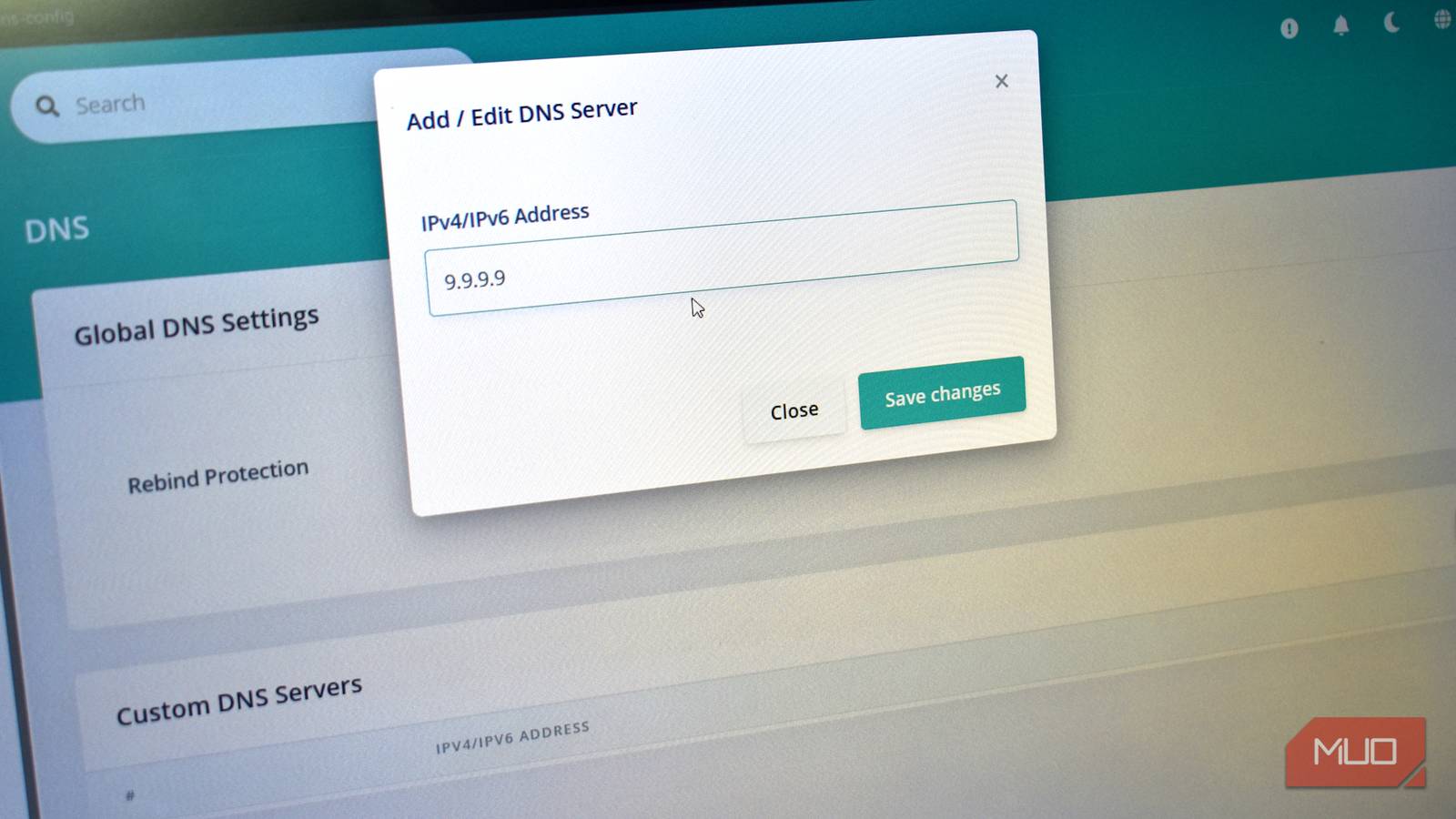
Once you find what you’re looking for, you’ll want to add your custom DNS providers. The interface you see will differ, but there should be an option to Add server, Add DNS, or similar. You can then add the Preferred and Alternative DNS servers to the list, adding both the IPv4 and IPv6 addresses.
I’ve created a list of some fast and secure DNS providers below.
|
Provider |
Primary IPv4 |
Secondary IPv4 |
Primary IPv6 |
Secondary IPv6 |
|---|---|---|---|---|
|
Quad9 |
9.9.9.9 |
149.112.112.112 |
2620:fe::fe |
2620:fe::9 |
|
Cloudflare |
1.1.1.1 |
1.0.0.1 |
2606:4700:4700::1111 |
2606:4700:4700::1001 |
|
|
8.8.8.8 |
8.8.4.4 |
2001:4860:4860::8888 |
2001:4860:4860::8844 |
|
OpenDNS |
208.67.222.222 |
208.67.220.220 |
2620:119:35::35 |
2620:119:53::53 |
Once you’re done, save the settings, and you’re good to go.
What if you can’t change your router’s DNS settings?
In some cases, you’ll find that your ISP has locked down the router and won’t allow access to it. It’s a big problem that faces millions of folks—but it’s not an insurmountable problem.
That’s because while it’s frustrating, you can change the DNS settings on your device instead, which takes more time, but means you can still swap the default ISP DNS for something more secure.
[ad_2]
Source link