
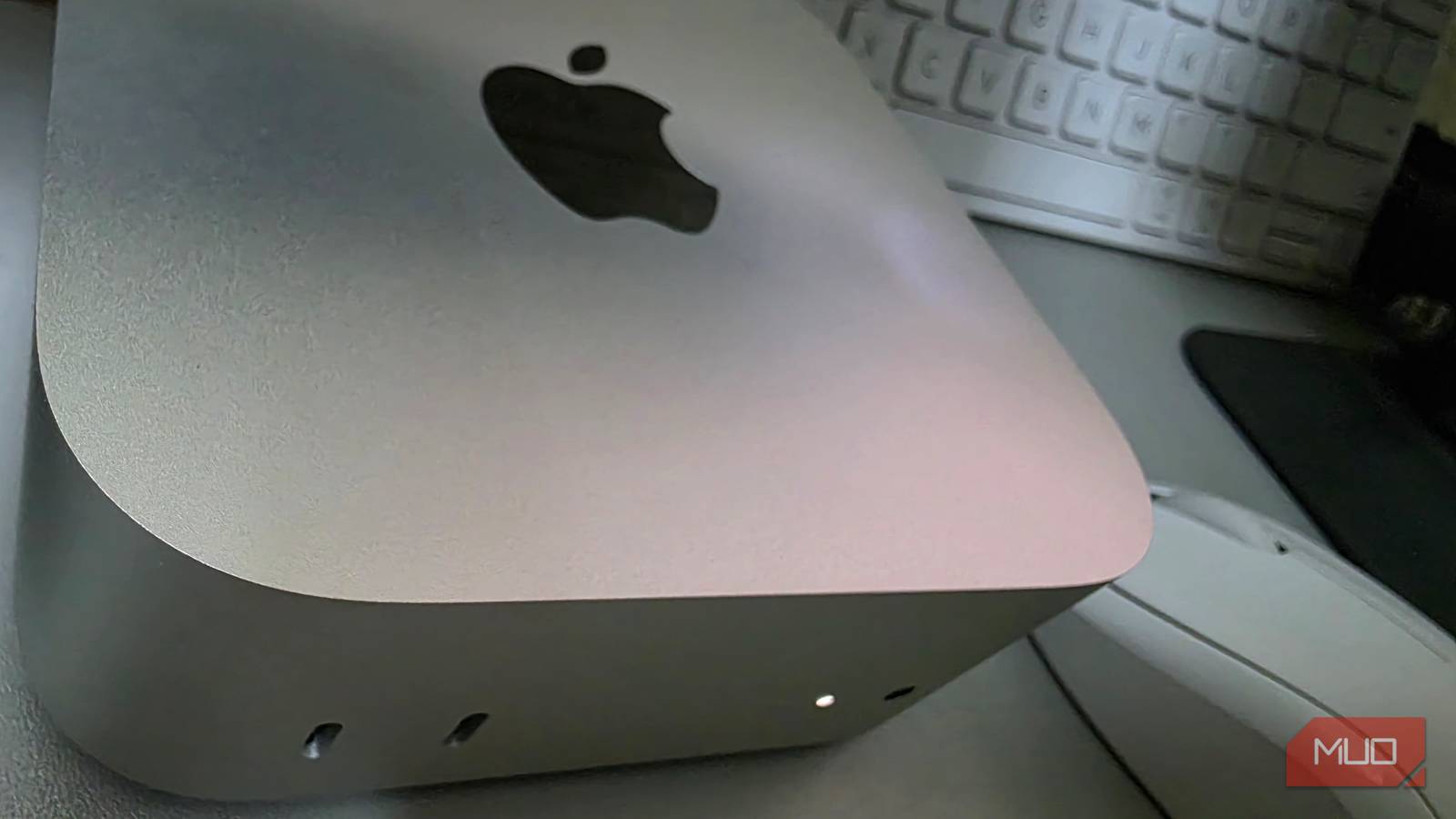
The Mac mini was never meant to replace my existing setup. Windows had been my default for years, and it still handled my work reliably. Most of what I do involves writing, researching, and keeping dozens of browser tabs open at once, so I didn’t have a strong reason to switch platforms.
Because of that, it came in as a secondary machine, used alongside Windows rather than instead of it. I planned to use it when it made sense and go back to Windows when it didn’t. What changed wasn’t Windows but how often the Mac became the machine I opened first.
Living inside Spotlight
One shortcut replaced daily navigation
Spotlight was the first macOS feature that replaced something I used to do many times a day. Instead of deciding where something was saved or which menu might contain it, I started using one shortcut and typing. Within a few days, Command + Space became the way I opened apps, pulled up files, and jumped into settings.
It is a system-wide search in macOS that pulls apps, files, and system controls into one results list. If I need a document, an image, or a setting, I don’t start by opening Finder or digging through menus. I use the same shortcut, type a few letters, and open what I need from the first screen. Before long, that reduced the number of clicks it took to reach common settings.
Windows has Search too, and I used it for years from the Start menu and taskbar. On my system, though, Windows Search often showed web-style suggestions alongside local results, even when I was looking for something already on the PC. I’d search for a filename or a setting and still have to ignore extra results layered into the list. Spotlight behaved differently in the same situations. It surfaced local apps, files, and settings first, so the search results stayed focused on what was already on the machine.
The other part that kept me using it was what it handled without switching contexts. Simple calculations and conversions appeared directly in the results. Unlike Windows Search, Spotlight performs these basic searches locally and in offline mode. Typing Bluetooth took me straight to the relevant control, rather than sending me through multiple panels first. As the days went on, the bigger change was measurable. I spent less time navigating and more time staying in the same window, which made the Mac feel faster to operate, even when the underlying task was the same.

Why I Prefer Windows File Explorer Over macOS Finder
It’s just easier.
Making macOS fit my existing workflow
Adjusting the system to existing habits

Spotlight made the Mac quick to get around, but it didn’t solve one problem I ran into during everyday use. The friction showed up in muscle memory, not performance. After years on Windows, my hands were trained for shortcuts like Ctrl + C and Ctrl + V. My fingers went there without conscious thought. On macOS, those same actions use the Command key instead. While rearranging paragraphs and moving text around, I kept pressing the Windows shortcuts out of habit.
The keyboard itself wasn’t the issue. I use an HP keyboard with the Mac mini, and it feels familiar for basic typing. Even with a familiar keyboard, my fingers still reached for Windows shortcuts. Rather than messing with my muscle memory, I adjusted macOS using the Modifier Keys setting under System Settings –> Keyboard. I then reassigned the modifiers on my HP keyboard to mirror the copy, cut, and paste behavior I had used for years on Windows.
After that change, text editing stopped slowing me down. I could move, copy, and rearrange text without interrupting my flow or correcting key presses mid-sentence. Spotlight had already made the Mac fast to navigate. Fixing the keyboard was what made it work for longer stretches, not just brief tests.
A calmer and more predictable work experience
Fewer interruptions during everyday use

Once I started working full days on the Mac mini, the differences showed up during ordinary tasks. On my Windows laptop, the cooling fan often became audible even during light work. With the Mac mini running the same workload, that background noise was largely absent, so the room stayed quiet while I worked.
Updates were the other change I noticed. On Windows, update prompts and restart reminders tended to appear mid-session, and even after postponing them, they stayed in the back of my mind as something I still had to deal with. On the Mac, I was less often asked to deal with updates mid-task.
The setup I kept using
I didn’t switch to macOS because Windows failed me. I switched because one setup consistently demanded less attention during the same kind of work. Slowly, I stopped thinking about which machine to use and started using the one that stayed quiet, predictable, and out of the way. Over time, it became the system I opened first.
[ad_2]
Source link